> For the complete documentation index, see [llms.txt](https://support.docstudio.com/llms.txt). Markdown versions of documentation pages are available by appending `.md` to page URLs; this page is available as [Markdown](https://support.docstudio.com/user/dictionaries/how-to-create-and-manage-dictionaries.md).
# How to Create and Manage Dictionaries
This document explains how to create, configure, and delete dictionaries in DocStudio.
{% hint style="info" %}
See the [Glossary](/glossary/glossary.md) for DocStudio term definitions.
{% endhint %}
### Before you start
{% hint style="warning" %}
You must have the **Dictionary editing** permission to create or manage dictionaries.
{% endhint %}
With this permission, you can:
{% columns %}
{% column width="41.66666666666667%" %}
* create dictionaries
* add columns
* reorder columns
* edit columns
* delete records
{% endcolumn %}
{% column width="58.33333333333333%" %}
* change the dictionary name
* change the description and access level
* delete dictionaries
* create records and edit record values
{% endcolumn %}
{% endcolumns %}
### Create a dictionary
1. Open **Dictionary** in the sidebar.
2. Click the button.
### Configure dictionary settings
After you create a dictionary, configure its basic settings.
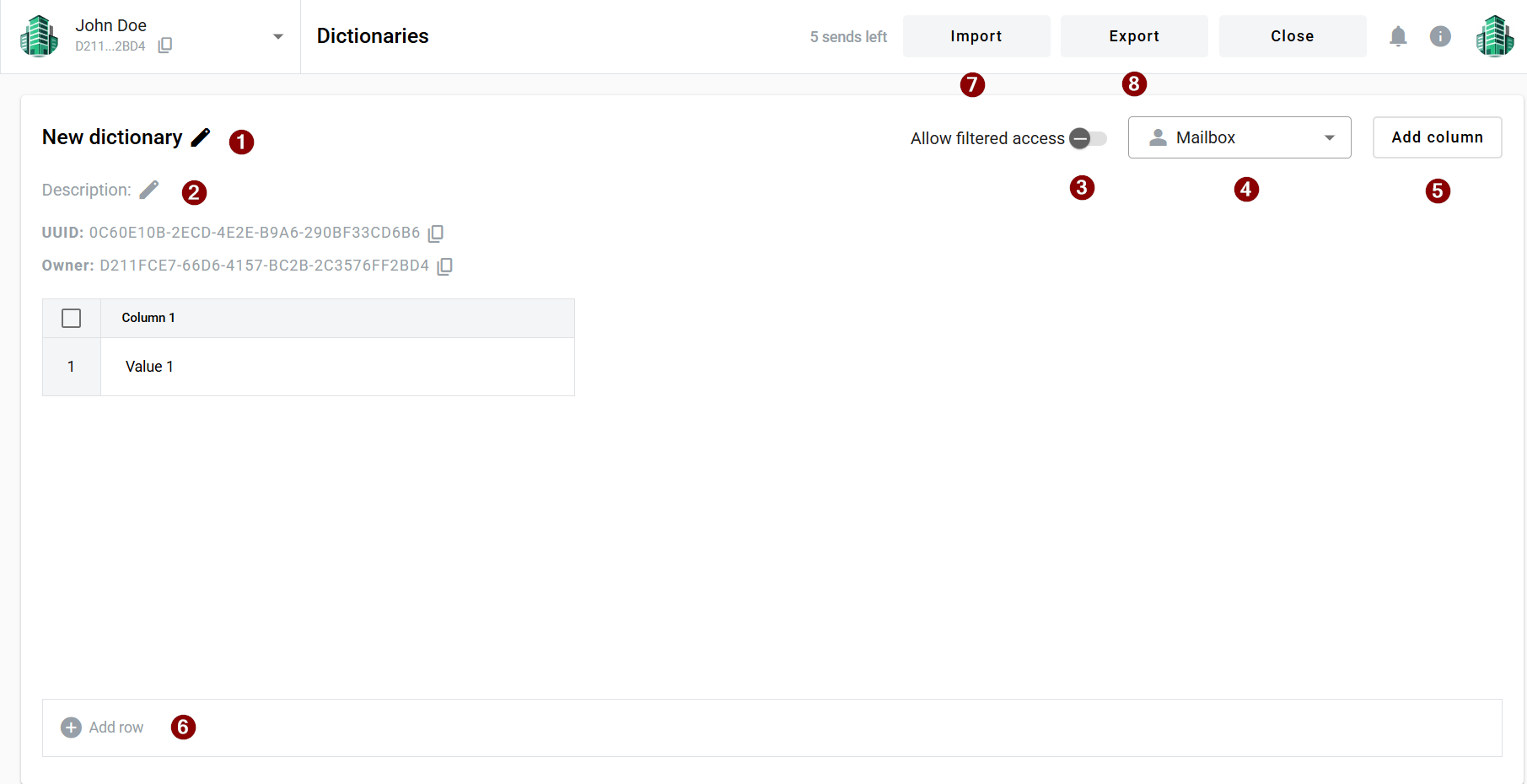
1. Set **Name**. The default value is **New dictionary**. The maximum length is **128** characters.
2. Set **Description** if needed. The maximum length is **256** characters.
3. Use **Allow filtered access** to control which values are available in an envelope dictionary field.
* **Off** — users can select any value from the selected column
* **On** — available values depend on other field values
4. Set **Access level**. The default value is **Mailbox**.
* **Mailbox** — only the current mailbox can use the dictionary
* **Account** — all mailboxes in the same account can use the dictionary
* **Public** — all mailboxes can use the dictionary
### Manage columns
{% columns %}
{% column %}
1. Click **Add column** to create a new column.
2. Enable **Extended Character limit** if you need up to **5000** characters in that column.
{% hint style="warning" %}
If you enable **Extended Character limit**, this column can be used only in **Lookup fields**. It is not available for **Dictionary fields**.
{% endhint %}
{% endcolumn %}
{% column %}
{% endcolumn %}
{% endcolumns %}
{% hint style="info" %}
Columns with an extended character limit cannot be used to filter dictionary records. If a Lookup field uses such a column, the field cannot be enabled for search or filtering in the mailbox.
{% endhint %}
Hover over a column header to open column actions:
* **Copy column UUID**
* **Filter**
* **Rename**
* **Delete**
{% hint style="info" %}
If a column is less than **300 px** wide, these options collapse into a single dropdown menu.
{% endhint %}
Drag the **Column**  icon to reorder columns. DocStudio uses the same order when you create dictionary fields.
### Manage rows
1. Click **Add row** to create a new record.
2. Select rows with the checkbox.
3. Click **Delete rows** when you need to remove selected records.
#### Cleaned dictionary values
DocStudio automatically removes unsupported characters from the beginning and end of dictionary record values. This applies when you add a new row, edit an existing row, or import dictionary records from a file.
DocStudio removes leading and trailing spaces, tabs, line breaks, carriage returns, and non-breaking spaces. Characters inside the value are not removed, so spaces between words stay unchanged.
### Import or export a dictionary
* Click **Import** to upload a dictionary from your computer.
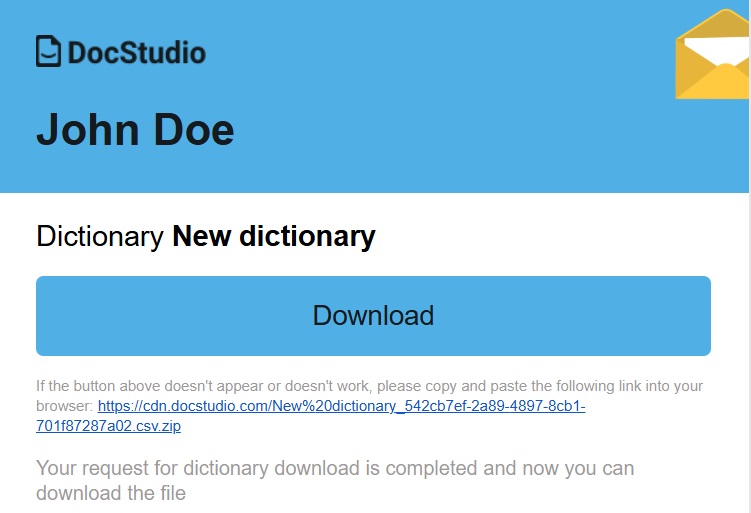
* Click **Export** to start an export. When the export is ready, DocStudio sends the download link by email.
{% hint style="info" %}
When you import a CSV file, DocStudio automatically enables **Extended Character limit** for any column containing a value longer than 256 characters.
{% endhint %}
### Delete a dictionary
1. Open the dictionaries list.
2. Click **Delete** next to the dictionary.
3. Confirm the action.
### What happens after you delete a dictionary or column
#### Template behavior
If you delete a dictionary or a dictionary column, the template becomes invalid. Select a new dictionary or column in the dictionary field properties.
#### Envelope behavior
If you delete a dictionary or a dictionary column, the dictionary field is disabled during processing. The envelope is destroyed automatically after the expiration date.
{% hint style="warning" %}
If **Custom values** is enabled, the dictionary field behaves like a text field and accepts manual input.
{% endhint %}
### Related topics
* [Template Dynamic Fields Overview](/user/template-builder/template-dynamic-fields/template-dynamic-fields-overview.md)
* [Dictionary Field](/user/template-builder/template-dynamic-fields/dictionary-field.md)
* [Lookup Field](/user/template-builder/template-dynamic-fields/lookup-field.md)
---
# Agent Instructions
This documentation is published with GitBook. GitBook is the documentation platform designed so that both humans and AI agents can read, navigate, and reason over technical content effectively. Learn more at gitbook.com.
## Querying This Documentation
If you need additional information that is not directly available in this page, you can query the documentation by asking a question.
Perform an HTTP GET request on the following URL with the `ask` and `goal` query parameters:
```
GET https://support.docstudio.com/user/dictionaries/how-to-create-and-manage-dictionaries.md?ask=&goal=
```
`ask` is the immediate question: it should be specific, self-contained, and written in natural language.
`goal` is what the user is ultimately trying to achieve, the reason they need the answer. Sharing it helps GitBook give you a better, more relevant answer. A goal is most helpful when it describes the outcome the user wants rather than restating the question. For example, with `ask=how do I create an API token`, a goal like `automate deployments from our CI pipeline` lets GitBook tailor the answer to that use case.
The response will contain a direct answer to the question and relevant excerpts and sources from the documentation.
Use this mechanism when the answer is not explicitly present in the current page, you need clarification or additional context, or you want to retrieve related documentation sections.

 button.
### Configure dictionary settings
button.
### Configure dictionary settings


 next to the dictionary.
3. Confirm the action.
### What happens after you delete a dictionary or column
#### Template behavior
If you delete a dictionary or a dictionary column, the template becomes invalid. Select a new dictionary or column in the dictionary field properties.
#### Envelope behavior
If you delete a dictionary or a dictionary column, the dictionary field is disabled during processing. The envelope is destroyed automatically after the expiration date.
{% hint style="warning" %}
If **Custom values** is enabled, the dictionary field behaves like a text field and accepts manual input.
{% endhint %}
### Related topics
* [Template Dynamic Fields Overview](/user/template-builder/template-dynamic-fields/template-dynamic-fields-overview.md)
* [Dictionary Field](/user/template-builder/template-dynamic-fields/dictionary-field.md)
* [Lookup Field](/user/template-builder/template-dynamic-fields/lookup-field.md)
---
# Agent Instructions
This documentation is published with GitBook. GitBook is the documentation platform designed so that both humans and AI agents can read, navigate, and reason over technical content effectively. Learn more at gitbook.com.
## Querying This Documentation
If you need additional information that is not directly available in this page, you can query the documentation by asking a question.
Perform an HTTP GET request on the following URL with the `ask` and `goal` query parameters:
```
GET https://support.docstudio.com/user/dictionaries/how-to-create-and-manage-dictionaries.md?ask=
next to the dictionary.
3. Confirm the action.
### What happens after you delete a dictionary or column
#### Template behavior
If you delete a dictionary or a dictionary column, the template becomes invalid. Select a new dictionary or column in the dictionary field properties.
#### Envelope behavior
If you delete a dictionary or a dictionary column, the dictionary field is disabled during processing. The envelope is destroyed automatically after the expiration date.
{% hint style="warning" %}
If **Custom values** is enabled, the dictionary field behaves like a text field and accepts manual input.
{% endhint %}
### Related topics
* [Template Dynamic Fields Overview](/user/template-builder/template-dynamic-fields/template-dynamic-fields-overview.md)
* [Dictionary Field](/user/template-builder/template-dynamic-fields/dictionary-field.md)
* [Lookup Field](/user/template-builder/template-dynamic-fields/lookup-field.md)
---
# Agent Instructions
This documentation is published with GitBook. GitBook is the documentation platform designed so that both humans and AI agents can read, navigate, and reason over technical content effectively. Learn more at gitbook.com.
## Querying This Documentation
If you need additional information that is not directly available in this page, you can query the documentation by asking a question.
Perform an HTTP GET request on the following URL with the `ask` and `goal` query parameters:
```
GET https://support.docstudio.com/user/dictionaries/how-to-create-and-manage-dictionaries.md?ask=