> For the complete documentation index, see [llms.txt](https://support.docstudio.com/llms.txt). Markdown versions of documentation pages are available by appending `.md` to page URLs; this page is available as [Markdown](https://support.docstudio.com/user/review/review-list-page-overview.md).
# Review List page Overview
This document explains how to find, filter, and open review processes on the Review page. It also describes review categories, list columns, sorting, pagination, and the empty state.
Open **Review** in the sidebar to view the review processes available to you. Use categories, filters, and search to find the process you need.
{% hint style="warning" %}
Your billing plan must include the Review feature. You also need the required mailbox permissions to open **Review** and use the available actions.
{% endhint %}
{% hint style="info" %}
DocStudio keeps review processes separated from regular envelopes. You can find them only in **Review**, not in **Mailbox**.
{% endhint %}
### Review categories
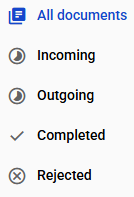
Use categories to quickly find the review processes you need. Categories group processes by status and your role in them.
{% columns %}
{% column width="66.66666666666666%" %}
* **All documents** — all review processes you can access
* **Incoming** — active processes that require your review
* **Outgoing** — active review processes where you are the initiator
* **Completed** — review processes with the **Completed** status
* **Rejected** — review processes with the **Rejected** status
{% endcolumn %}
{% column width="33.33333333333334%" %}
{% endcolumn %}
{% endcolumns %}
### Accept review invitations
{% hint style="info" %}
If you have several mailboxes and have not selected an auto-deposit mailbox for reviews, email invitations appear in the yellow block in **Incoming**.
{% endhint %}
1. Open the invitation or follow the link in the invitation email to choose a mailbox and accept it.
2. Select the mailbox you want to use for the review. If you have no mailbox available, create one on the invitation page.
3. To receive future review invitations automatically in this mailbox, select **Assign this mailbox for all subsequent reviews**.
4. Click **Apply**.
The document opens in the Review editor after you accept the invitation. You can also accept all pending invitations at once or select several invitations in the yellow block and accept them together.
### Search and filter reviews
Use the search field to find a review process by its subject or envelope UUID.\
Use filters to narrow the results:
* **Status** — select a status to view matching processes
* **Period** — select a period to limit the results by date
* **Reviewers** — select a reviewer to view processes that include this reviewer
### Review list
Each row shows the details of a review process. Select the row to open the process in the Review editor. The list contains the following columns:
* **Subject** — the review subject
* **Status** — the current process status
* **Ready to sign** — the number of reviewers who select **Ready to sign** and the total number of reviewers, for example, `3 of 5`
* **Last update** — the date and time of the latest activity in the process
DocStudio sorts the list by **Last update** and shows the most recent activity first. Use the pagination controls when the list contains several pages.
### No review processes yet
{% columns %}
{% column %}
DocStudio shows **No review processes yet** when the list is empty.
To start a review process see [**How to Upload a Document for Review**](https://support.docstudio.com/user/review/how-to-upload-a-document-for-review).
{% endcolumn %}
{% column %}
{% endcolumn %}
{% endcolumns %}
### Related topics
* [How to Upload a Document for Review](https://support.docstudio.com/user/review/how-to-upload-a-document-for-review)
* [Review Process Editor](https://support.docstudio.com/user/review/review-process-editor)
* [Mailbox Permissions](https://support.docstudio.com/user/user-access-and-permissions/mailbox-permissions)
---
# Agent Instructions
This documentation is published with GitBook. GitBook is the documentation platform designed so that both humans and AI agents can read, navigate, and reason over technical content effectively. Learn more at gitbook.com.
## Querying This Documentation
If you need additional information that is not directly available in this page, you can query the documentation by asking a question.
Perform an HTTP GET request on the following URL with the `ask` and `goal` query parameters:
```
GET https://support.docstudio.com/user/review/review-list-page-overview.md?ask=&goal=
```
`ask` is the immediate question: it should be specific, self-contained, and written in natural language.
`goal` is what the user is ultimately trying to achieve, the reason they need the answer. Sharing it helps GitBook give you a better, more relevant answer. A goal is most helpful when it describes the outcome the user wants rather than restating the question. For example, with `ask=how do I create an API token`, a goal like `automate deployments from our CI pipeline` lets GitBook tailor the answer to that use case.
The response will contain a direct answer to the question and relevant excerpts and sources from the documentation.
Use this mechanism when the answer is not explicitly present in the current page, you need clarification or additional context, or you want to retrieve related documentation sections.