# How to Sign an Envelope (Qualified Electronic Signature)
{% hint style="info" %}
To sign a document, the envelope must contain at least one signature field.
{% endhint %}
### How to sign an envelope using QES
{% columns %}
{% column width="50%" %}
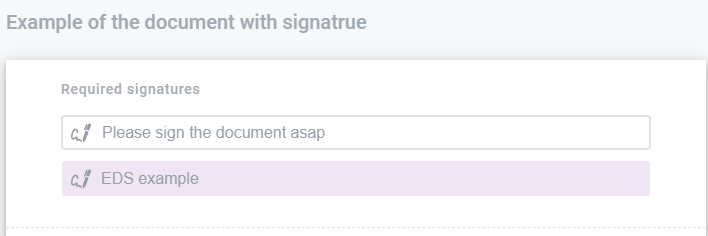
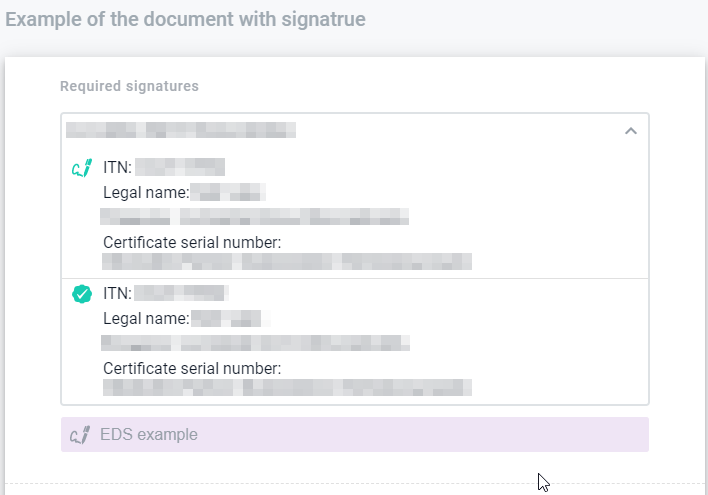
1. In the **Required signatures** block:
* Click the **QES signature** button.
* Or click the **Pencil** icon, open the target field, and click it.
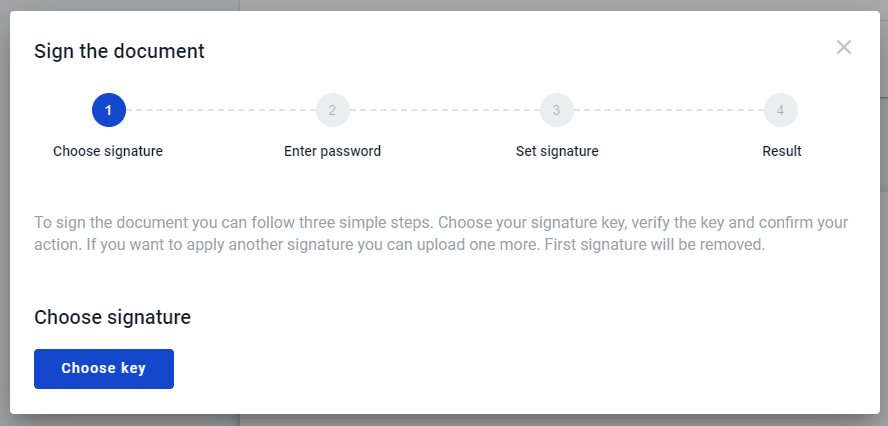
2. In the modal window, review the signing instructions.
{% endcolumn %}
{% column width="50%" %}
{% endcolumn %}
{% endcolumns %}
{% columns %}
{% column width="41.66666666666667%" %}
3\. Click **the** button and select the electronic signature type you want to apply.
4\. Read the certificates from your key.
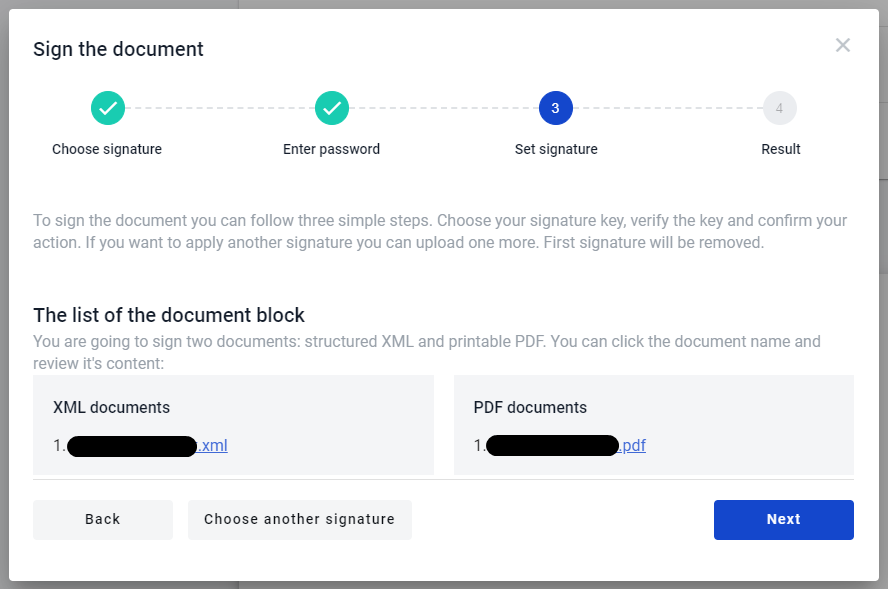
5\. Click **the** button to review the list of documents you are going to sign.
{% endcolumn %}
{% column width="58.33333333333333%" %}
{% endcolumn %}
{% endcolumns %}
{% hint style="info" %}
If the sender enabled the **Qualified** option for the signature field, you can apply only a qualified electronic signature.
{% endhint %}
{% columns %}
{% column width="41.66666666666667%" %}
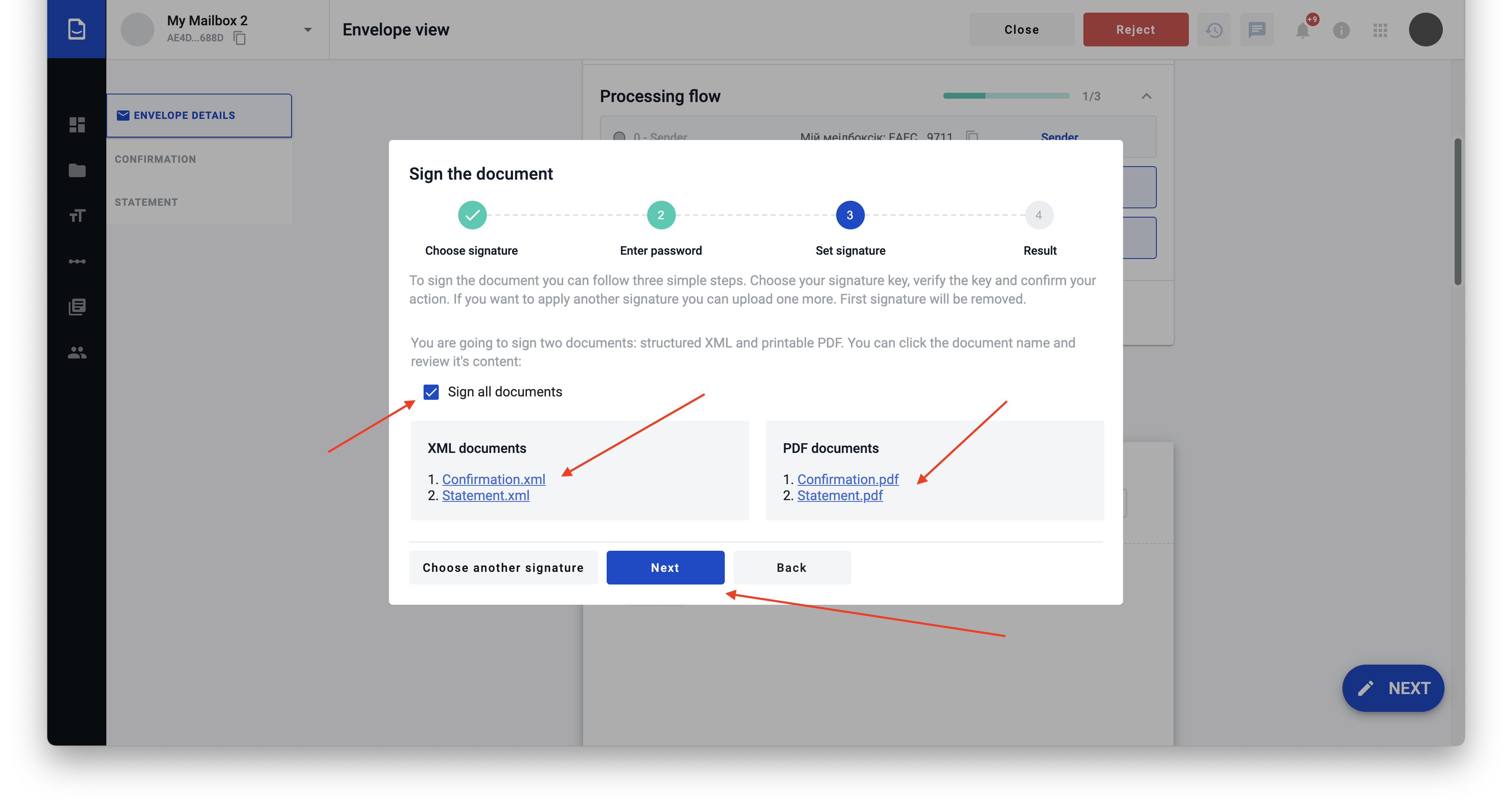
The document list includes:
* PDF version in human-readable format
* XML version with structured document data
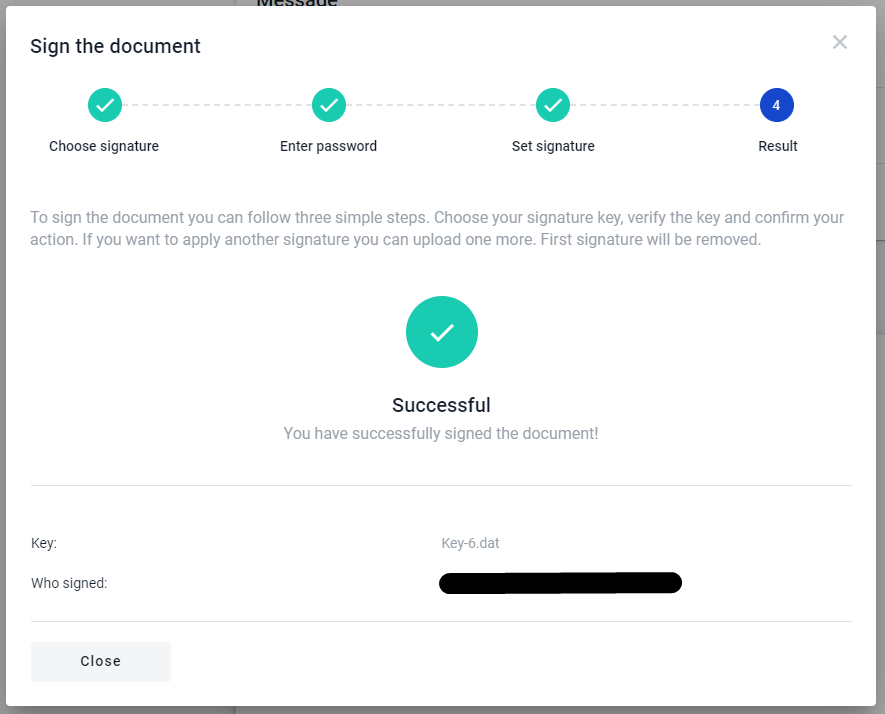
6. Click **the** button again to review the signing result.
{% endcolumn %}
{% column width="58.33333333333333%" %}
{% endcolumn %}
{% endcolumns %}
{% columns %}
{% column %}
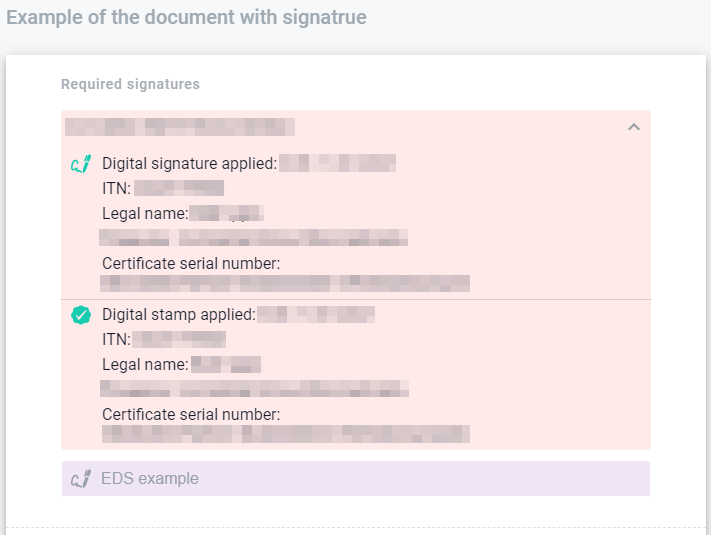
7\. After the modal closes, review the signature status in the **Required signatures** block.
8\. Click the signed field to open detailed information about who signed the document and when.
9\. Sign all documents assigned to your role and click **Send** to complete the signing flow.
{% endcolumn %}
{% column %}
{% endcolumn %}
{% endcolumns %}
{% columns %}
{% column %}
{% endcolumn %}
{% column %}
{% endcolumn %}
{% endcolumns %}
{% hint style="info" %}
If needed, you can also apply a stamp. Use **I want to choose stamp** on the second signing step.
{% endhint %}
### How to sign all documents in envelope
You can sign all eligible documents in one flow.
1. Follow the signing flow until you reach the documents list.
2. If more than one document is available, select **Sign all documents**.
3. Review the full list of documents available for signing.
4. Continue the signing flow to sign all documents from the list.
{% hint style="warning" %}
Do not forget to click **Send** after the last signing step. Otherwise, the signature will be lost.
{% endhint %}
### How to download signed documents
You can download signed documents only after all participants with the **Signer** role complete their steps.
1. Make sure the envelope is completed.
2. Open the envelope.
3. Click the **Download** button in the header to download the full envelope archive.
4. Or click the **Download** button next to a document name to download that document with its signatures.
After you click the download button, the archive downloads automatically.
### How to check signature validity
To validate the signature:
1. Download the archive with the signed document and signature files.
2. Open [the CZO verification service](https://czo.gov.ua/verify).
3. Select the `.p7s` file and the signed document.
4. Click **Check**.
{% hint style="info" %}
After validation is complete, review the result.
{% endhint %}
---
# Agent Instructions: Querying This Documentation
If you need additional information that is not directly available in this page, you can query the documentation dynamically by asking a question.
Perform an HTTP GET request on the current page URL with the `ask` query parameter:
```
GET https://support.docstudio.com/user/sign-and-download-envelopes/how-to-sign-an-envelope-qualified-electronic-signature.md?ask=
```
The question should be specific, self-contained, and written in natural language.
The response will contain a direct answer to the question and relevant excerpts and sources from the documentation.
Use this mechanism when the answer is not explicitly present in the current page, you need clarification or additional context, or you want to retrieve related documentation sections.