# How to Read an Advanced Electronic Signature
### Read the key
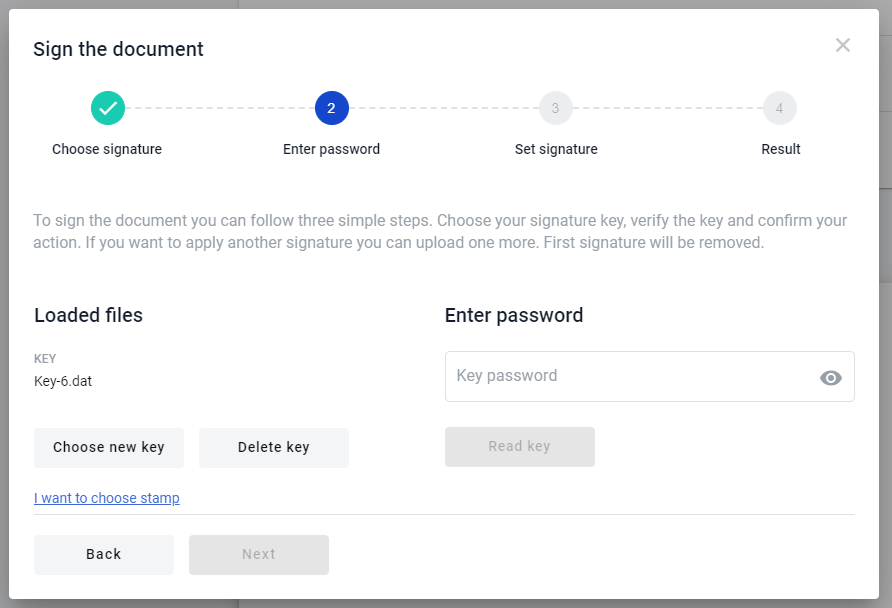
1. Select the key file on your computer or flash drive.
2. In the modal window, review the password field and available key actions.
3. Enter the key password and click **Read key**.
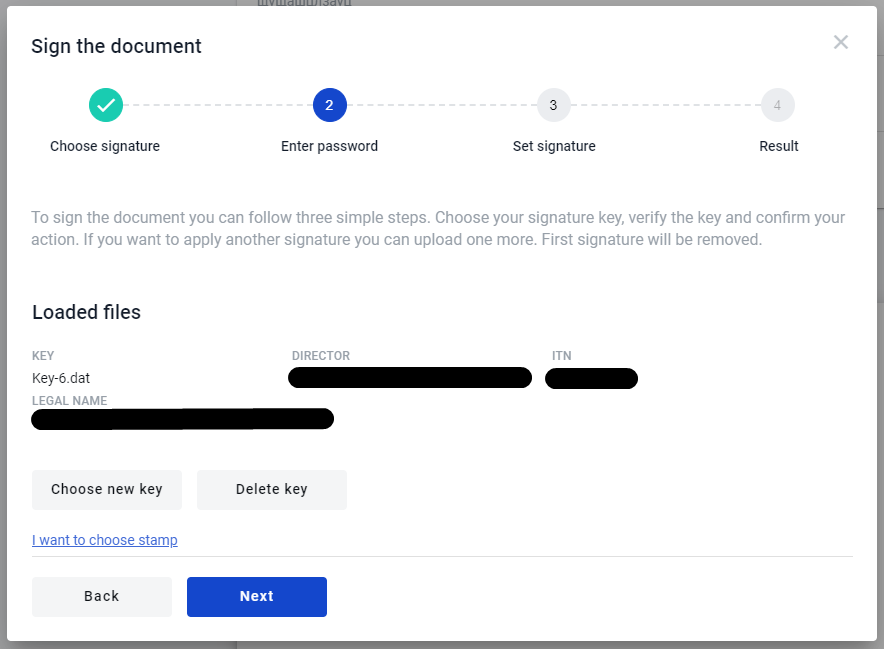
4. Review the information about the key you are going to use for signing.
{% columns %}
{% column %}
{% endcolumn %}
{% column %}
{% endcolumn %}
{% endcolumns %}
{% hint style="info" %}
If the password and key are valid, the system opens the next step and shows the signature details.
If the password is invalid or the key cannot be read, the system shows an error message.
{% endhint %}
---
# Agent Instructions: Querying This Documentation
If you need additional information that is not directly available in this page, you can query the documentation dynamically by asking a question.
Perform an HTTP GET request on the current page URL with the `ask` query parameter:
```
GET https://support.docstudio.com/user/sign-and-download-envelopes/how-to-sign-an-envelope-qualified-electronic-signature/how-to-read-an-advanced-electronic-signature.md?ask=
```
The question should be specific, self-contained, and written in natural language.
The response will contain a direct answer to the question and relevant excerpts and sources from the documentation.
Use this mechanism when the answer is not explicitly present in the current page, you need clarification or additional context, or you want to retrieve related documentation sections.