> For the complete documentation index, see [llms.txt](https://support.docstudio.com/llms.txt). Markdown versions of documentation pages are available by appending `.md` to page URLs; this page is available as [Markdown](https://support.docstudio.com/user/template-builder/template-editor/how-to-add-external-documents-to-a-template.md).
# How to Add External Documents to a Template
This document explains how to add and configure external documents in templates, including allowed file types and signature fields.
### What is an external document
{% hint style="info" %}
An external document is a file slot in a template. A specific role uploads the actual file into that slot in an envelope.
{% endhint %}
* Use an external document when the file must be added later during envelope preparation or completion.
* Use a **PDF document** when you want to upload the PDF to the template itself or leave it empty for later upload.
Examples:
* supplier invoice
* signed scan from a third-party system
* supporting attachments
{% hint style="info" %}
By default, an envelope can contain up to **50** external and PDF documents in total. Your system admin can change this limit.
{% endhint %}
### Add an external document to a template
{% columns %}
{% column %}
1. Open the **Documents** panel.
2. Click the button.
3. Select **External**.
{% hint style="info" %}
The new document appears under the first structured document. By default, it’s assigned to **Sender**.
{% endhint %}
{% endcolumn %}
{% column %}
{% endcolumn %}
{% endcolumns %}
### Configure document properties
1. Select the external document in the template.
2. Update the document properties.
{% hint style="warning" %}
The maximum allowed size is **5 MB** per file and **25 MB** per envelope in total.
{% endhint %}
{% columns %}
{% column width="58.333333333333336%" %}
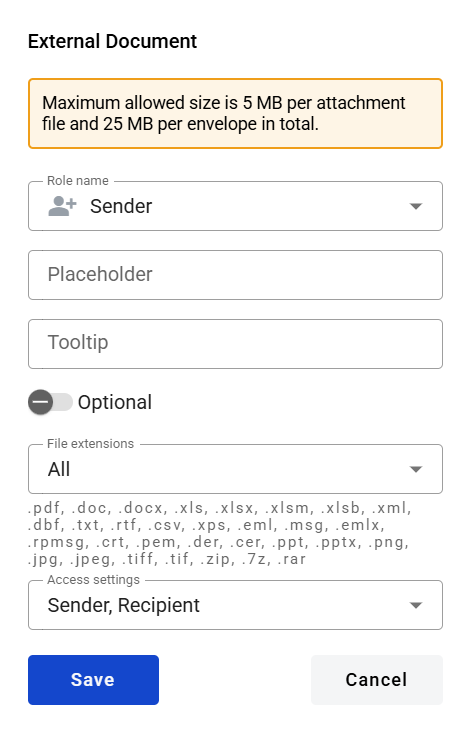
You can configure:
* role (who uploads the file)
* file name (placeholder shown before upload)
* tooltip (optional helper text)
* optionality (required or optional)
* allowed file type group (restrict file formats)
* advanced settings (control who can view the file)
{% endcolumn %}
{% column width="41.666666666666664%" %}
{% endcolumn %}
{% endcolumns %}
### Restrict viewing by role
{% hint style="info" %}
The role that uploads the file cannot be restricted from viewing that document.
{% endhint %}
1. Open the template in edit mode.
2. Select the external document.
3. Open **Advanced settings**.
4. Click **Access setting**.
5. Clear the checkboxes for the roles that must not view the document.
6. Click the button in the document properties.
7. Click the button in the top-right corner to save the template.
### Allowed file type groups
Select a file type group to limit what users can upload to this external document.
{% tabs %}
{% tab title="All" %}
`.pdf, .doc, .docx, .xls, .xlsx, .xlsm, .xlsb, .xml, .dbf, .txt, .rtf, .csv, .xps, .eml, .msg, .emlx, .rpmsg, .crt, .pem, .der, .cer, .ppt, .pptx, .png, .jpg, .jpeg, .tiff, .tif, .zip, .7z, .rar`
{% endtab %}
{% tab title="File" %}
`.pdf, .doc, .docx, .xls, .xlsx, .xlsm, .xlsb, .xml, .dbf, .txt, .rtf, .csv, .xps, .eml, .msg, .emlx, .rpmsg, .crt, .pem, .der, .cer, .ppt, .pptx`
{% endtab %}
{% tab title="PDF document" %}
`.pdf`
{% endtab %}
{% tab title="Image" %}
`.png, .jpg, .jpeg, .tiff, .tif`
{% endtab %}
{% tab title="Archive" %}
`.zip, .7z, .rar`
{% endtab %}
{% endtabs %}
### Add signature fields to an external document
You can place signature fields on an external document after you add it to the template.
1. Open the external document.
2. Drag a signature field from the toolbar onto the document.
### Duplicate an external document
1. In the document header, click the **Context menu**  icon.
2. Click the icon.
DocStudio creates a copy of the external document slot with the same settings.
### Delete an external document
1. In the document header, click the **Context menu**  icon.
2. Click the icon.
{% hint style="warning" %}
Deleting the external document removes it and its configuration from the template.
{% endhint %}
{% columns %}
{% column %}
{% endcolumn %}
{% column %}
{% endcolumn %}
{% endcolumns %}
### Related topics
* [How to Add PDF Documents in a Template](/user/template-builder/template-editor/how-to-add-pdf-documents-in-a-template.md)
* [How to Create a Structured Template](/user/template-builder/template-editor/how-to-create-a-structured-template.md)
* [External Documents in the Envelope](/user/external-documents-in-the-envelope.md)
---
# Agent Instructions
This documentation is published with GitBook. GitBook is the documentation platform designed so that both humans and AI agents can read, navigate, and reason over technical content effectively. Learn more at gitbook.com.
## Querying This Documentation
If you need additional information that is not directly available in this page, you can query the documentation by asking a question.
Perform an HTTP GET request on the following URL with the `ask` and `goal` query parameters:
```
GET https://support.docstudio.com/user/template-builder/template-editor/how-to-add-external-documents-to-a-template.md?ask=&goal=
```
`ask` is the immediate question: it should be specific, self-contained, and written in natural language.
`goal` is what the user is ultimately trying to achieve, the reason they need the answer. Sharing it helps GitBook give you a better, more relevant answer. A goal is most helpful when it describes the outcome the user wants rather than restating the question. For example, with `ask=how do I create an API token`, a goal like `automate deployments from our CI pipeline` lets GitBook tailor the answer to that use case.
The response will contain a direct answer to the question and relevant excerpts and sources from the documentation.
Use this mechanism when the answer is not explicitly present in the current page, you need clarification or additional context, or you want to retrieve related documentation sections.

 button.
3. Select **External**.
{% hint style="info" %}
The new document appears under the first structured document. By default, it’s assigned to **Sender**.
{% endhint %}
{% endcolumn %}
{% column %}
button.
3. Select **External**.
{% hint style="info" %}
The new document appears under the first structured document. By default, it’s assigned to **Sender**.
{% endhint %}
{% endcolumn %}
{% column %}
 button in the document properties.
7. Click the
button in the document properties.
7. Click the  button in the top-right corner to save the template.
### Allowed file type groups
Select a file type group to limit what users can upload to this external document.
{% tabs %}
{% tab title="All" %}
`.pdf, .doc, .docx, .xls, .xlsx, .xlsm, .xlsb, .xml, .dbf, .txt, .rtf, .csv, .xps, .eml, .msg, .emlx, .rpmsg, .crt, .pem, .der, .cer, .ppt, .pptx, .png, .jpg, .jpeg, .tiff, .tif, .zip, .7z, .rar`
{% endtab %}
{% tab title="File" %}
`.pdf, .doc, .docx, .xls, .xlsx, .xlsm, .xlsb, .xml, .dbf, .txt, .rtf, .csv, .xps, .eml, .msg, .emlx, .rpmsg, .crt, .pem, .der, .cer, .ppt, .pptx`
{% endtab %}
{% tab title="PDF document" %}
`.pdf`
{% endtab %}
{% tab title="Image" %}
`.png, .jpg, .jpeg, .tiff, .tif`
{% endtab %}
{% tab title="Archive" %}
`.zip, .7z, .rar`
{% endtab %}
{% endtabs %}
### Add signature fields to an external document
You can place signature fields on an external document after you add it to the template.
1. Open the external document.
2. Drag a signature field from the toolbar onto the document.
### Duplicate an external document
1. In the document header, click the **Context menu**  icon.
2. Click the
button in the top-right corner to save the template.
### Allowed file type groups
Select a file type group to limit what users can upload to this external document.
{% tabs %}
{% tab title="All" %}
`.pdf, .doc, .docx, .xls, .xlsx, .xlsm, .xlsb, .xml, .dbf, .txt, .rtf, .csv, .xps, .eml, .msg, .emlx, .rpmsg, .crt, .pem, .der, .cer, .ppt, .pptx, .png, .jpg, .jpeg, .tiff, .tif, .zip, .7z, .rar`
{% endtab %}
{% tab title="File" %}
`.pdf, .doc, .docx, .xls, .xlsx, .xlsm, .xlsb, .xml, .dbf, .txt, .rtf, .csv, .xps, .eml, .msg, .emlx, .rpmsg, .crt, .pem, .der, .cer, .ppt, .pptx`
{% endtab %}
{% tab title="PDF document" %}
`.pdf`
{% endtab %}
{% tab title="Image" %}
`.png, .jpg, .jpeg, .tiff, .tif`
{% endtab %}
{% tab title="Archive" %}
`.zip, .7z, .rar`
{% endtab %}
{% endtabs %}
### Add signature fields to an external document
You can place signature fields on an external document after you add it to the template.
1. Open the external document.
2. Drag a signature field from the toolbar onto the document.
### Duplicate an external document
1. In the document header, click the **Context menu**  icon.
2. Click the  icon.
DocStudio creates a copy of the external document slot with the same settings.
### Delete an external document
1. In the document header, click the **Context menu**  icon.
2. Click the
icon.
DocStudio creates a copy of the external document slot with the same settings.
### Delete an external document
1. In the document header, click the **Context menu**  icon.
2. Click the  icon.
{% hint style="warning" %}
Deleting the external document removes it and its configuration from the template.
{% endhint %}
{% columns %}
{% column %}
icon.
{% hint style="warning" %}
Deleting the external document removes it and its configuration from the template.
{% endhint %}
{% columns %}
{% column %}

