This document explains how to use Upload document in the DocStudio Dashboard to upload external files and send them for signing by configuring recipients and roles.
You can upload up to 50 files. each file can be up to 50 MB, and the total upload size per send is limited to 50 MB.
Upload document
Open the dashboard.
Click the button.
Upload your files in the modal window.
Check the uploaded files list and click the button.
Enter the recipient's email.
— You can also Add approver or send a copy.
Click the button.
In the top-right corner, click .
Recipients
After uploading the file, you can also Add approver or send a copy.
To do so, follow the instruction below:
Select the roles you need.
— Approvers
— Send a copy
Enter participant emails in the role inputs.
— separate emails with Enter or Space.
Optional: enable I want to sign or fill an envelope.
click the button.
You can now add fields to Recipient and Signer.
Fill fields as Sender
If you enabled I want to sign or fill an envelope, you can add sender fields and fill them.
Sender can fill:
Text
Number
Currency
Date
Choice
Checkbox
Dropdown
Dictionary
Lookup
Duplicate
Formula
QR/barcode
Signature
Initials
If there are other recipients, you can choose who fills each field.
If sender is the only role, all fields are assigned to Sender by default.
Sender-only fields
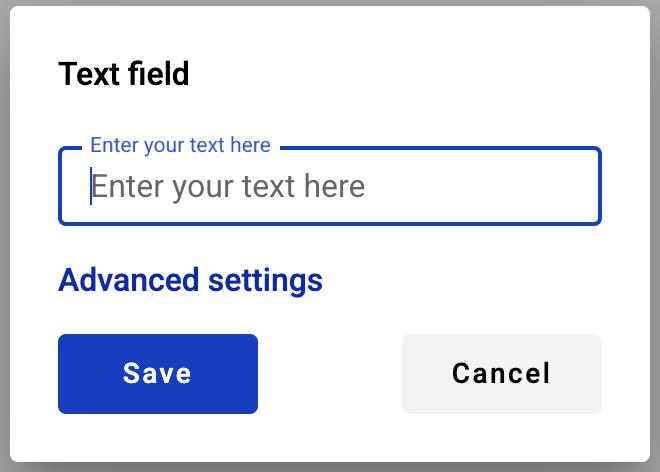
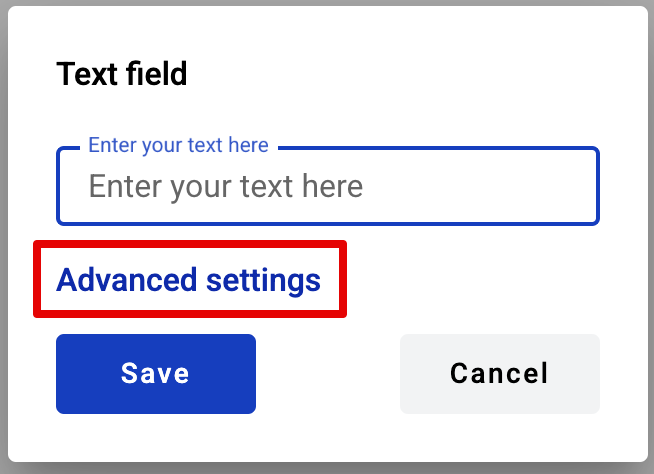
Use advanced settings to fine-tune a field.
Examples:
min/max for Number
date + time for Date
QR/barcode size
field name
Field advanced settings
You can enter data in three ways:
Fill data inside field properties.
Click a Signature field and draw a signature.
Double-click the field.
Double-click works for:
Text, Number, Currency (edit mode)
Date and QR/barcode (modal window)
Choice and Checkbox (toggles the value)
Import embedded PDF fields
If an uploaded PDF has embedded fields, you can convert them to DocStudio dynamic fields.
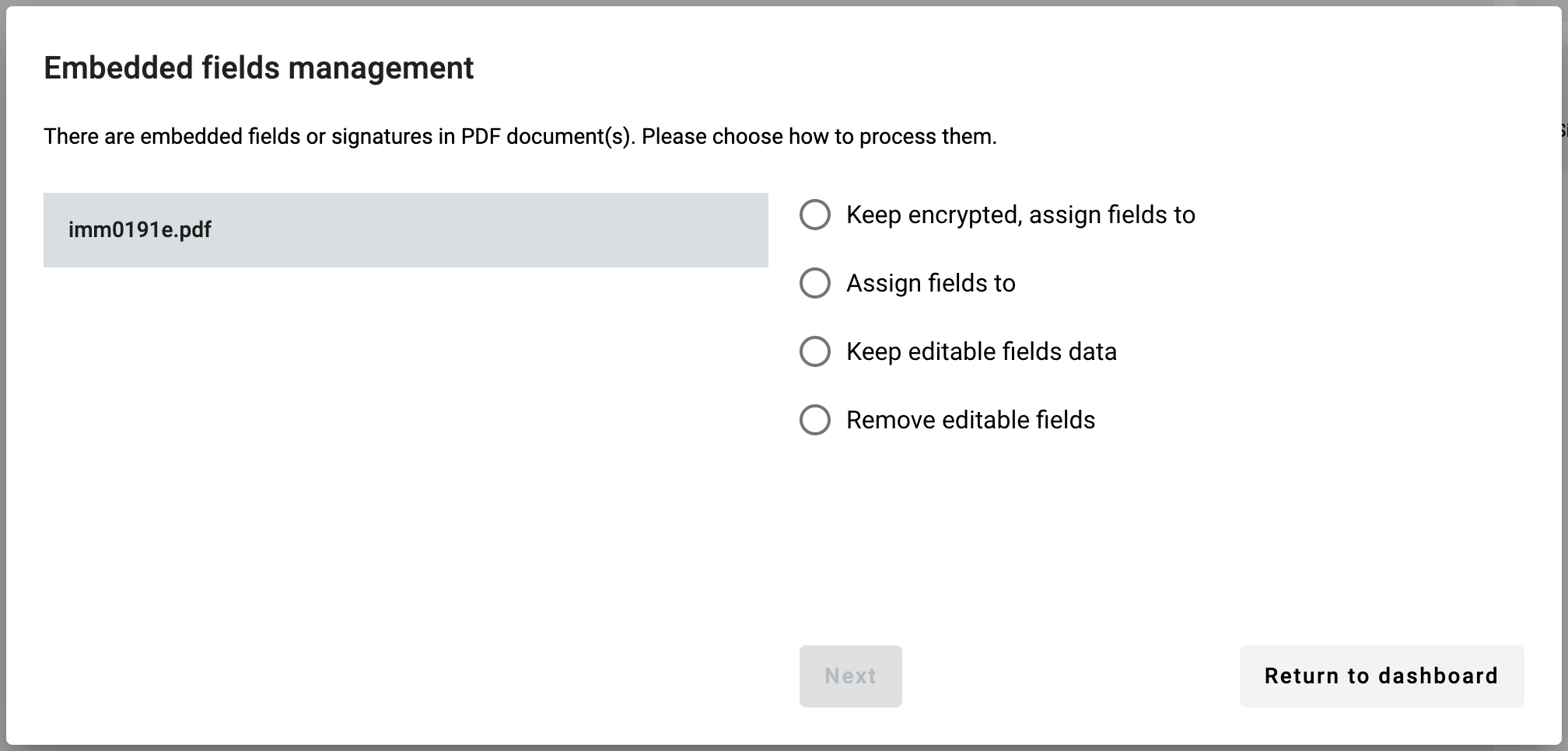
For each document with embedded fields, you will see an action modal.
Embedded fields modal
Available actions depend on the embedded field types:
Keep encrypted, assign fields to. Keeps encryption.
Assign fields to. Converts embedded fields to DocStudio fields (if possible).
Keep editable fields data. Keeps editable fields as read-only. Removes signatures and/or encryption. Existing fields are not converted. You can add new fields.
Remove editable fields. Removes embedded signatures, encryption, and editable fields. You can add new fields.
If the document has more signatures than recipients, Assign fields to is not available.
You can assign imported fields to Recipients. You can also assign them to Sender if you enabled I want to sign or fill an envelope.
Conversion map:
Text → Text field
Date → Text field
Checkbox → Checkbox field
Radio button → Choice field
Dropdown menu → Menu field
Listbox → Menu field
Picture → not supported (field is ignored)
Barcode → not supported (field is ignored)
All imported fields will keep their original required or optional fields from the PDF.
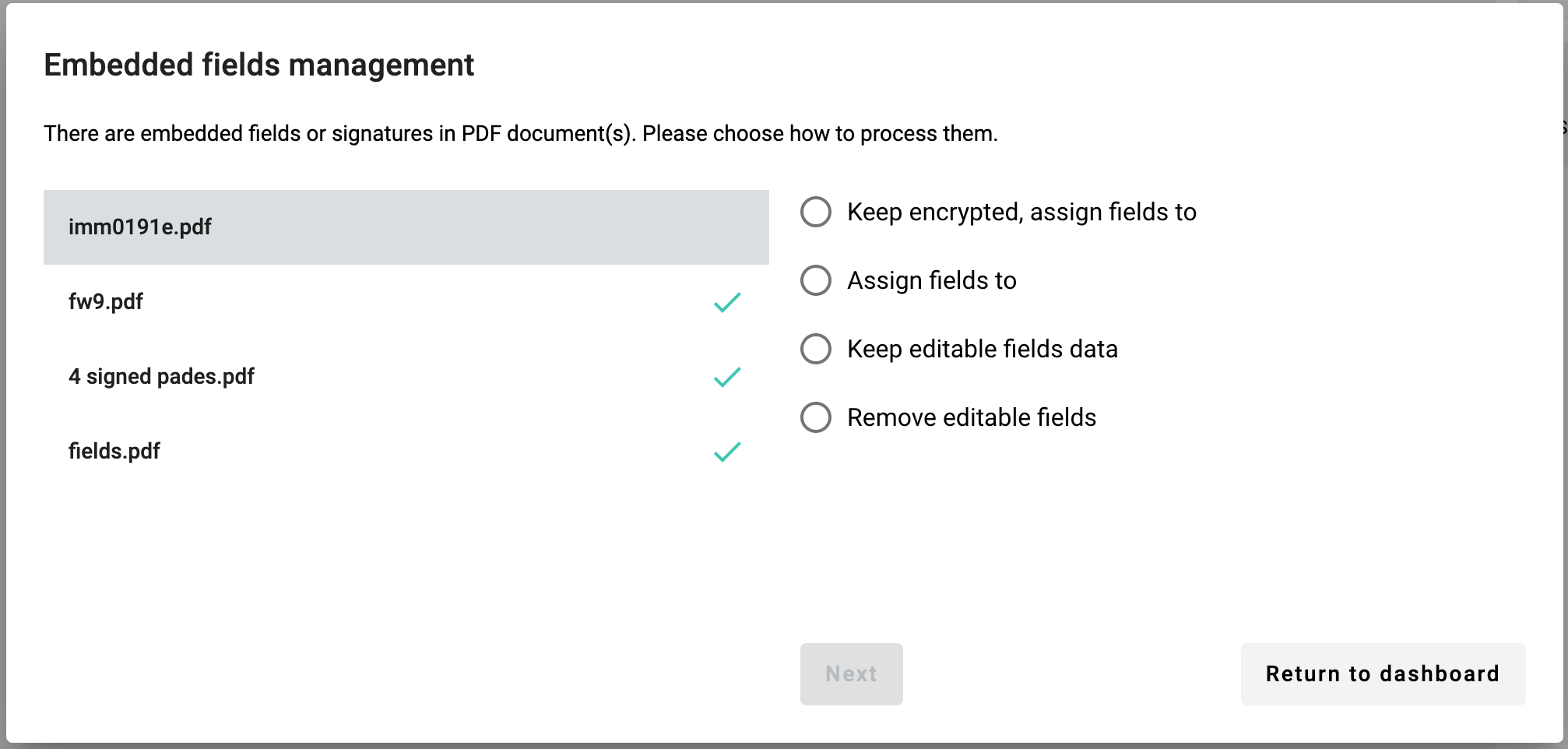
If you upload several PDFs with fields, you can choose specific actions for each one. Switch between documents on the left side of the window.


 button.
 button.
 button.
 .
.