Dictionary field
Use Dictionary field to pick a value from a dictionary (table).
Example: select an employee from a list (first name, last name, age, address).
You can place this field in:
Add a dictionary field
Open the template in edit mode.
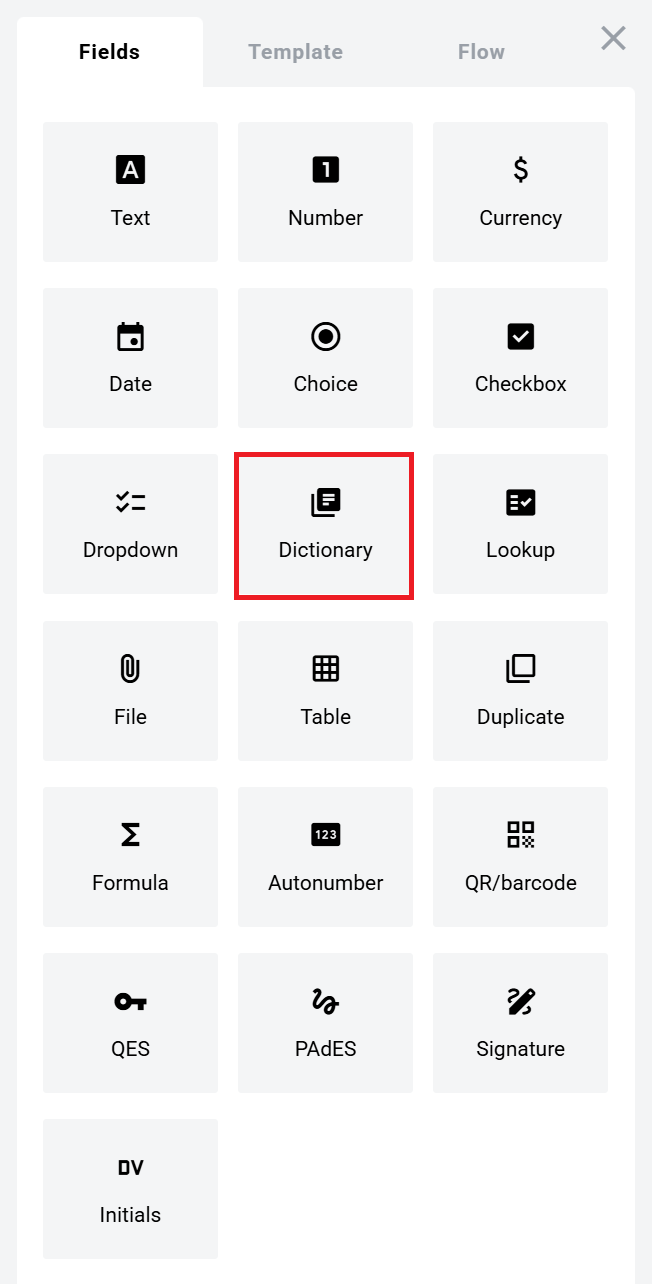
Find Dictionary field and add it to the document.
Click to view the screenshot...
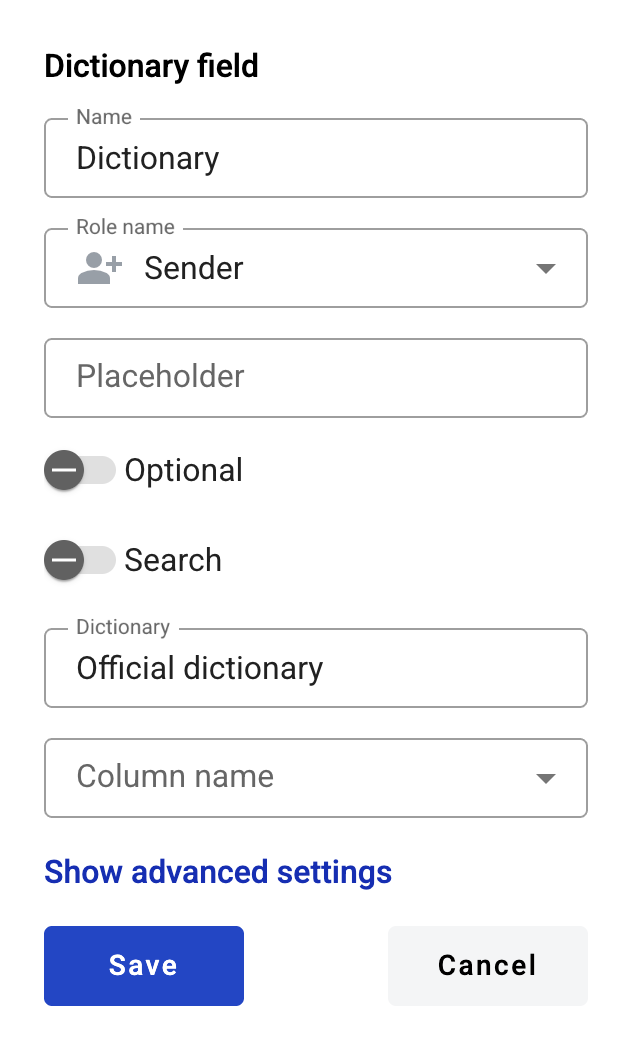
Configure the field and click Save.
Click to view the screenshot...
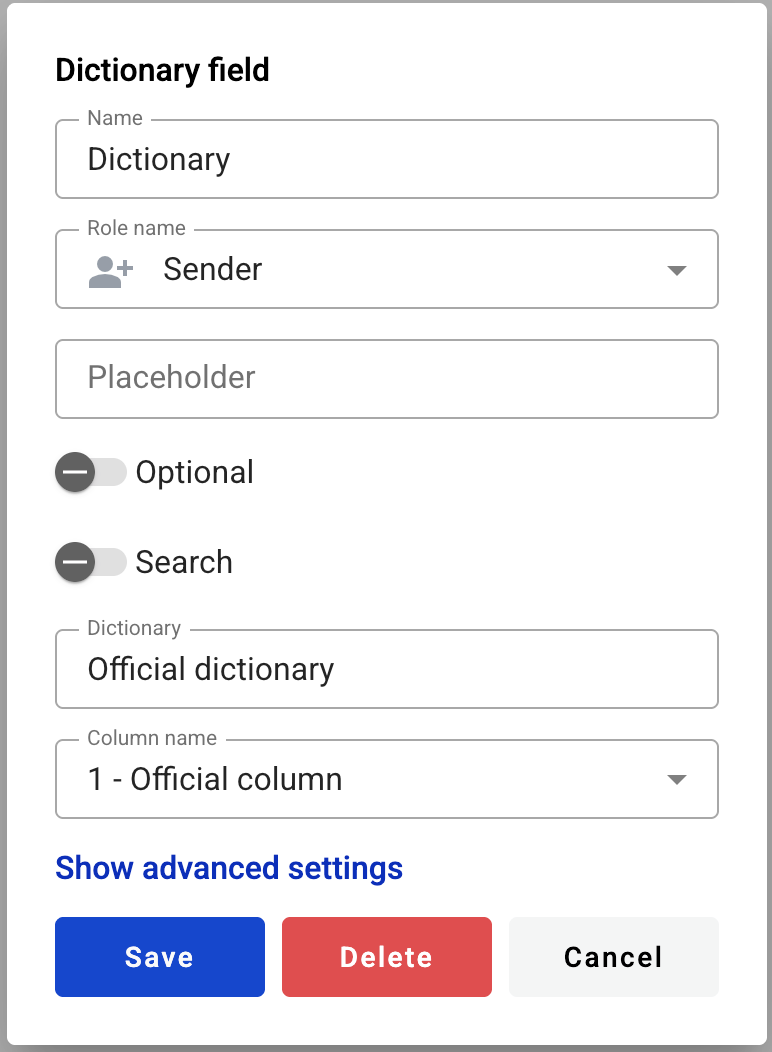
Click the field in the document to reopen properties and update them.
Name — field name shown in the document
Role name — role that fills the field
Placeholder — hint text shown before input; if empty, Name is used
Optional — whether filling the field is required
Search — whether the field is available for mailbox search
Advanced settings
Allow custom values — allows free text input in addition to dictionary values
Tooltip — additional hint shown on hover
Dictionary mapping
Dictionary — select a dictionary by typing its name
Column name — select the dictionary column used as the field value
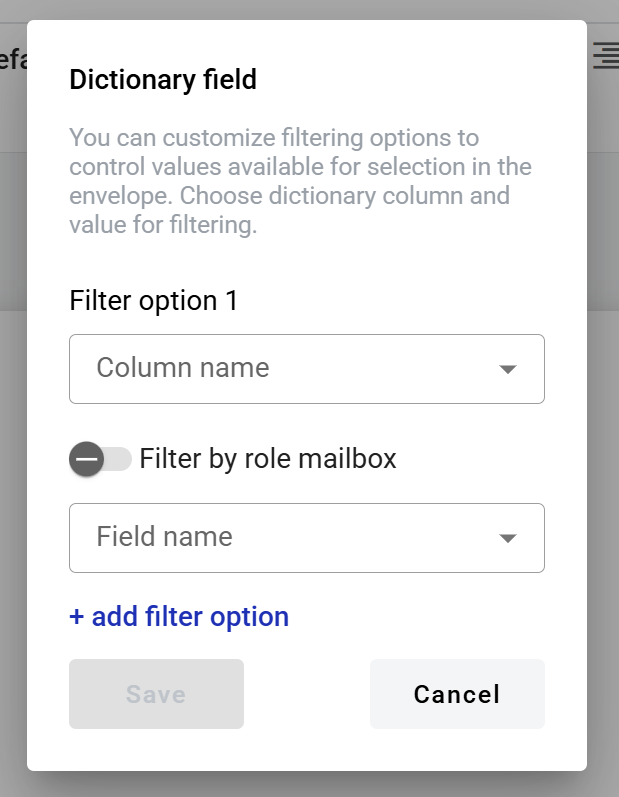
Filtering is available only if filtered access is enabled for the selected dictionary.
To configure filtering, click Filtering (icon inside the Dictionary input).
Click to view the screenshot...
Filtering settings:
Column name — dictionary column used for matching rows
Filter by role mailbox — switches the filter source
Field name — field used as the filter source (changes to a role selector if Filter by role mailbox is enabled)
Edit or delete a dictionary field
Click the field in the document.
Update settings in the properties panel, or delete the field there.
Click to view the screenshot...
Links inside a dictionary field
If the selected value contains a URL, it is rendered as a normal browser link (blue + underline).
You can open the link from the right-click context menu (any role).
You can open the link with a direct click only if the field is inactive.