Formula field
Use Formula field to display a calculated value in a document.
It’s a calculated field. Participants don’t type the value manually.
You can place this field in:
structured documents
PDF documents
Available operations
Operations for any argument fields:
SUM — arguments sum
PRODUCT — arguments multiplication result
SUBTRACT — arguments subtraction result
DIVIDE — arguments division result
Operations for dynamic tables only (select a field from the target column):
SUM table column — column values sum
COUNTA table column — count of non-empty cells
MIN table column — smallest value in the column
MAX table column — largest value in the column
Supported argument types
You can use these fields as arguments:
Number
Currency
Dictionary
Lookup
Duplicate
Formula field
How non-numeric values are parsed
If you use Dictionary, Lookup, or Duplicate as an argument, the value is parsed as a number.
All symbols except digits and the last period are ignored.
If there are several periods, only the last one is treated as the decimal separator.
Example:
Abc@/.1.1.1+Abc@/.1.1.1with SUM →22.2
Add a formula field
Open the template in edit mode.
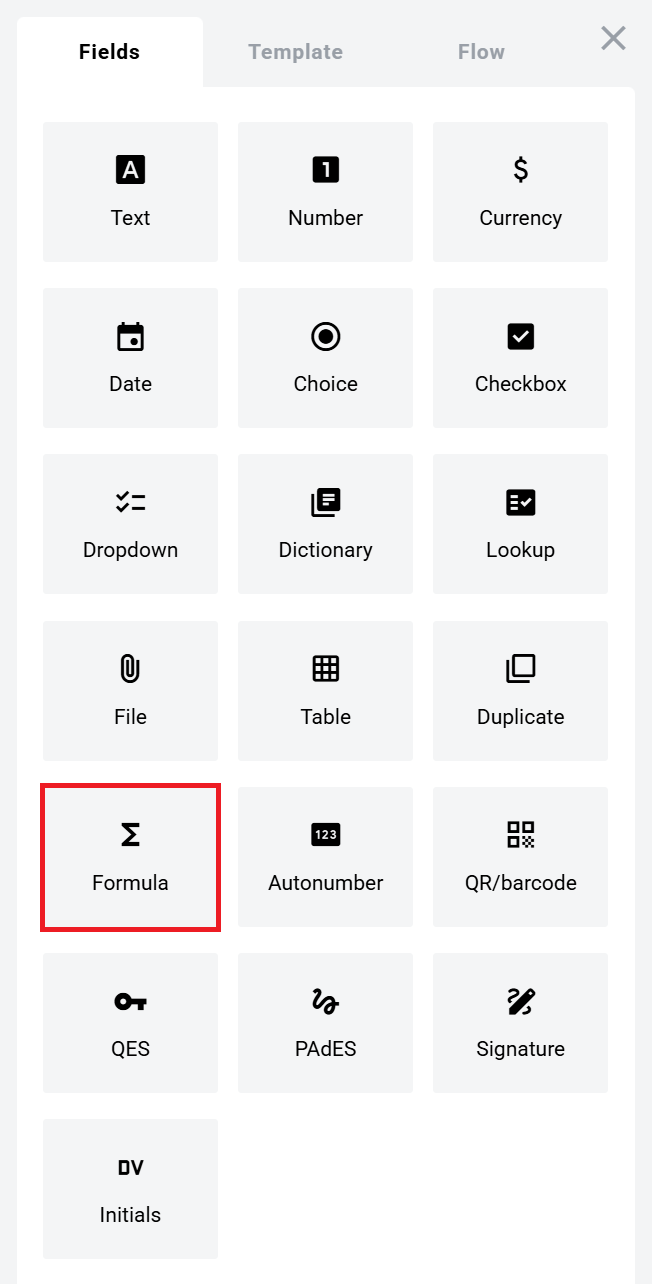
Open the Fields panel.
Find Formula field and add it to the document.
Configure the field and click Save.
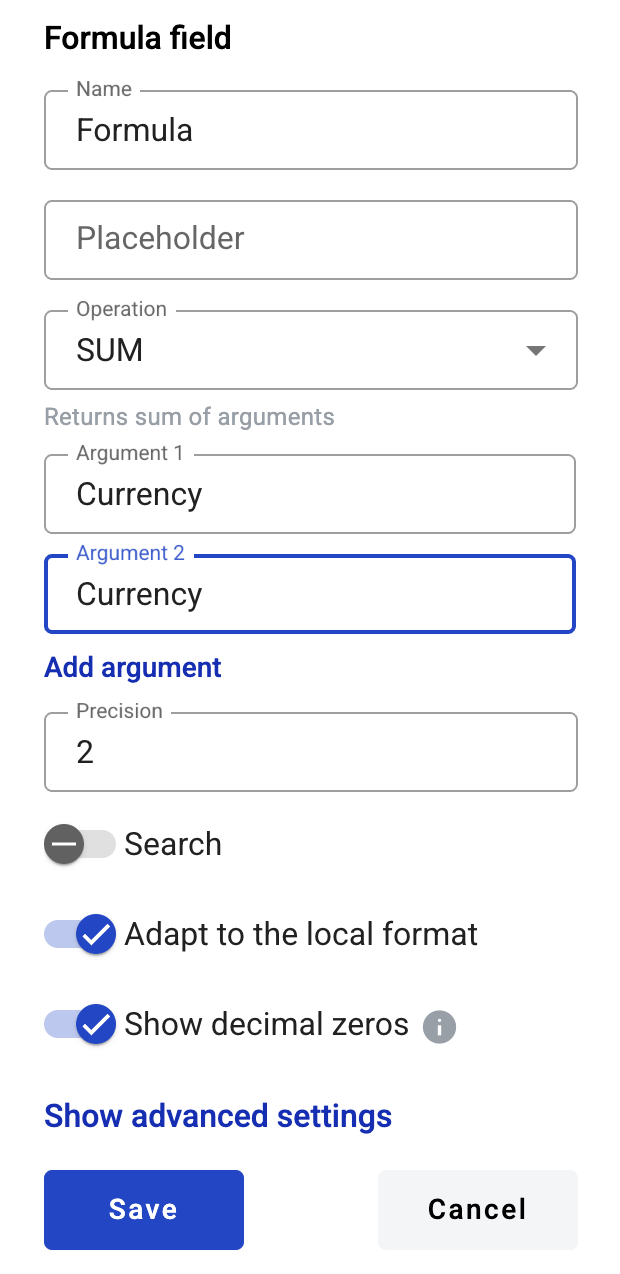
Field settings
Click the field in the document to reopen properties and update them.
Basic settings
Name — field name shown in the document
Placeholder — hint text shown before calculation; if empty, Name is used
Operation — operation applied to arguments
Argument 1, Argument 2, etc. — arguments used for calculation
You can type a static number directly into an argument field.
Use + add argument to add more arguments.
Advanced settings
Precision — number of decimal places. Leave empty for no limit
Show decimal zeroes — adds trailing zeroes to match Precision
Adapt to the local format — formats numbers using the participant’s region settings
Search — whether the field is available for mailbox search
Precision behavior
If the calculated value has more decimals than Precision, extra decimals are trimmed.
No rounding is applied.
Example:
1.99→1.9when Precision is11.99→1when Precision is0
In the envelope view, number formatting depends on the region selected on the User profile page.\n\nIn printable versions, numbers always use the platform region standard.
Edit or delete a formula field
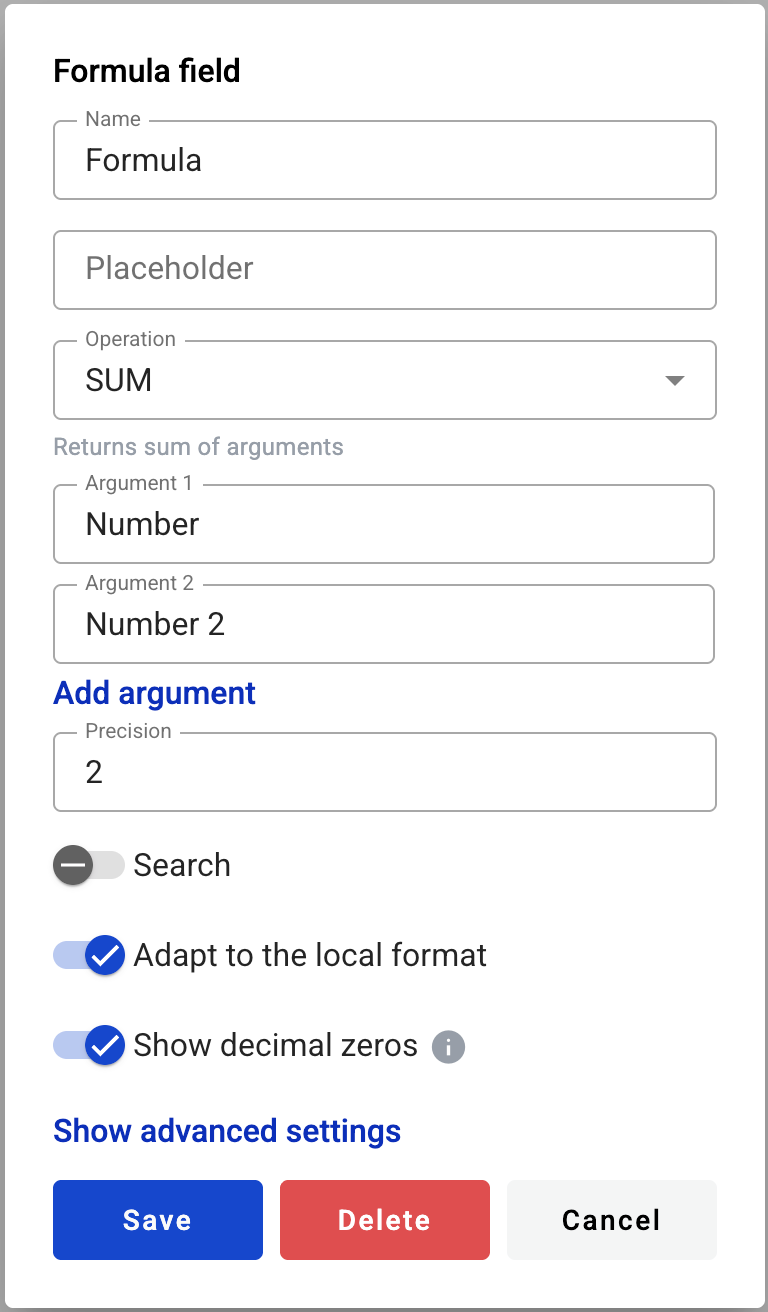
Click the field in the document.
Update settings in the properties panel, or delete the field there.
Last updated