Duplicate field

Use Duplicate field to show the value of another field in a second place.

The duplicate is read-only. It mirrors the parent field value.

You can place this field in:

  • structured documents

  • PDF documents

circle-exclamation

Add a duplicate field

  1. Open the template in edit mode.

  2. Open the Fields panel.

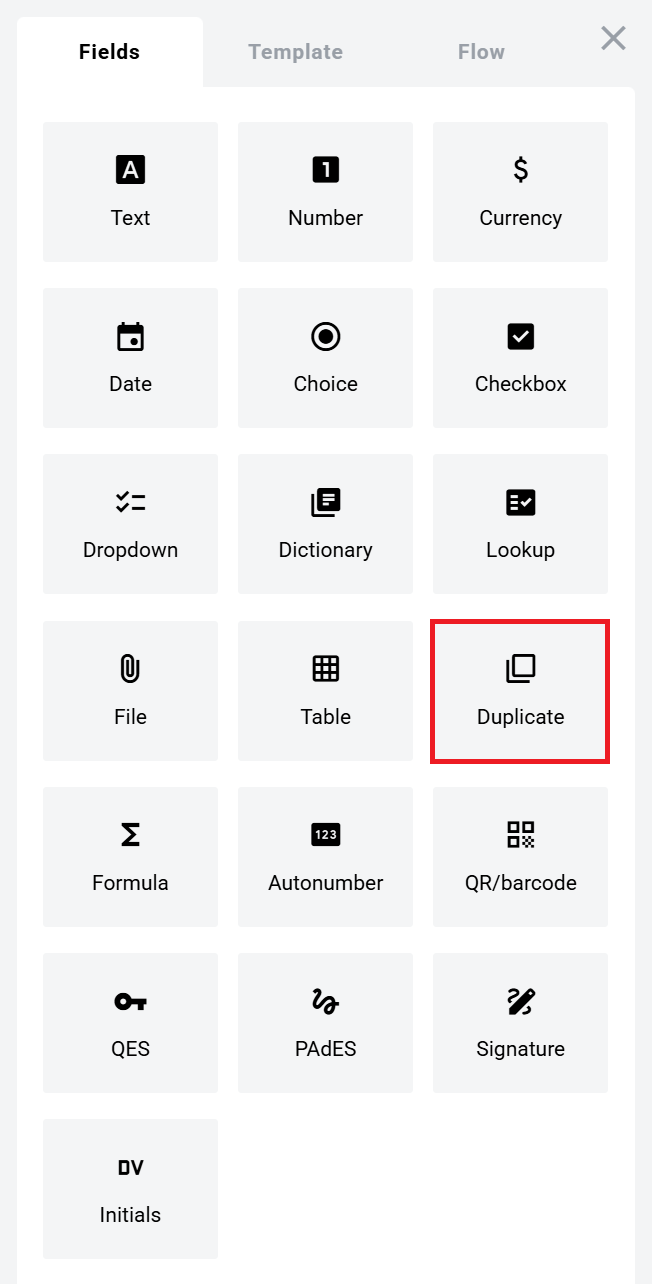
  3. Find Duplicate field and add it to the document.

chevron-rightClick to view the screenshot...hashtag
Duplicate field in the Fields panel
  1. Configure the field and click Save.

chevron-rightClick to view the screenshot...hashtag
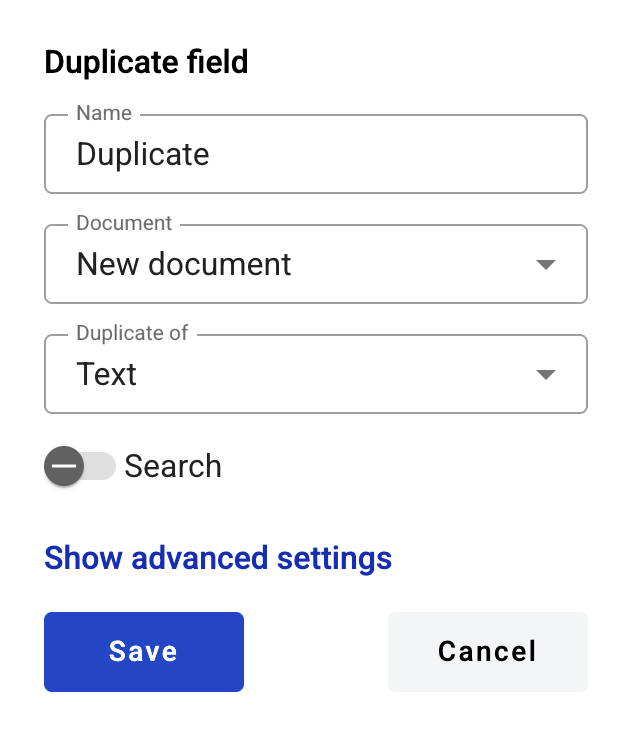
Duplicate field creation form

Field settings

Click the field in the document to reopen properties and update them.

Basic settings

  • Name — field name shown in the document

Duplicate source

  • Document — document where the parent field is located

  • Duplicate of — field to duplicate

circle-info

If the duplicate is placed inside a dynamic table, you can duplicate only:\n\n* fields from the same table\n* fields outside all tables

Edit or delete a duplicate field

  1. Click the field in the document.

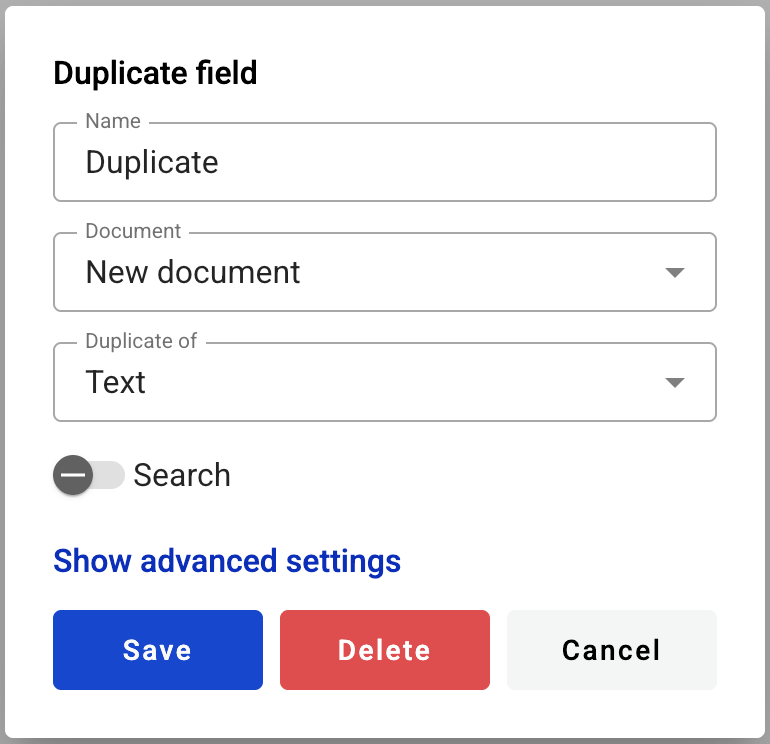
  2. Update settings in the properties panel, or delete the field there.

chevron-rightClick to view the screenshot...hashtag
Editing a duplicate field

If the value contains a URL, it is rendered as a normal browser link (blue + underline).

You can open the link from the right-click context menu.

Last updated