Envelope creation

Create an envelope from Mailbox, the dashboard, a template, or an existing envelope.

Create from Mailbox

  1. Open Mailbox.

  2. Click .

Create from the dashboard

  1. Open the dashboard.

  2. Click .

chevron-rightClick to view the screenshot...hashtag
circle-info

Use Quicksend to create an envelope from uploaded files. See Quicksend.

Create from a template

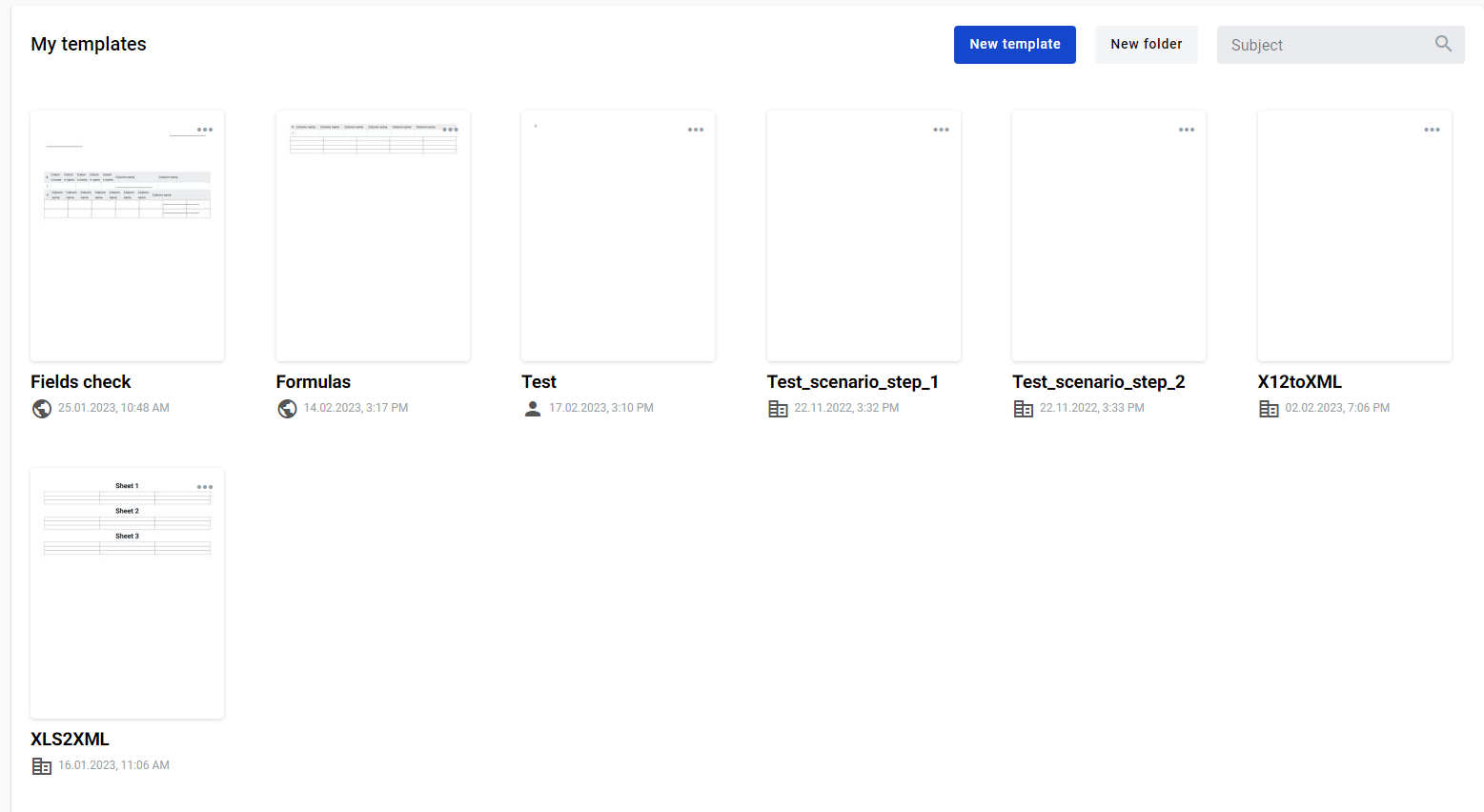
  1. Open a template card on the dashboard, or a template in the templates list.

  2. Click the template card to start an envelope draft.

chevron-rightClick to view the screenshot...hashtag

Create from the template editor

  1. Open a template in the editor.

  2. Click .

chevron-rightClick to view the screenshot...hashtag

Create by cloning an envelope

  1. Open an existing envelope.

  2. Click .

circle-exclamation
chevron-rightClick to view the screenshot...hashtag

Next steps in the draft

After creation, the envelope opens as a draft.

  1. Fill in roles for the envelope flow.

  2. Use I am assignee/approver/signer to assign yourself to a role.

  3. After you fill all required fields, send the envelope to the next participant.

chevron-rightClick to view the screenshot...hashtag

Save a draft

Use to save and send later.

circle-info

is not available for Quicksend envelopes.

After the first save, the draft auto-saves on every change.

The save icon next to shows the current save status.

Auto-save is also used for envelopes in Waiting for you status.

Last updated