Role management
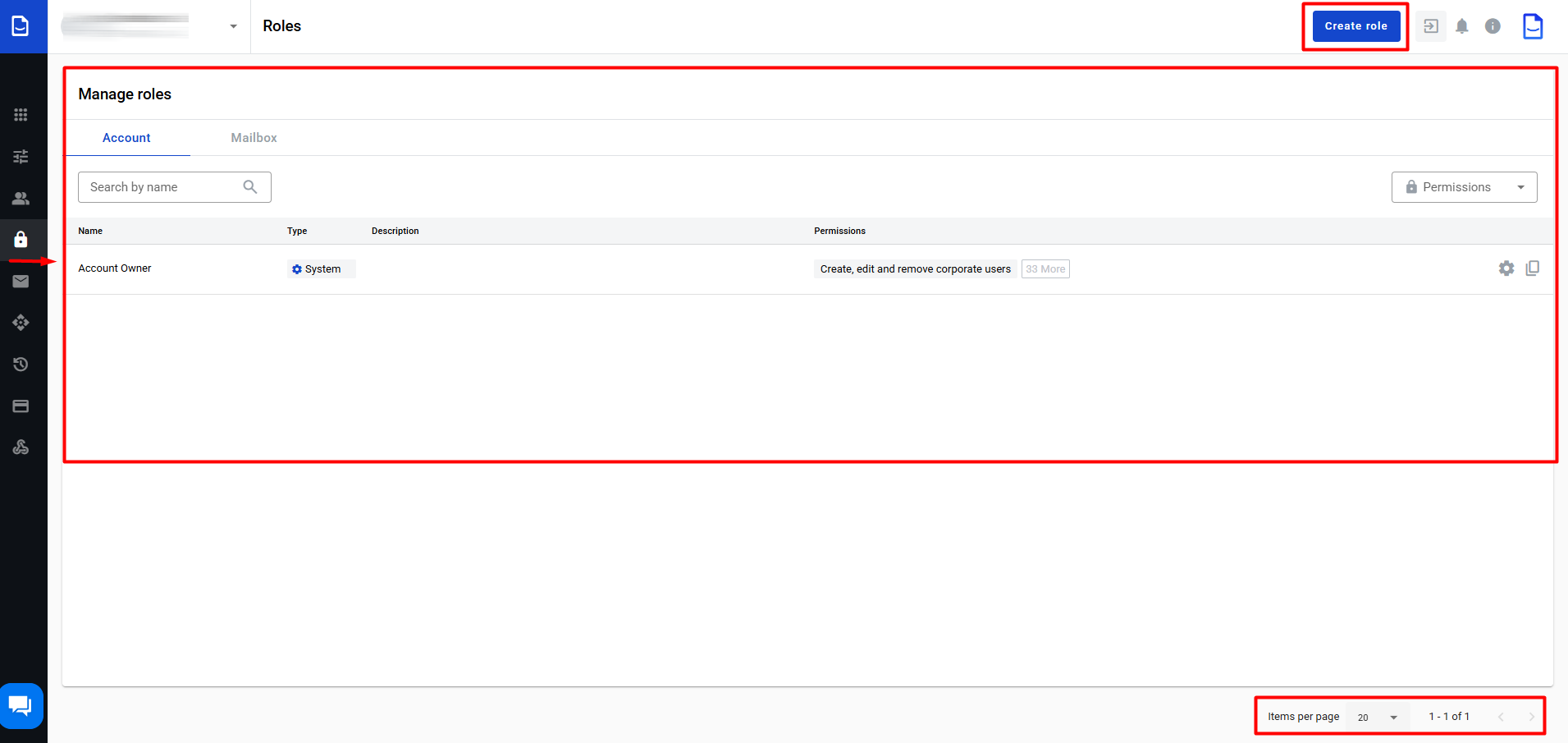
Use Roles to manage roles and their permissions.
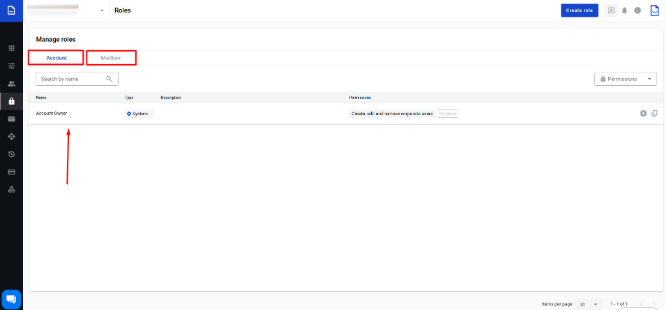
Roles exist on two levels: Account and Mailbox.
Use this page to browse roles, search by name, and filter by permissions.
Click to view the screenshot...
The system includes default roles that cannot be deleted:
Account Owner (account permissions)
Mailbox Owner (mailbox permissions)
Click to view the screenshot...
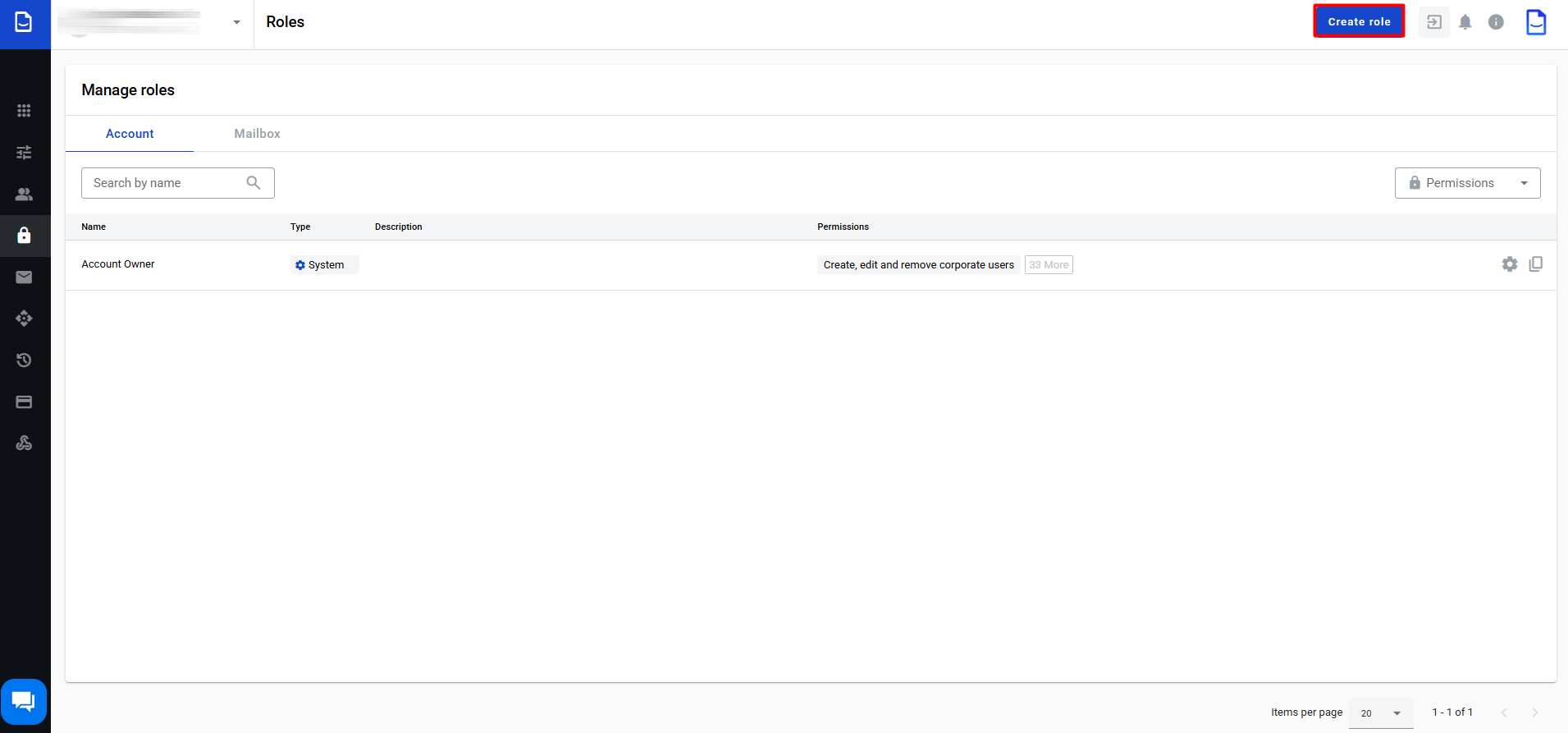
Select Account or Mailbox.
Click to view the screenshot...
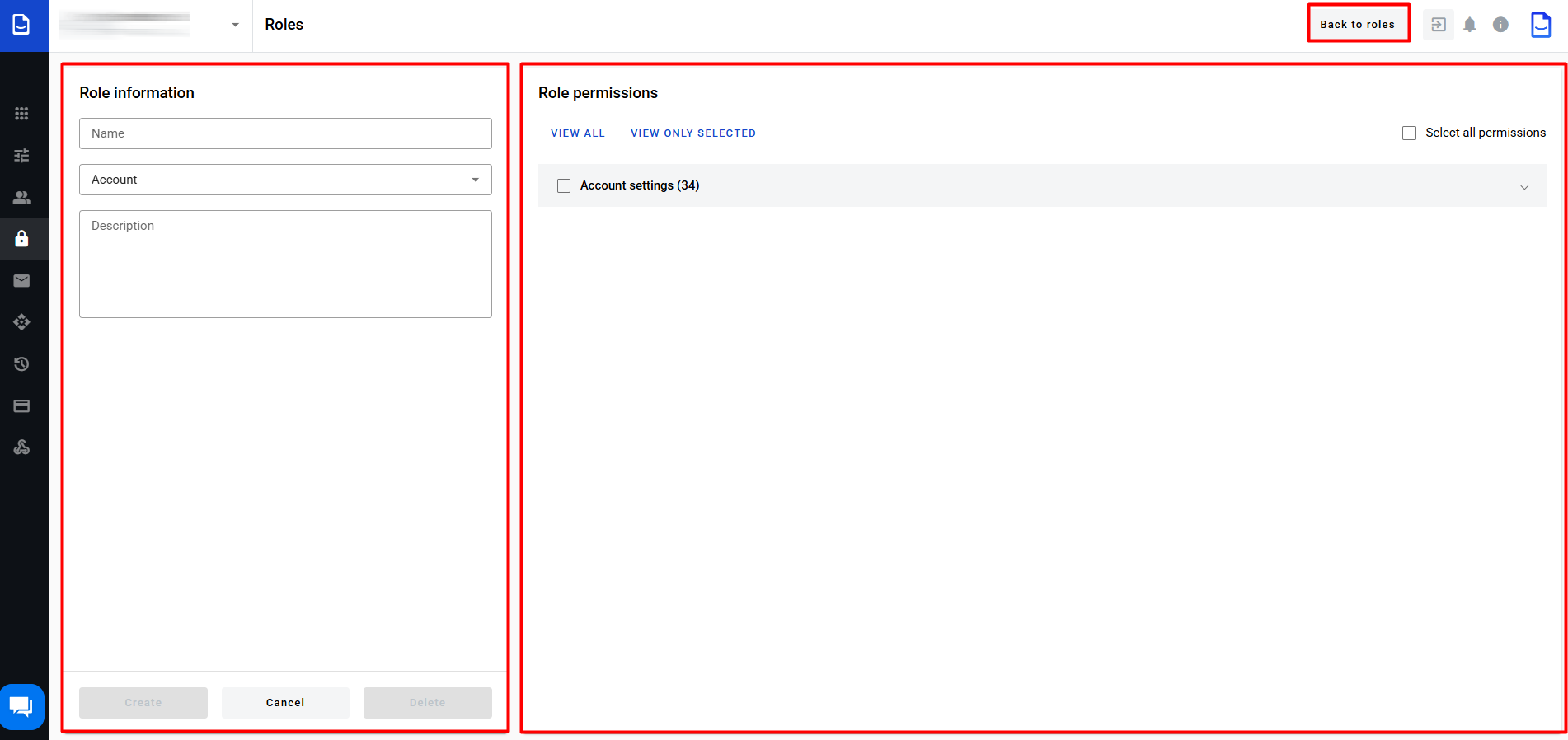
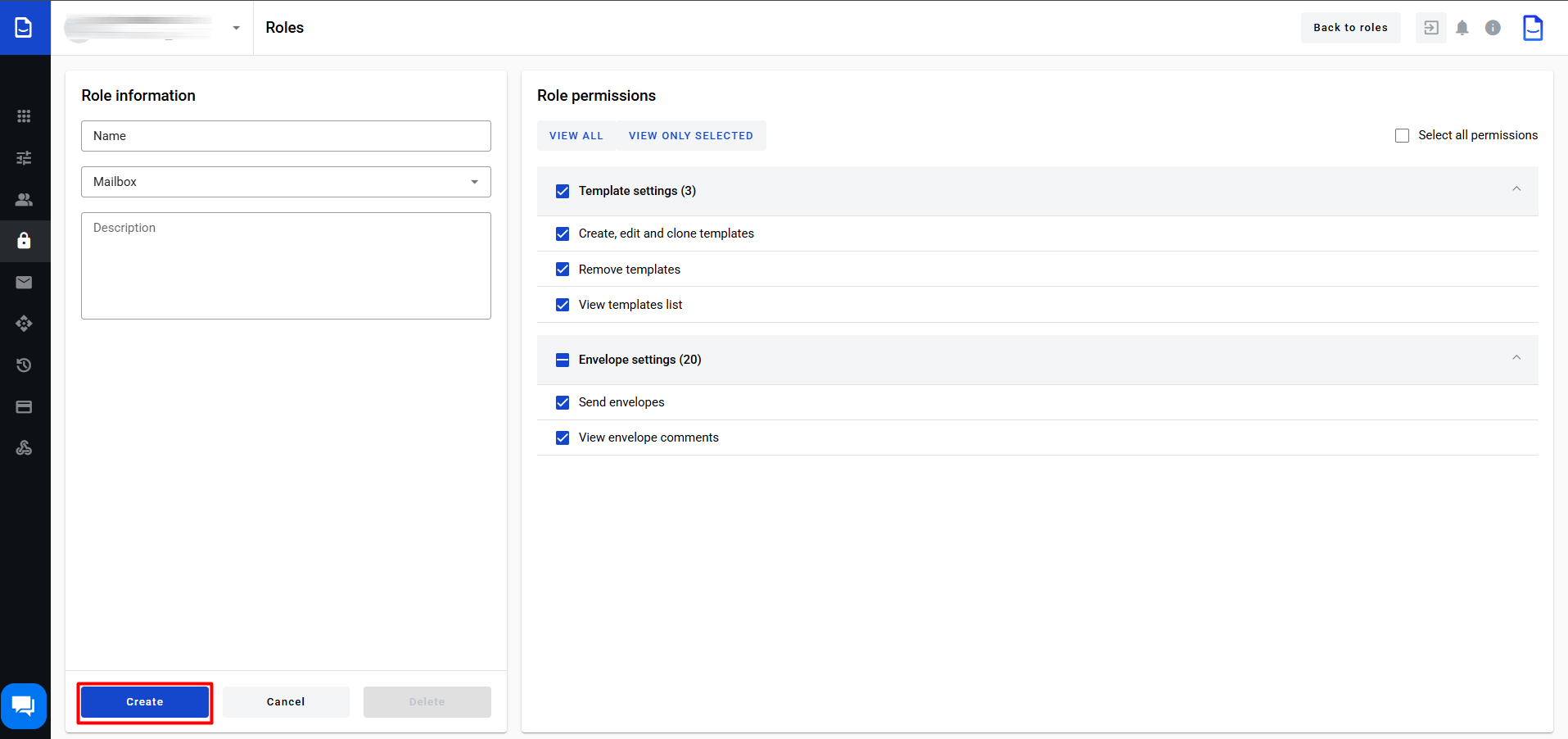
The role editor opens.
Use Back to Roles to return to the roles list.
Click to view the screenshot...
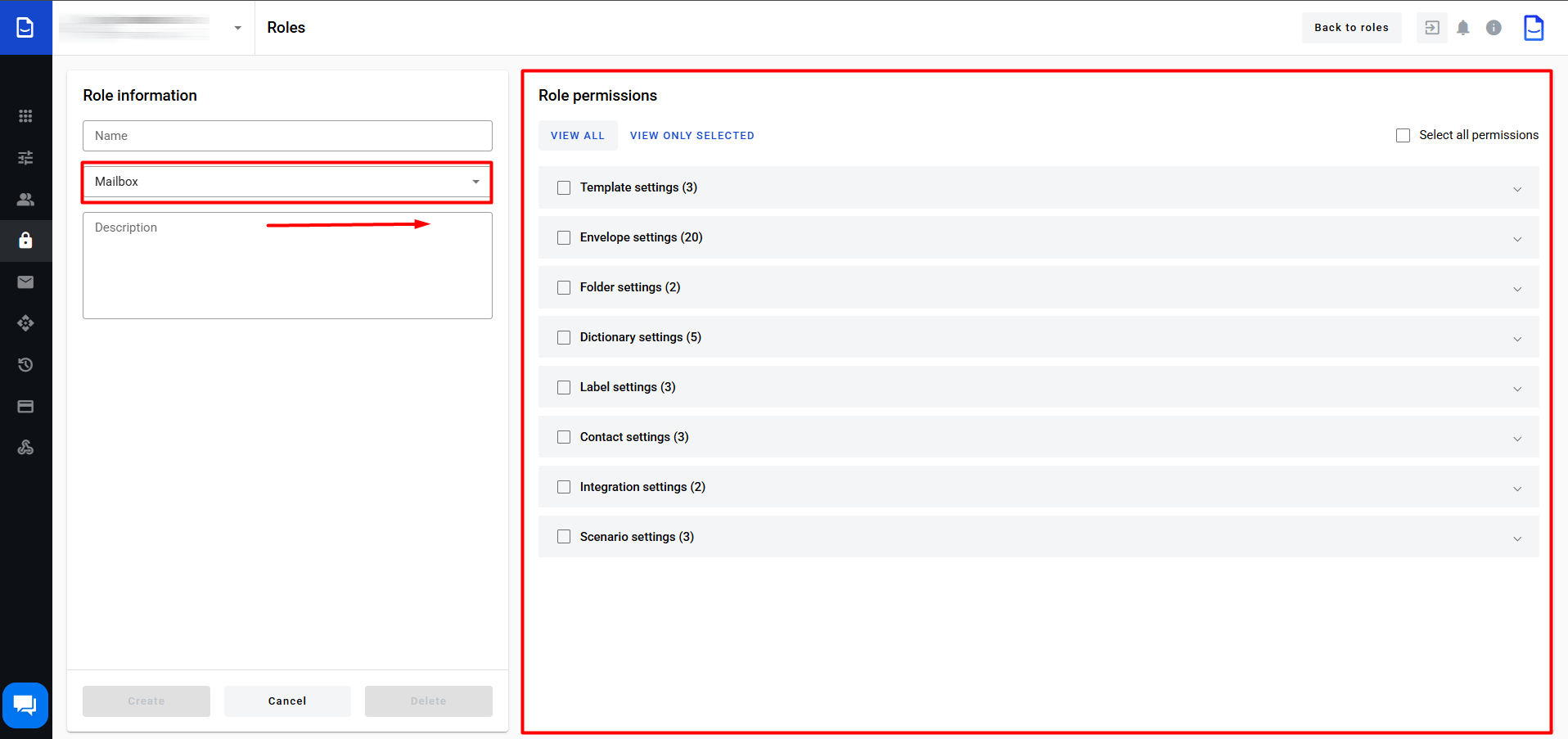
In Role information, set:
The role level affects the permissions list in Role permissions.
Click to view the screenshot...
In Role permissions, select the permissions to include in the role.
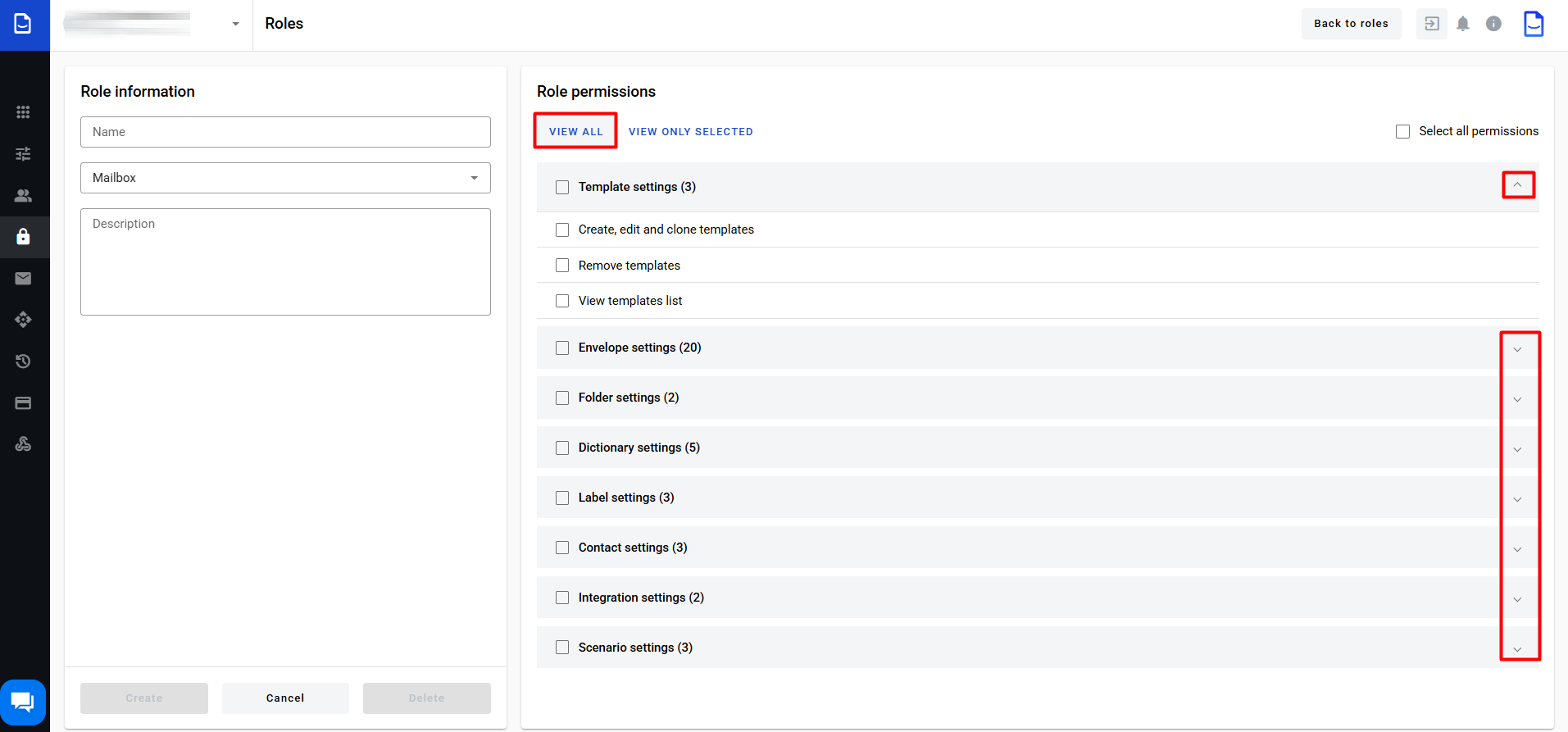
Use permission groups to expand or collapse the list.
Click to open or close all groups.
Click to view the screenshot...
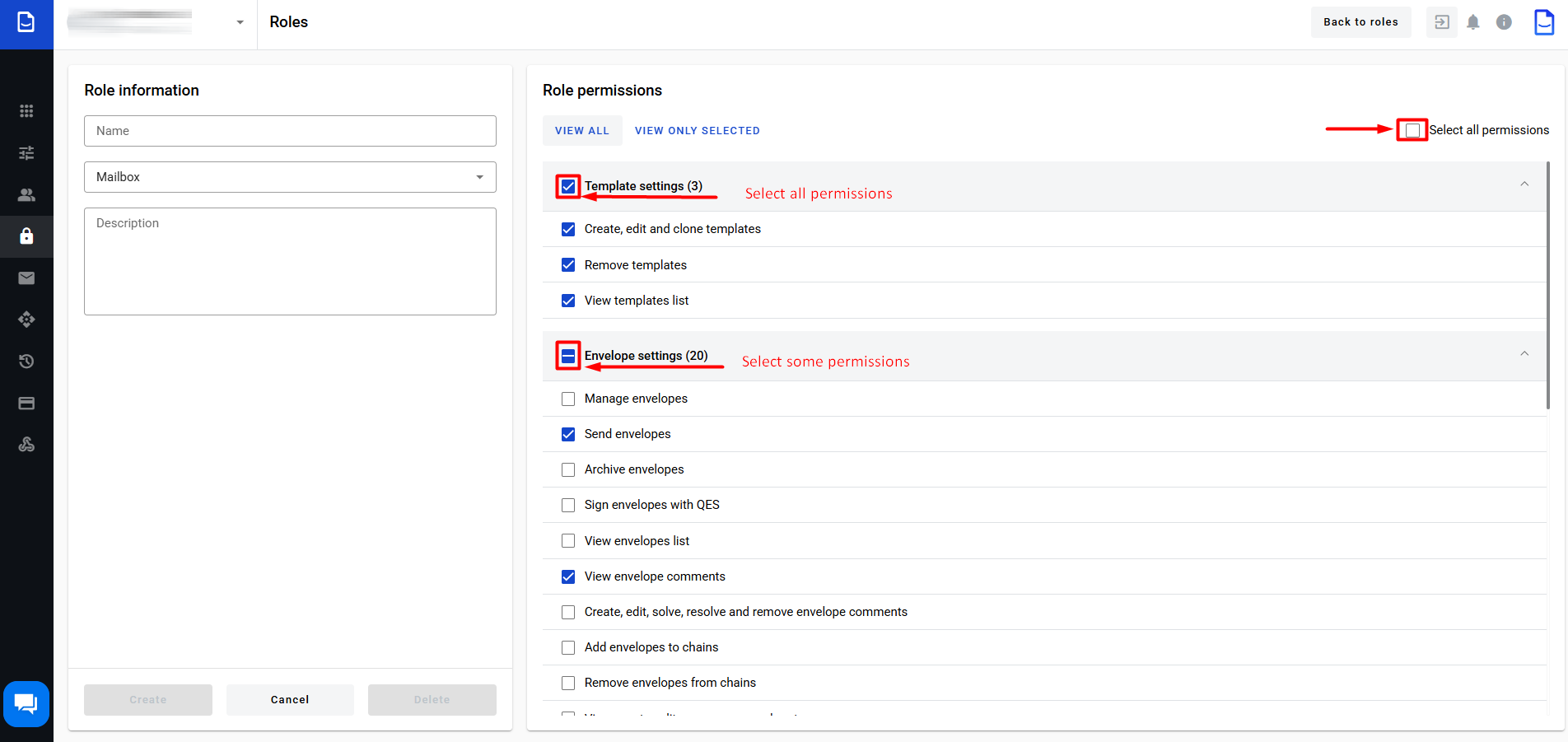
(Optional) Enable Select all permissions to select all permissions in all groups.
Click to view the screenshot...
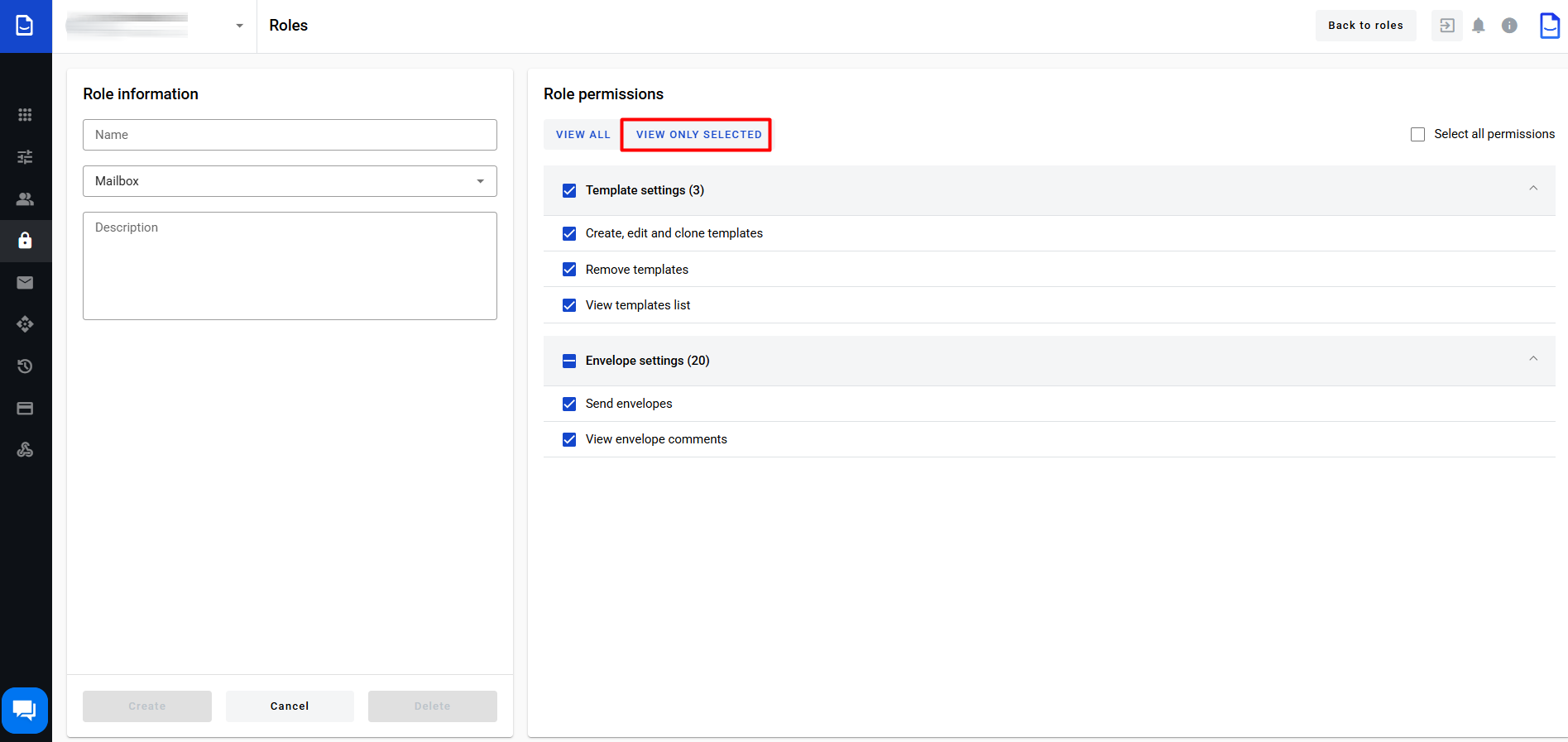
(Optional) Click to show selected permissions only.
Click to view the screenshot...
Click to view the screenshot...
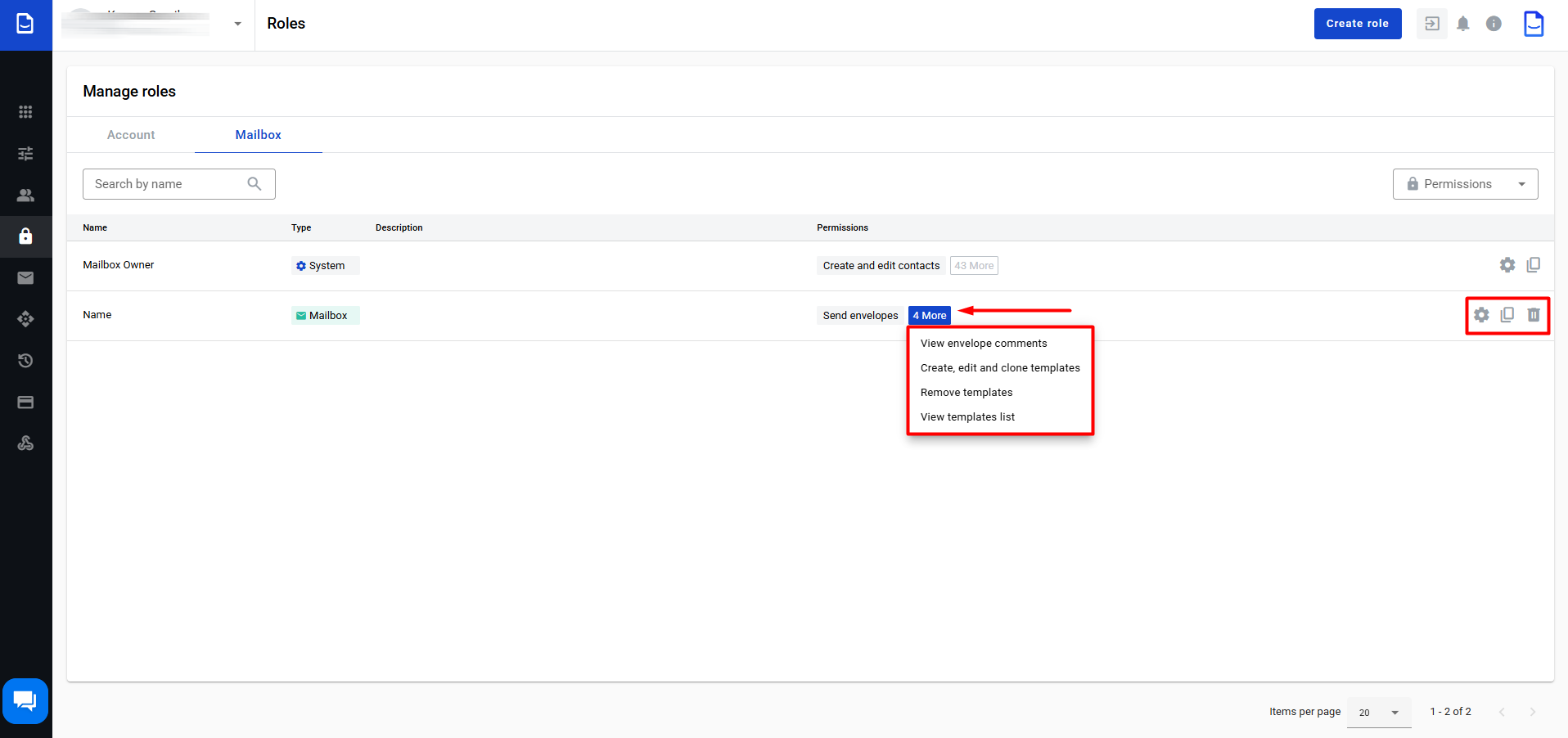
The role appears in the roles list.
In Permissions, click to see all permissions.
Click to view the screenshot...
You can edit, copy, or delete created roles.
Click to view the screenshot...
System roles cannot be edited.
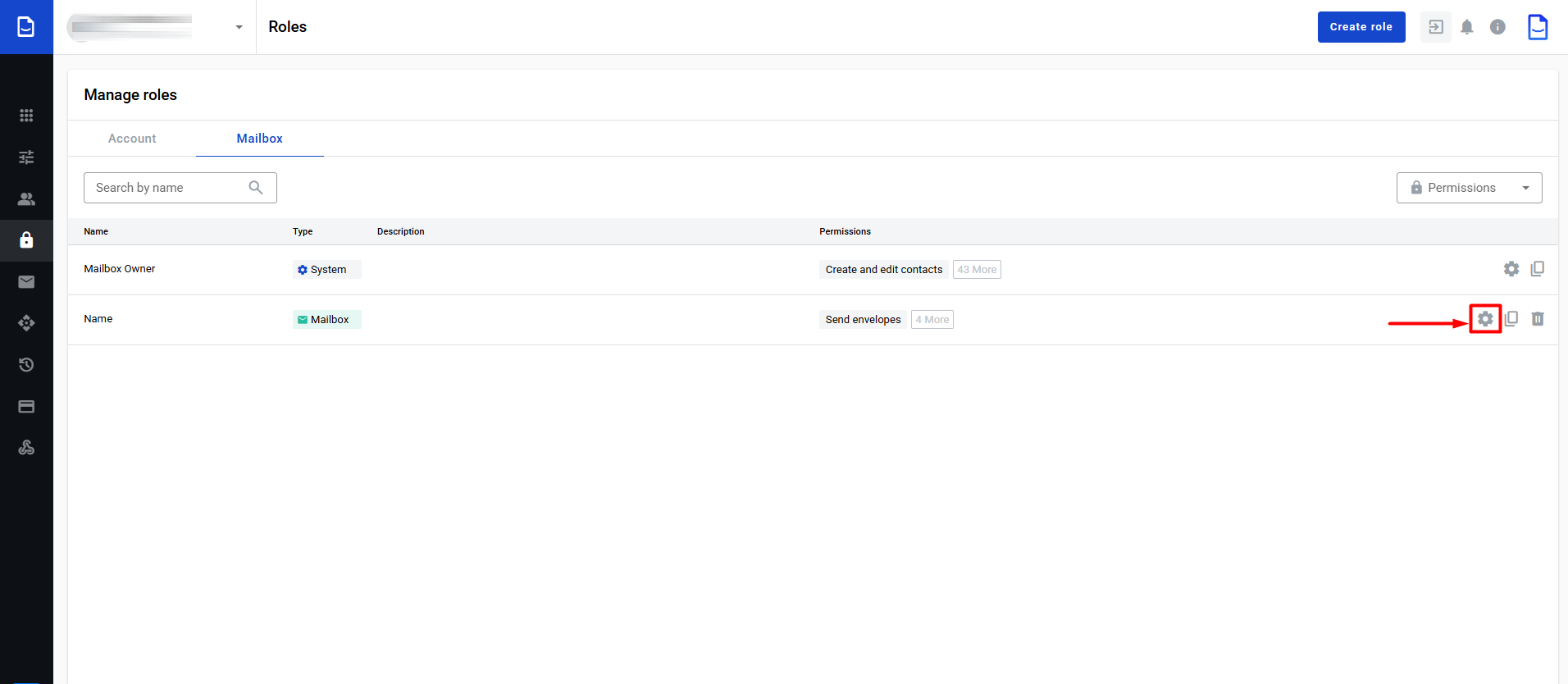
In the roles list, click the icon next to the role.
Click to view the screenshot...
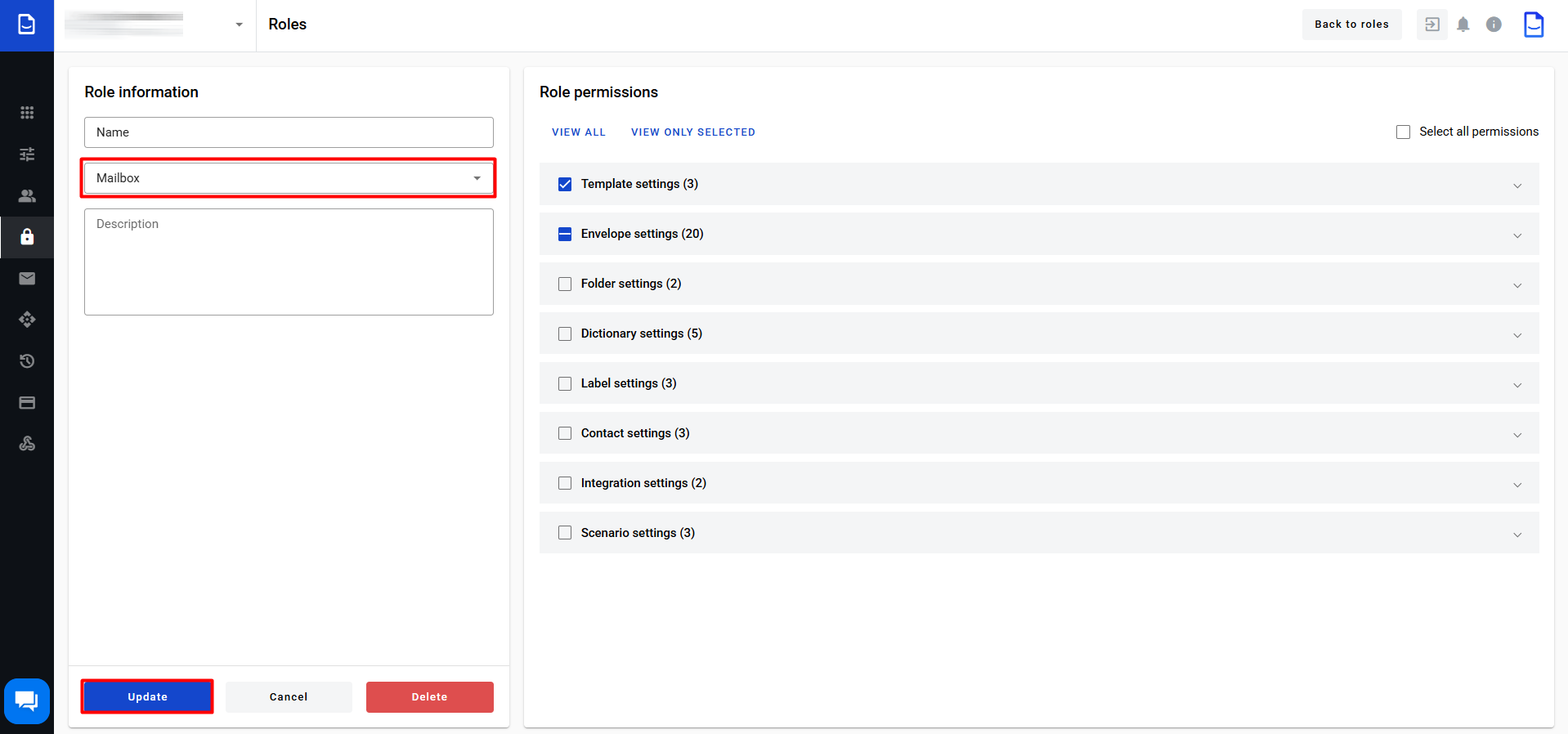
Update role details and permissions.
Click to view the screenshot...
You cannot change the role level when editing.
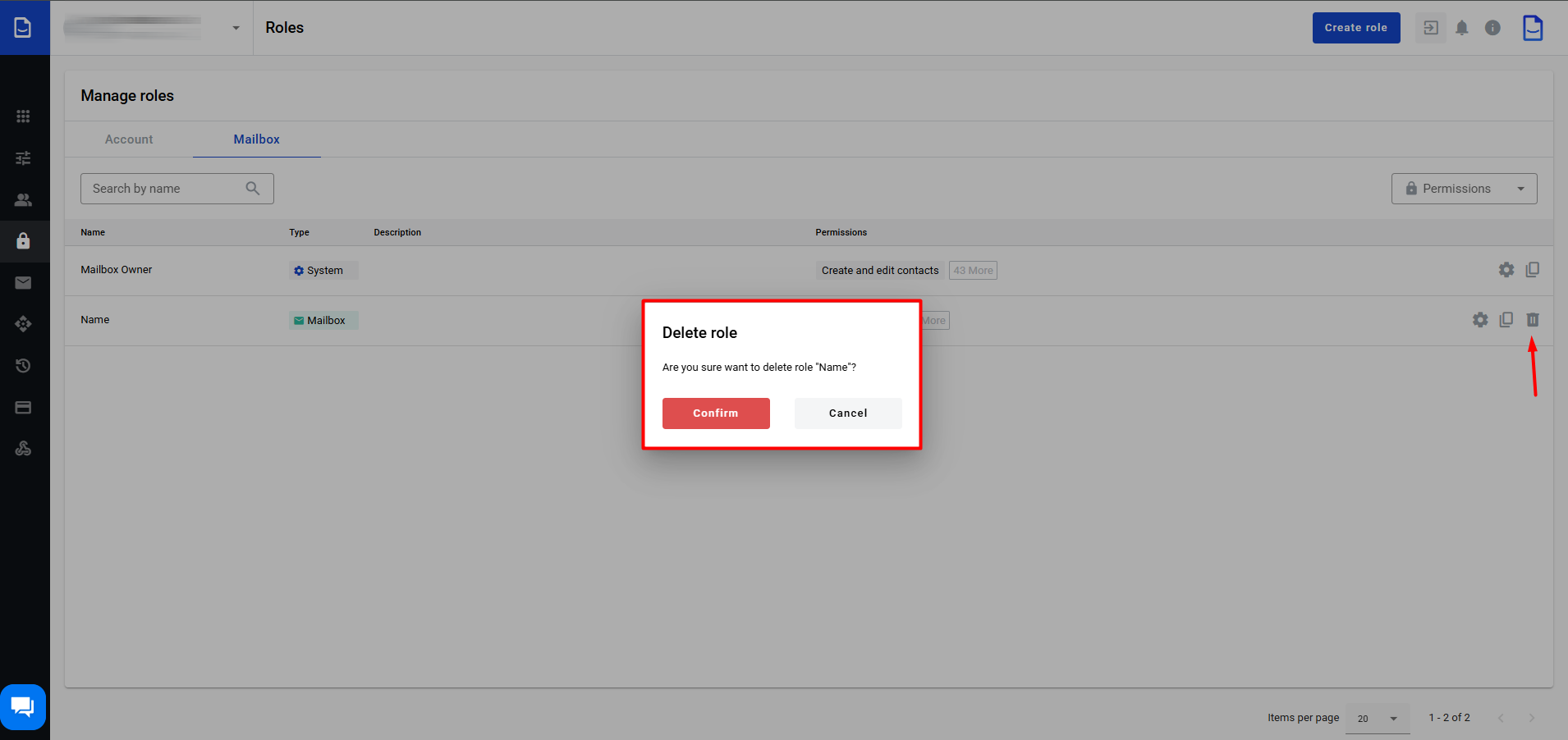
To delete a role, click and confirm.
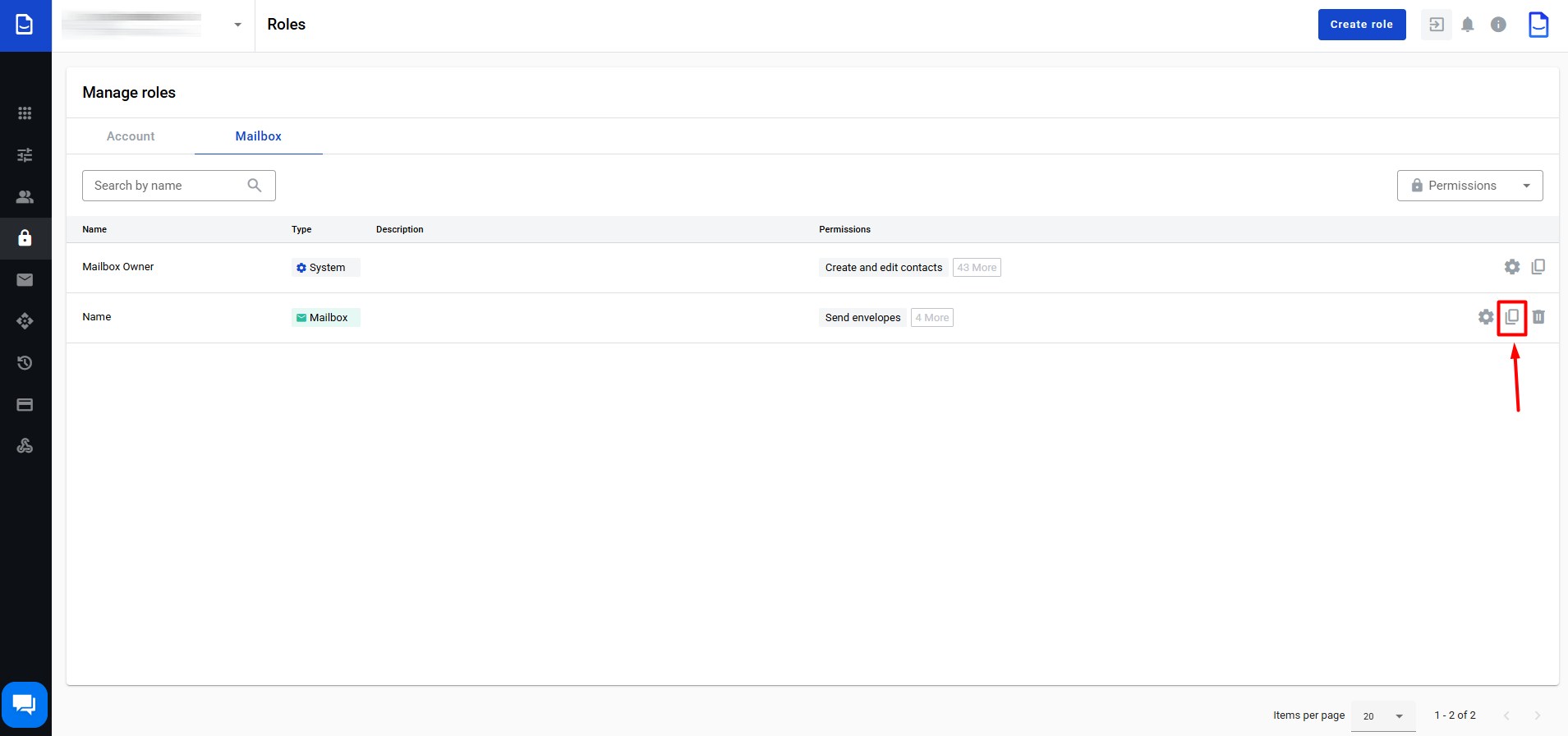
In the roles list, click the icon for the role.
Click to view the screenshot...
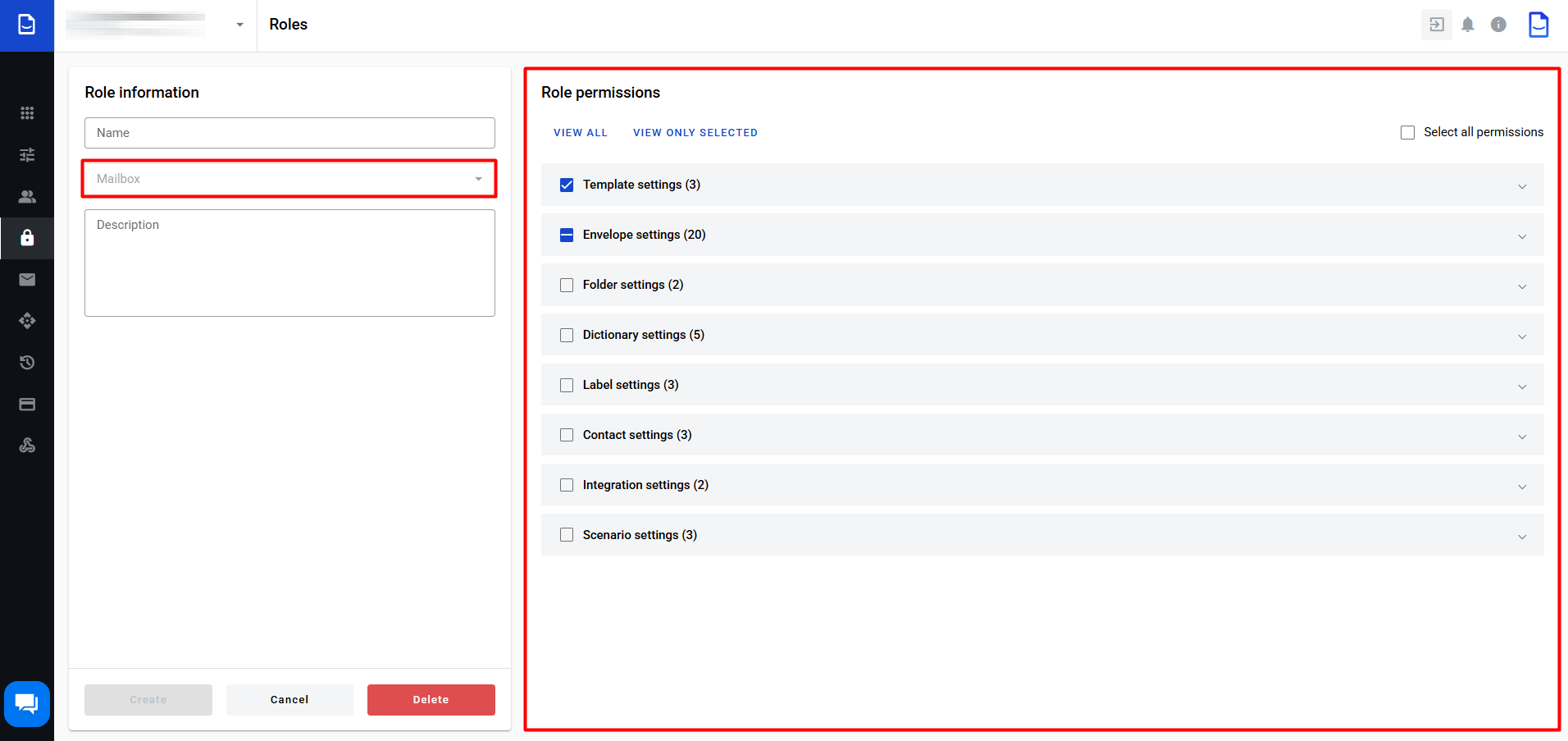
A new role is created with the same level and permissions.
Set a role name and update permissions as needed.
Click to view the screenshot...