External Documents in Templates

External documents are files that participants upload while processing an envelope.

Use them when the final document is not available at template creation time.

What is an external document

An external document is a file slot in a template. A specific role uploads a file into that slot in an envelope.

Examples:

  • supplier invoice

  • signed scan from a third-party system

  • supporting attachments

circle-info

By default, an envelope can contain up to 50 external and PDF documents in total. Your system admin can change this limit.

Add an external document to a template

  1. Open the Documents panel.

  2. Click .

  3. Click .

circle-info

The new document appears under the first structured document. By default, it’s assigned to Sender.

Configure external document properties

  1. Select the external document in the template.

  2. Update the document properties.

circle-exclamation

You can configure:

  • role (who uploads the file)

  • file name (placeholder shown before upload)

  • tooltip (optional helper text)

  • optionality (required vs optional)

  • allowed file type group

  • advanced settings (access settings for the file)

Allowed file type groups

.pdf, .doc, .docx, .xls, .xlsx, .xlsm, .xlsb, .xml, .dbf, .txt, .rtf, .csv, .xps, .eml, .msg, .emlx, .rpmsg, .crt, .pem, .der, .cer, .ppt, .pptx, .png, .jpg, .jpeg, .tiff, .tif, .zip, .7z, .rar

Add signature fields to an external document

You can place signature fields on external documents in the template.

  1. Open the external document.

  2. Drag a signature field from the toolbar onto the document.

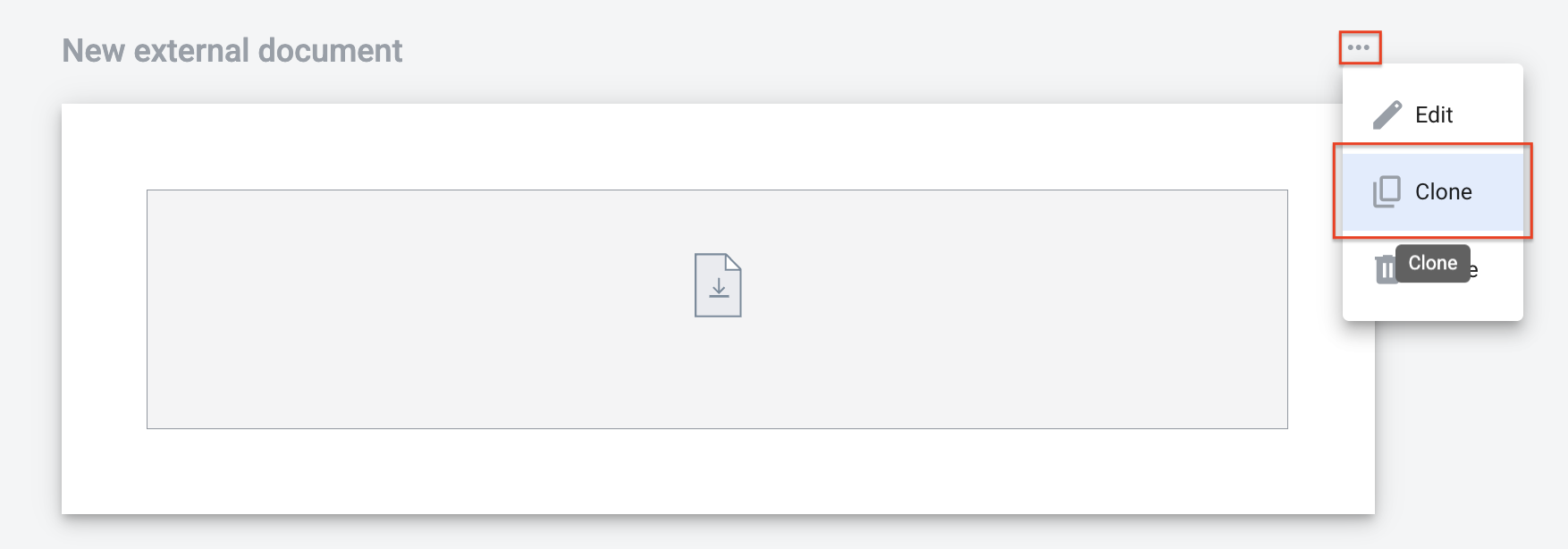
Clone an external document

  1. In the document header, click icon.

  2. Click .

chevron-rightClick to view the screenshot...hashtag

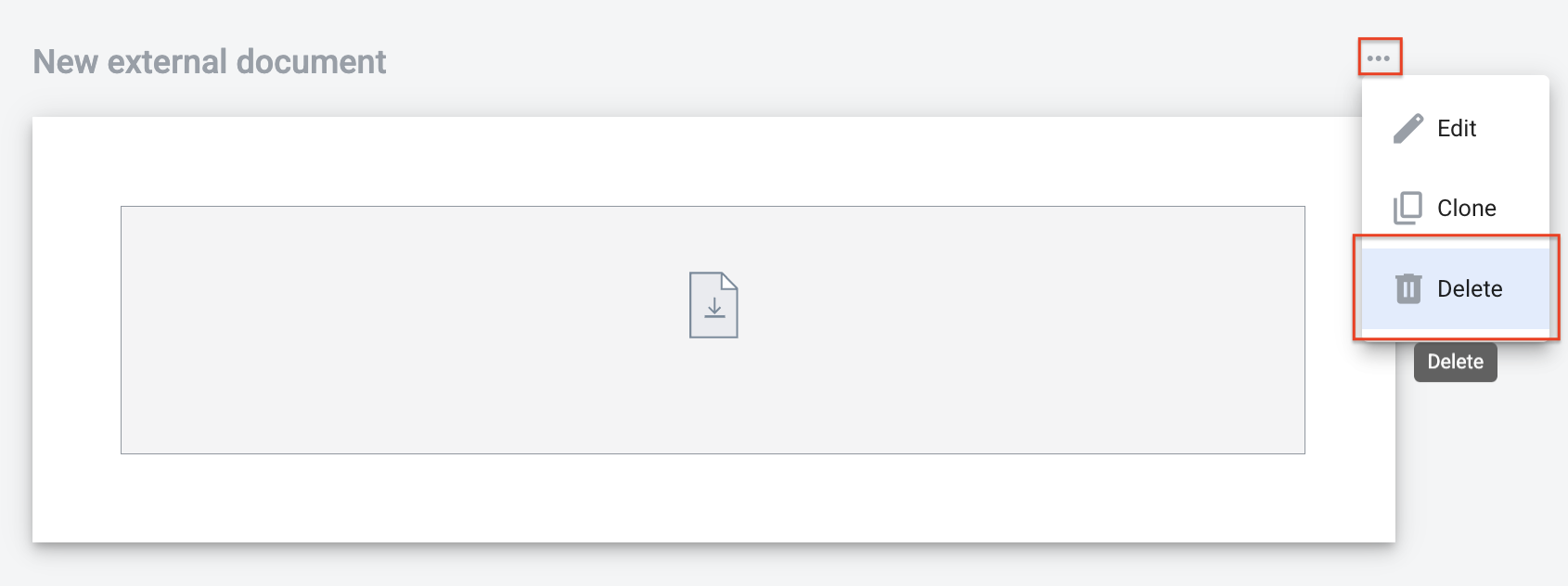
Delete an external document

  1. In the document header, click icon.

  2. Click .

chevron-rightClick to view the screenshot...hashtag

Last updated