Signature field
Use Signature field to collect an e-ink signature in a document.
You can place this field in:
structured documents
PDF documents
external documents
If you add this field to an external document, the document is converted to PDF automatically.
Add a signature field
Open the template in edit mode.
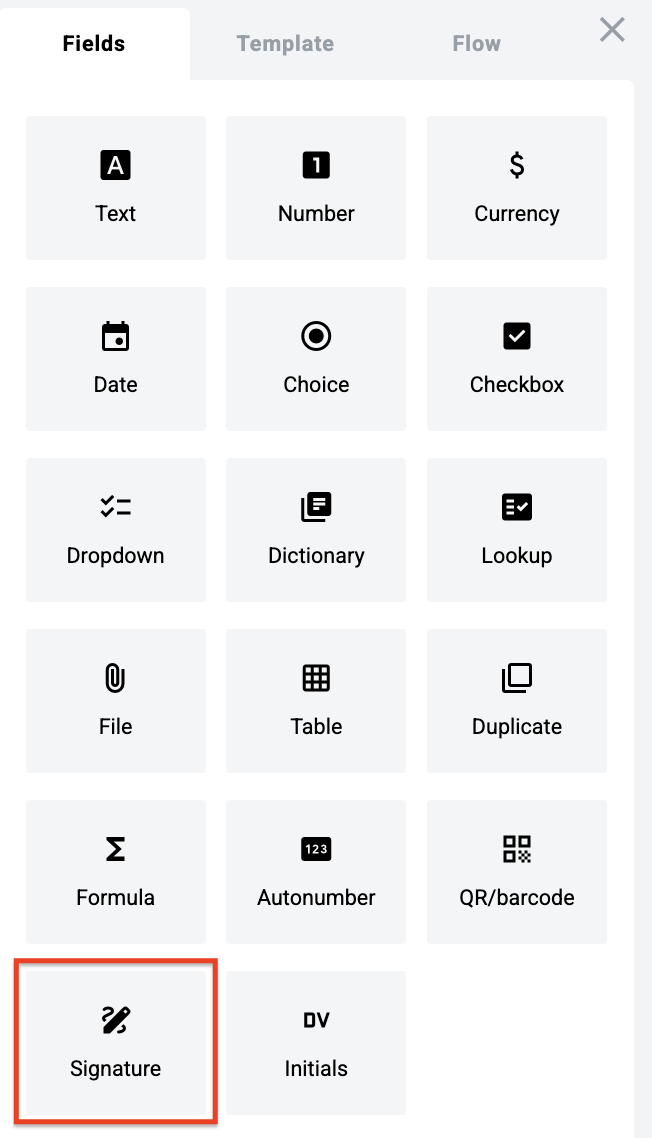
Open the Fields panel.
Find Signature field and add it to the document.
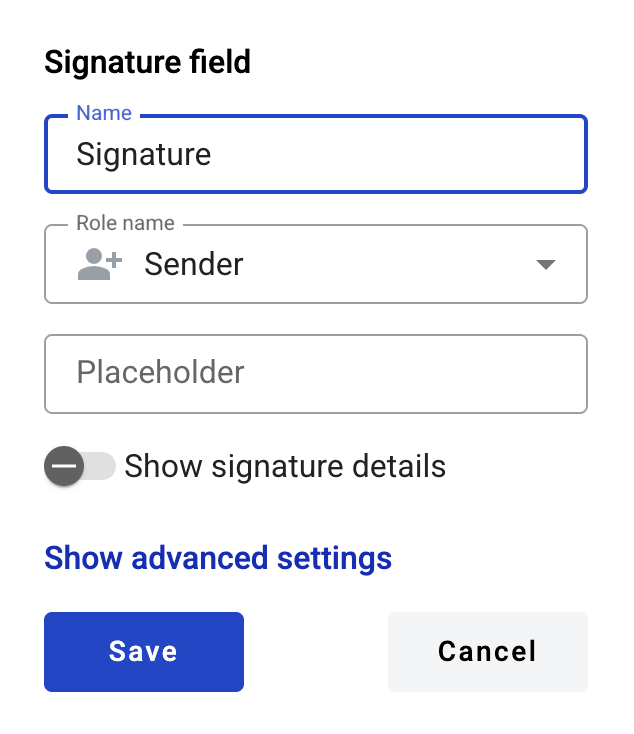
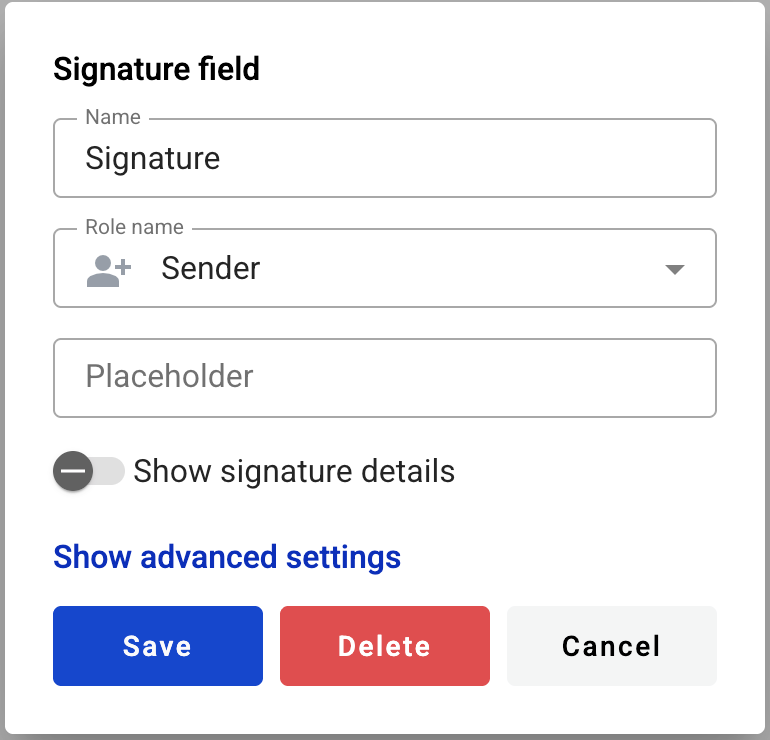
Configure the field and click Save.
Field settings
Click the field in the document to reopen properties and update them.
Basic settings
Name — field name shown in the document
Role name — role that signs in this field
Placeholder — hint text shown before signing; if empty, Name is used
Advanced settings
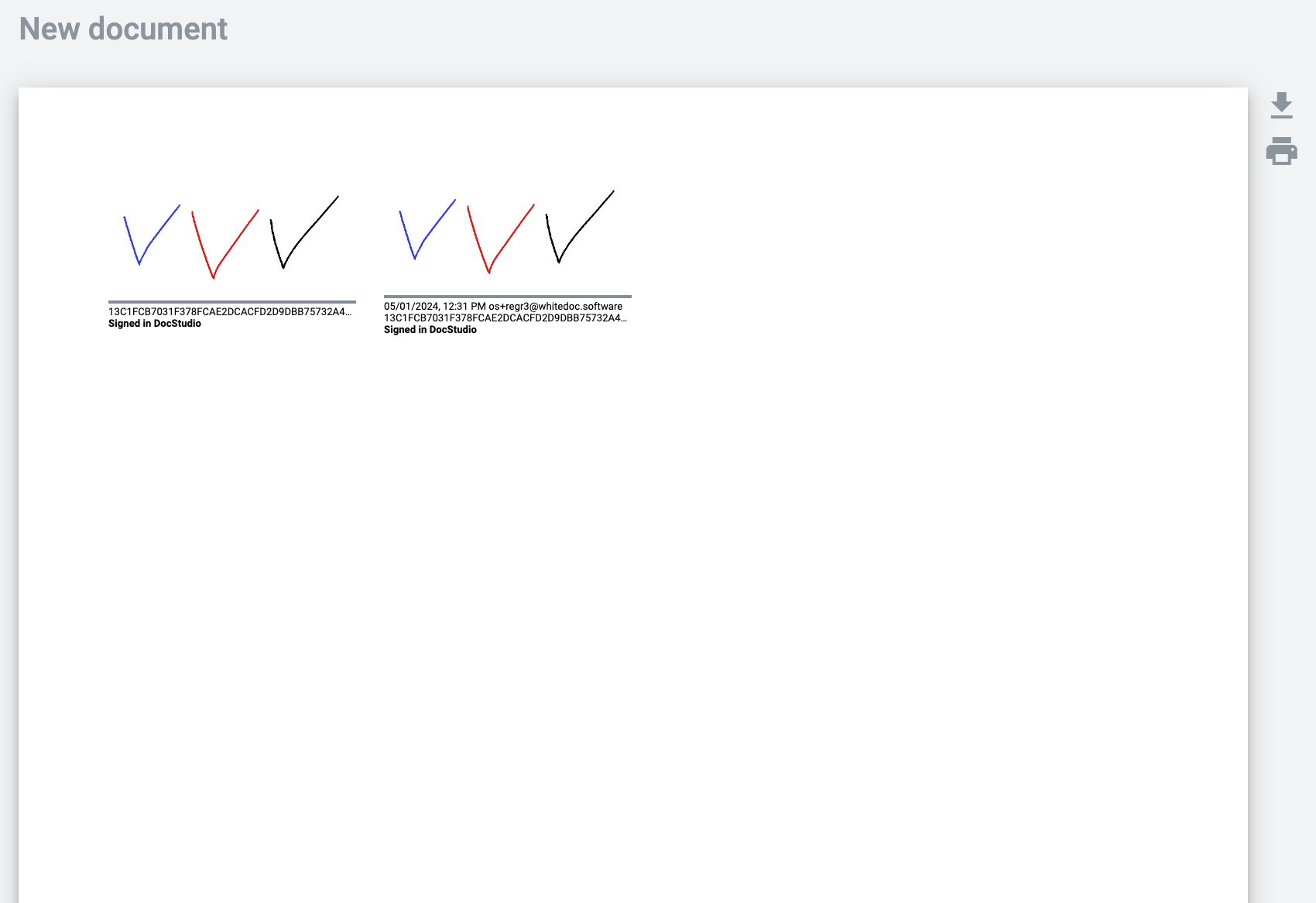
Show signature details — shows signature details under the signature
If Show signature details is enabled, the envelope shows:
date
mailbox or email address of the signer
signature hash
Signed by [instance name]
If disabled, only signature hash and Signed by [instance name] are shown.
Fill a signature field in the envelope
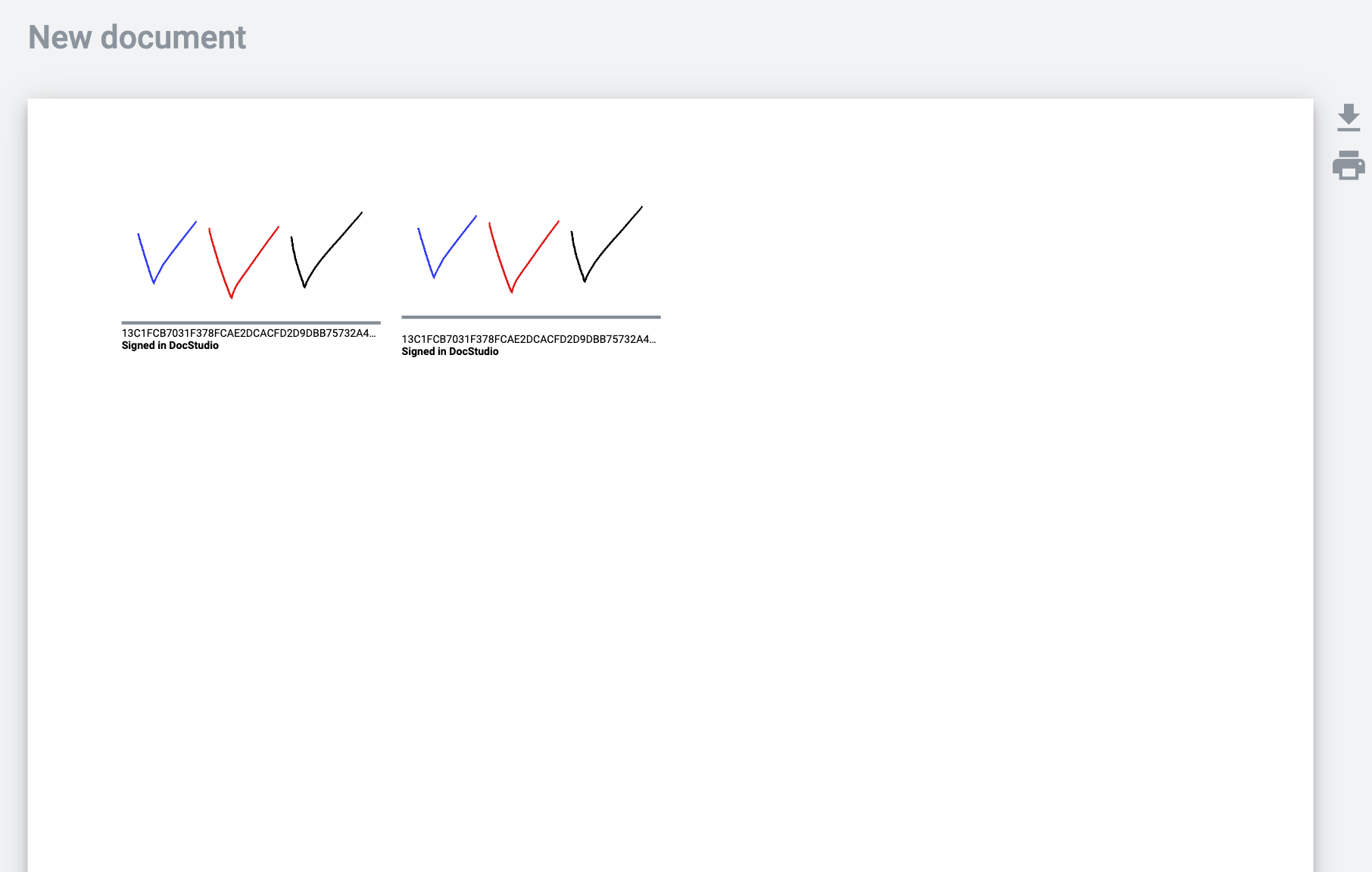
Open the envelope where the signature field is located.
Click the signature field.
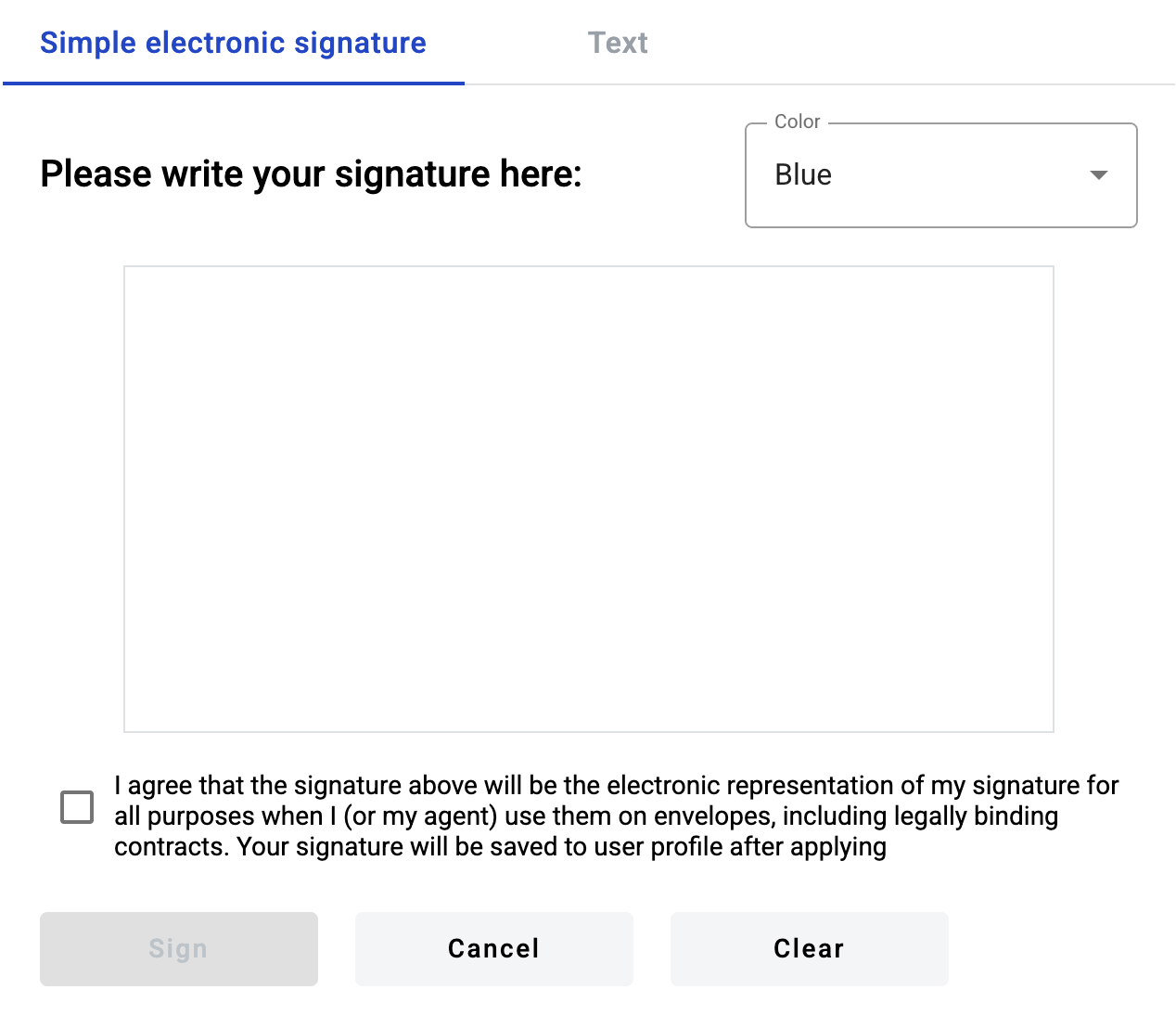
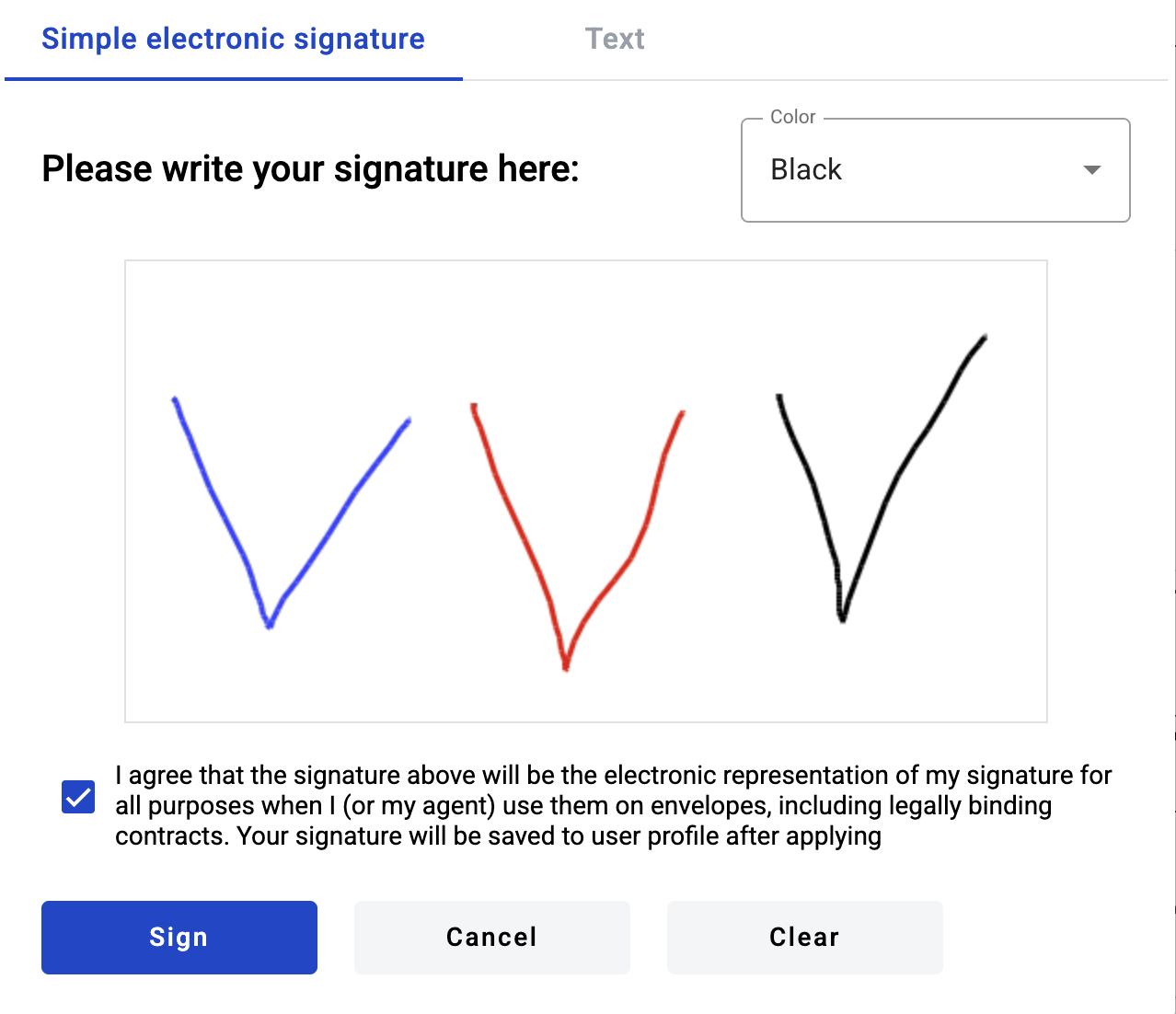
Draw a signature in the modal, or switch to the Text tab.
If you have a saved e-ink signature in your profile settings, the modal doesn’t open.\n\nThe signature is applied automatically.
Draw for at least 0.5 seconds to pass validation.
Click Clear to reset the drawing area (optional).
Click Sign to apply the signature.
Review the details under the signature (depends on Show signature details).
The signature date uses the signer’s timezone.\n\nSigned by [instance name] is shown in the instance default language.
Change a signature
Click the signature image to replace it.
Edit or delete a signature field
Click the field in the document.
Update settings in the properties panel, or delete the field there.
Last updated