Click on the three dots in the right corner of the scenario you need to edit
Click the Edit option from the list
Add your changes if needed and save the scenario
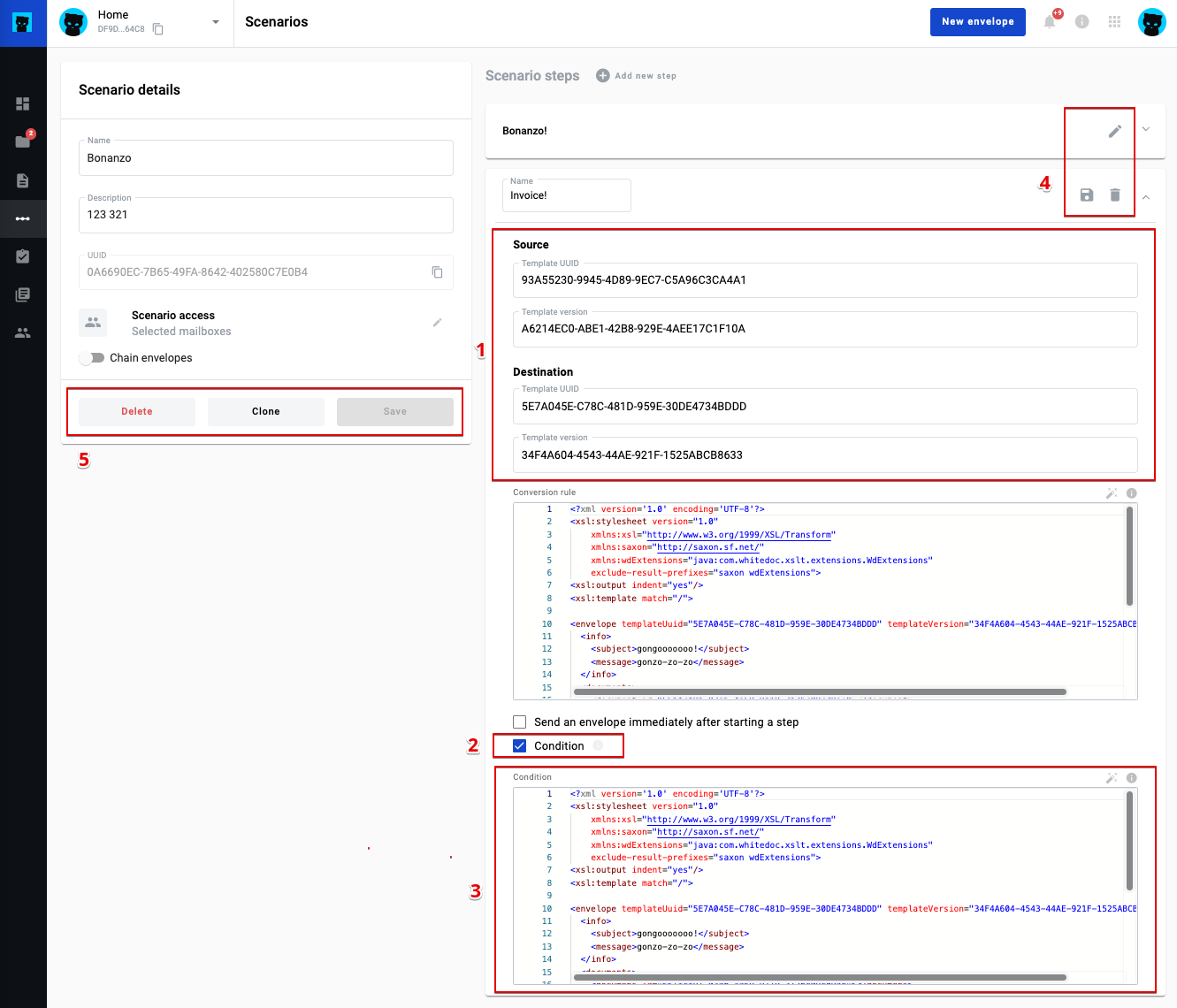
Description of the scenario edit form below
../../../../../_images/scenario-edit.png
Source and destination UUIDs
The condition for the step
Condition xslt field (if the condition step is marked) (required)
Action buttons on the step form
4.1 Save step button. (if edit step mode, disabled if step form is invalid)
4.2 Delete step button. (The first step cannot be deleted)
4.3 Edit step button. (if no edit step mode)
Action buttons in a step form
5.1 Delete scenario button
5.2 Clone scenario button
5.3 Save scenario button
How to edit a scenario step
If you need to edit a scenario step, click the Edit button (pencil icon) on the scenario step you want to edit, add your changes, and click the Save button in the upper right corner of the edited scenario step. After that, click the Save button.
How to clone a scenario
Open the list of scenarios
Click on the three dots in the right corner of the scenario you want to edit
Click on the 'Clone' option from the list
If the scenario is successfully cloned, you will receive a notification and see the cloned scenario in the list
You can also clone a scenario using the 'Clone' button inside the editing form of a specific scenario.
How to delete a scenario
Open the list of scenarios
Click on the three dots in the right corner of the scenario you want to edit
Click on the "Delete" option from the list
If the scenario is successfully deleted, you will receive a notification and the scenario will disappear from the list
You can also delete a scenario using the 'Delete' button inside the editing form of a specific scenario.