Number field
Use the Number field to collect numeric values during envelope processing.
You can place this field in:
structured documents
PDF documents
Add a number field
Open the template in edit mode.
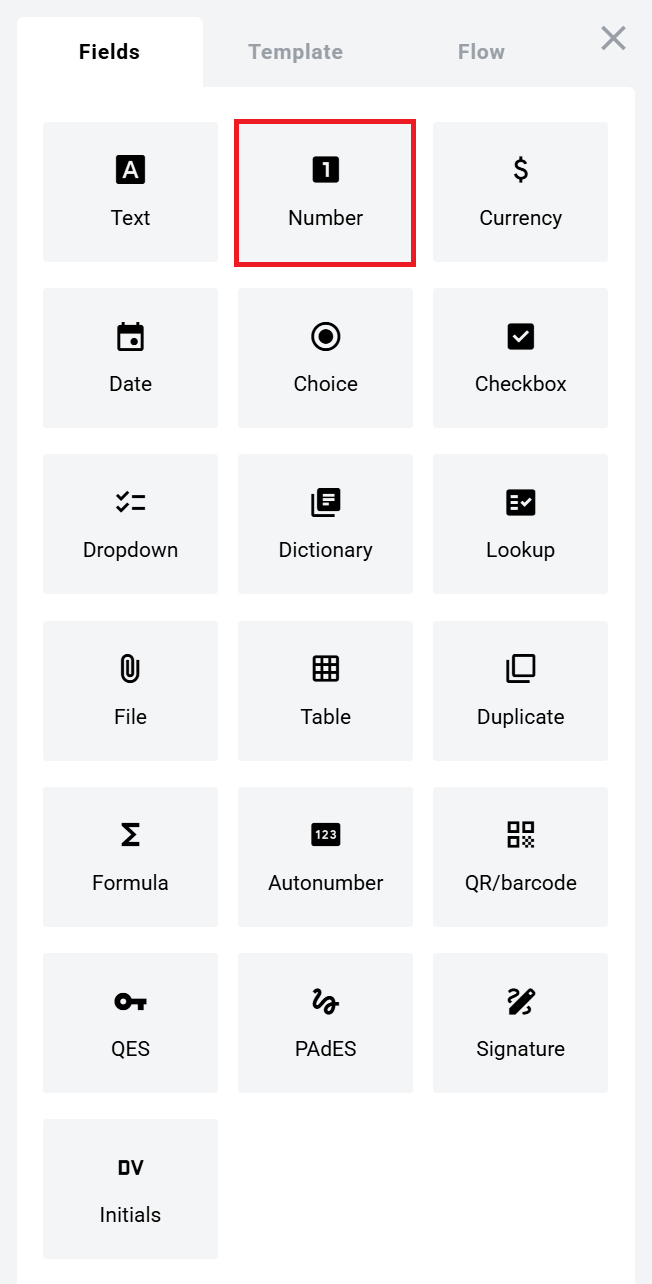
Open the Fields panel.
Find Number field and add it to the document.
Configure the field and click Save.
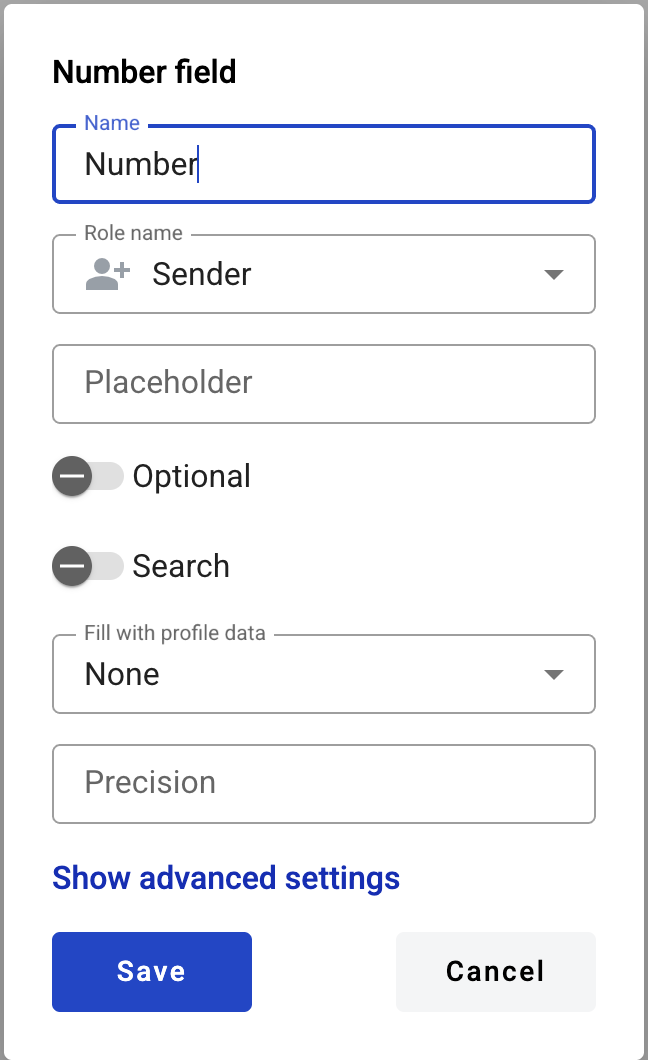
Field settings
Click the field in the document to reopen properties and update them.
Basic
Name — Field name.
Role name — Role that fills the field.
Placeholder — Text shown before input. If empty, Name is used.
Optional — Whether filling the field is required.
Search — Whether the field is available for mailbox search.
Advanced settings
Fill with profile data — Auto-fills the field (for example, remaining vacation days).
precision — Number of decimal places allowed. Leave empty for no limit.
Show decimal zeroes — Adds trailing zeroes to match precision.
Min — Minimum allowed value. Leave empty for no limit.
Max — Maximum allowed value. Leave empty for no limit.
Localization
Adapt to the local format — Formats numbers using the participant’s region settings.
In the envelope view, numbers use the region selected on the User profile page.\n\nIn printable versions, numbers always use the platform region standard.
Precision behavior
If the value has more decimals than precision, extra decimals are trimmed.
No rounding is applied.
Example:
1.99→1.9when precision is11.99→1when precision is0
Limits
The maximum allowed character count is 15 (IEEE 754).\n\nThis includes decimal places.\n\nExample: with precision = 3, the value 999999999999999 becomes 999999999999.000.
Edit or delete a number field
Click the field in the document.
Update settings in the properties panel, or delete the field there.
Last updated