What is a label, and how does it work?

Labels are mailbox markers. Use them to group envelopes beyond filters.

You can create labels in Mailbox or directly from an envelope.

Create a label in Mailbox

Creating a label in Mailbox lets you apply it to any envelopes later.

  1. Click .

chevron-rightClick to view the screenshot...hashtag
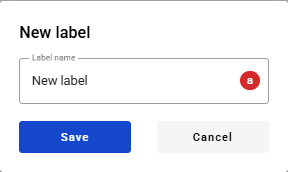
  1. Enter a label name and save.

chevron-rightClick to view the screenshot...hashtag
  1. The label appears in the Labels section.

chevron-rightClick to view the screenshot...hashtag

Apply a label to envelopes

  1. Select one or more envelopes.

  2. Click and choose Labels.

chevron-rightClick to view the screenshot...hashtag
  1. Pick one or more labels from the list.

chevron-rightClick to view the screenshot...hashtag

Create a label while labeling envelopes
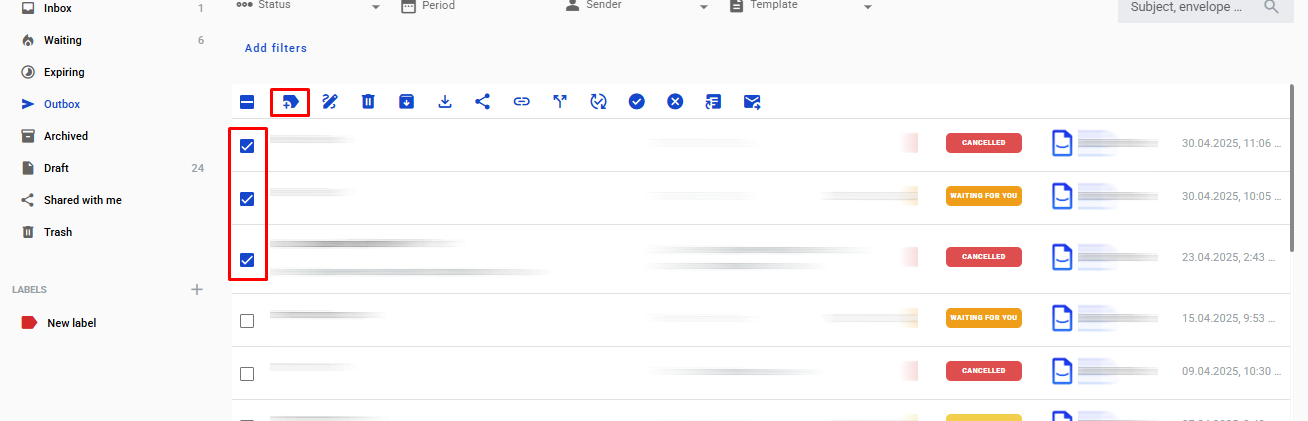
  1. Select envelopes.

  2. Click .

chevron-rightClick to view the screenshot...hashtag
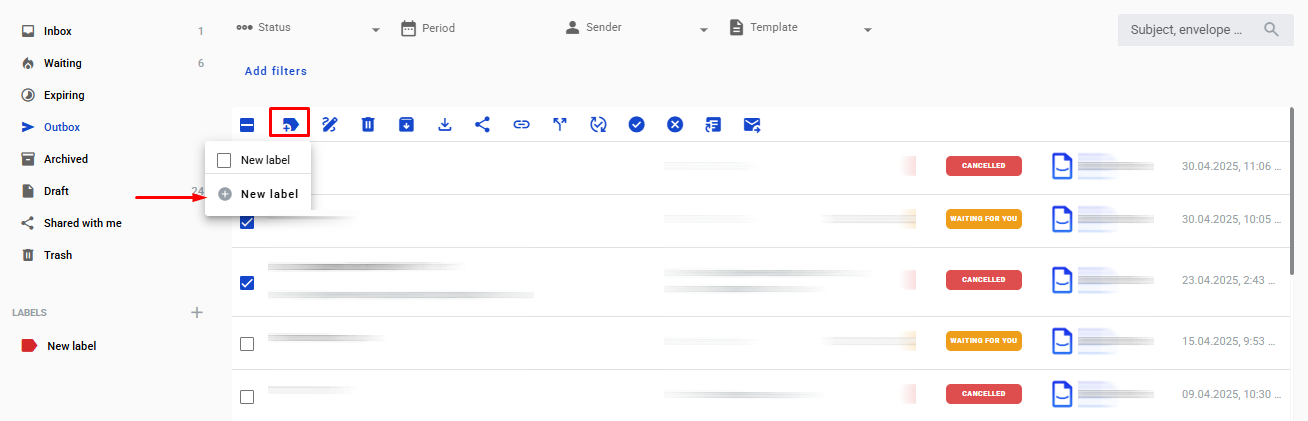
  1. Select an existing label, or click .

chevron-rightClick to view the screenshot...hashtag
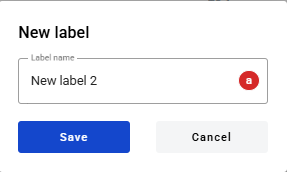
  1. Enter a name and save.

chevron-rightClick to view the screenshot...hashtag

Use a label to quickly filter envelopes
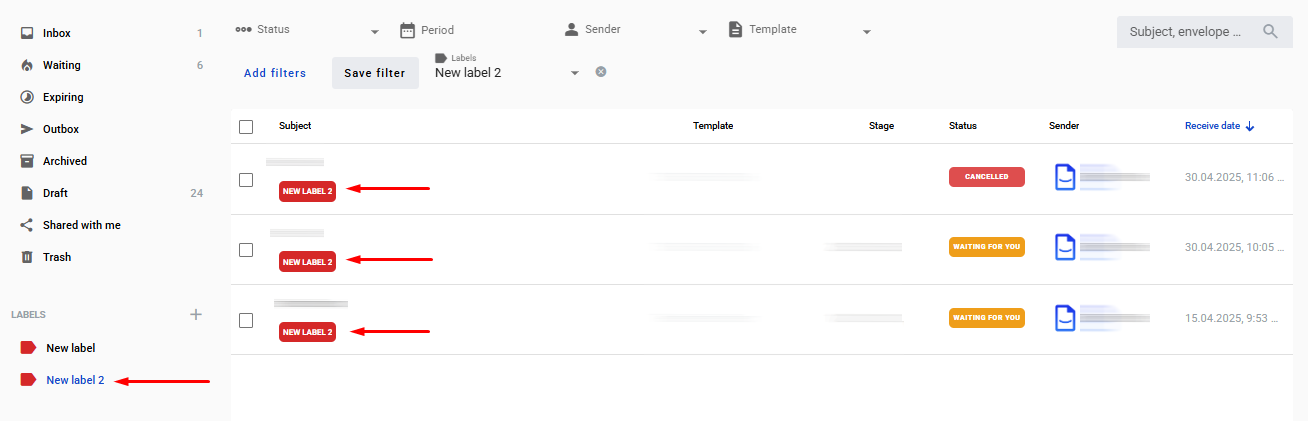
Click a label to show all envelopes with that label.

chevron-rightClick to view the screenshot...hashtag

Create or apply labels inside an envelope
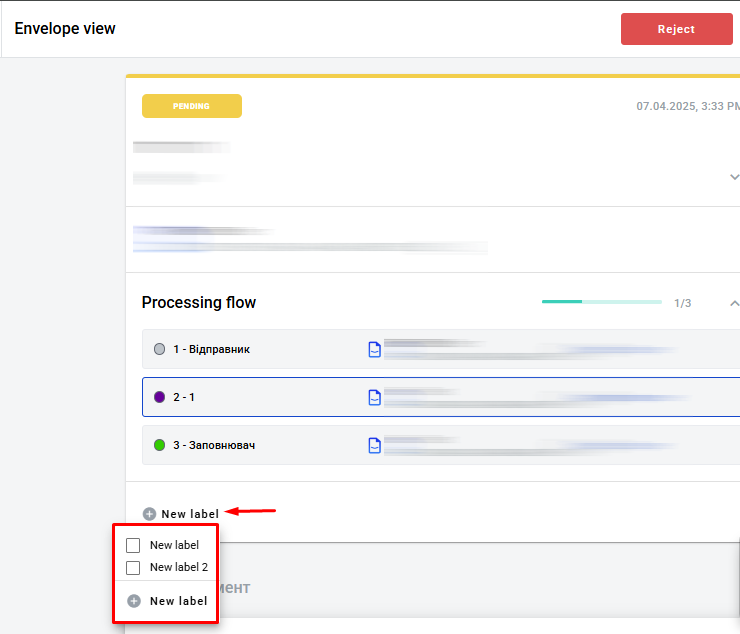
  1. Open an envelope.

  2. Click , or select an existing label.

chevron-rightClick to view the screenshot...hashtag

Edit or delete a label

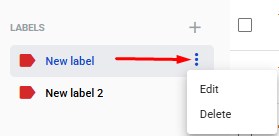
You can edit or delete labels. Changes apply everywhere the label is used.

chevron-rightClick to view the screenshot...hashtag

Last updated