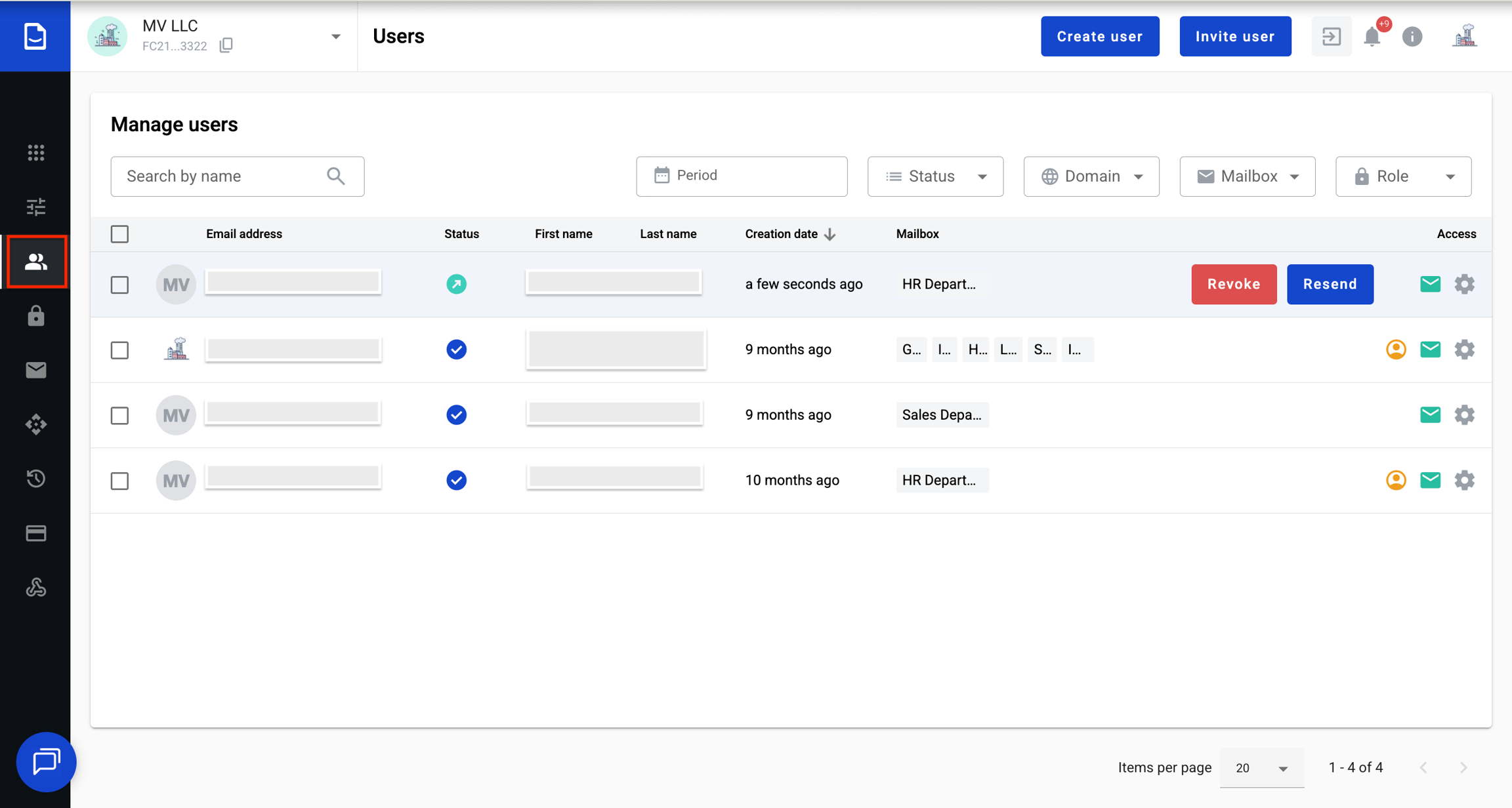
To do this, open the Administrator Panel, section 'Users'
After that, a page will open with a list of active users who have been created/invited to the account.
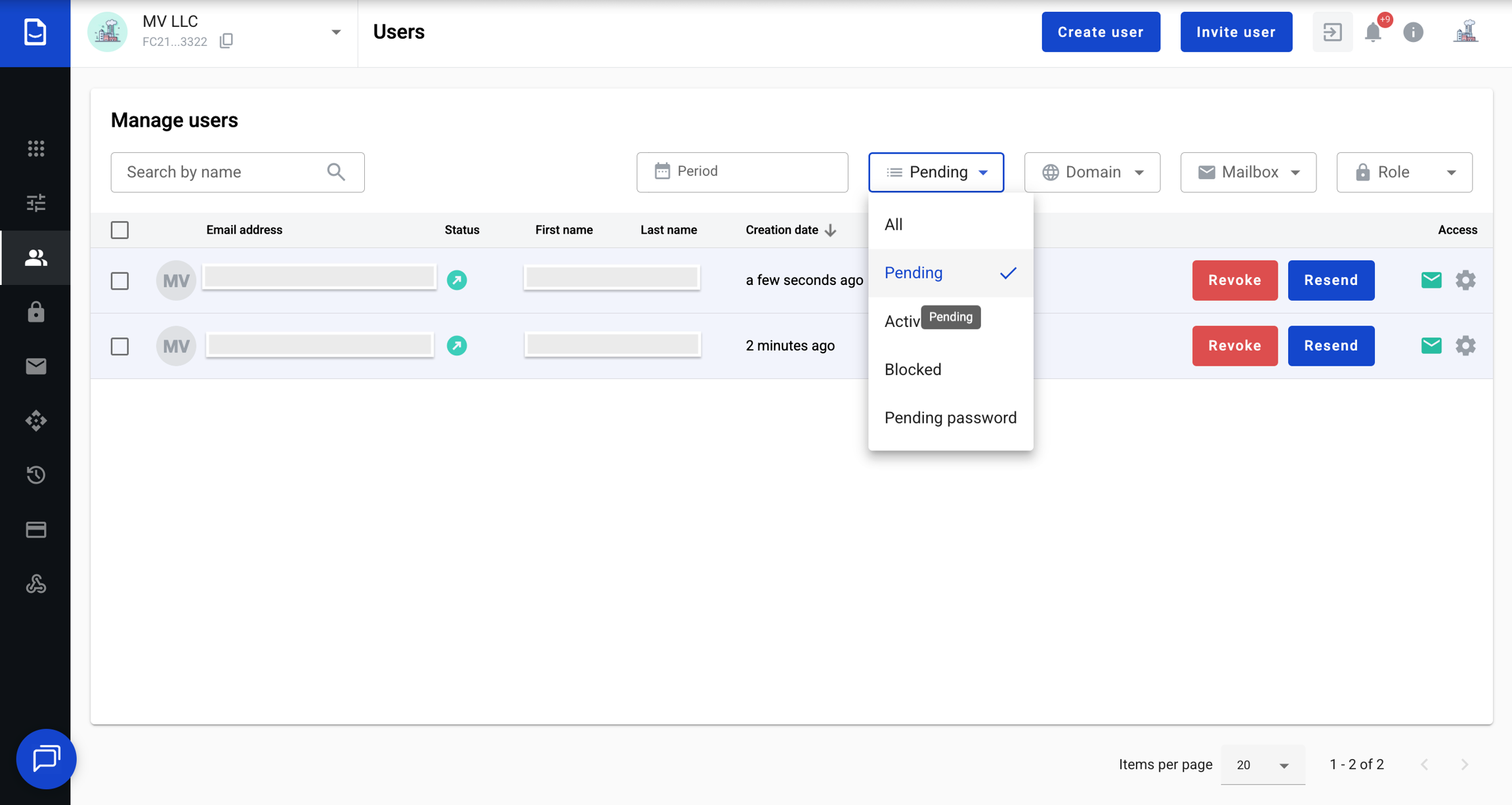
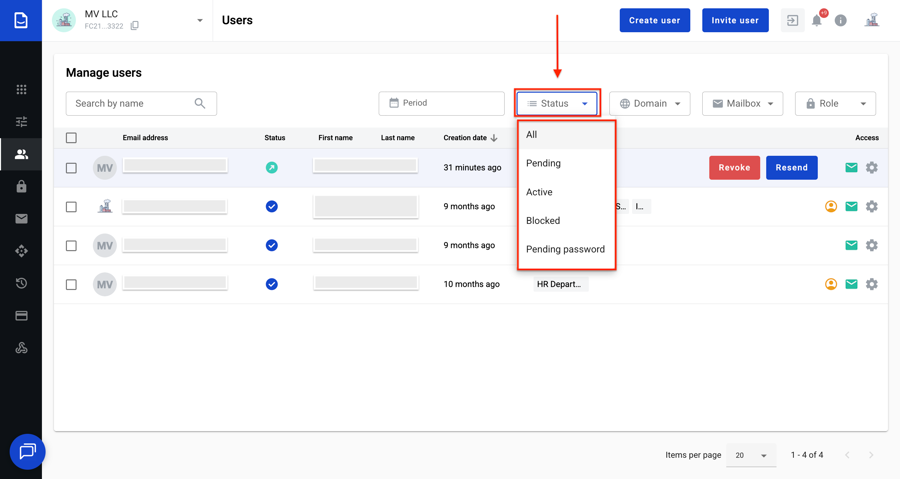
Users who have not yet accepted the invitation have the status 'Pending'. To quickly sort and find user data, you can use the filter:
You can also find out the user status in your account by hovering over the icon shown below:
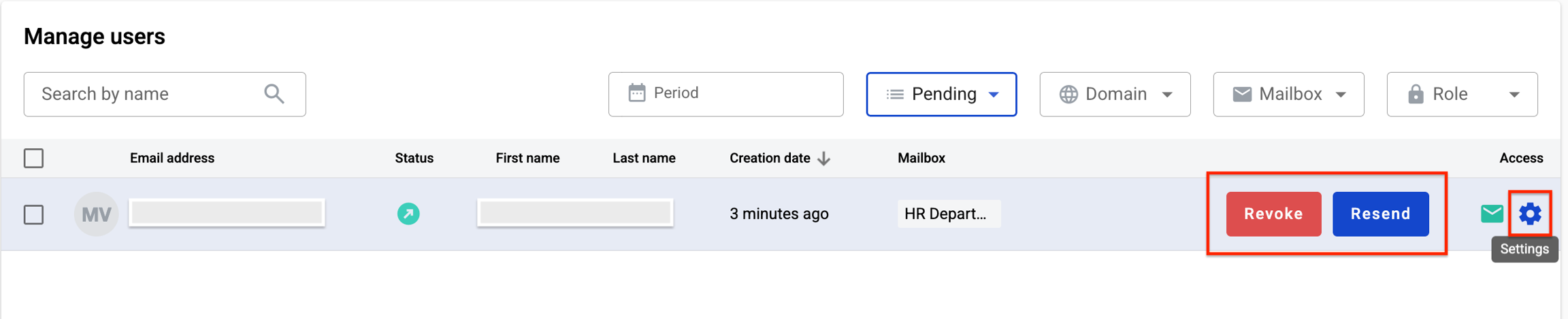
If the user has not yet accepted the invitation, you can revoke it if necessary, or resend it — the user will receive another invitation email.
You can also change access permissions in the settings:
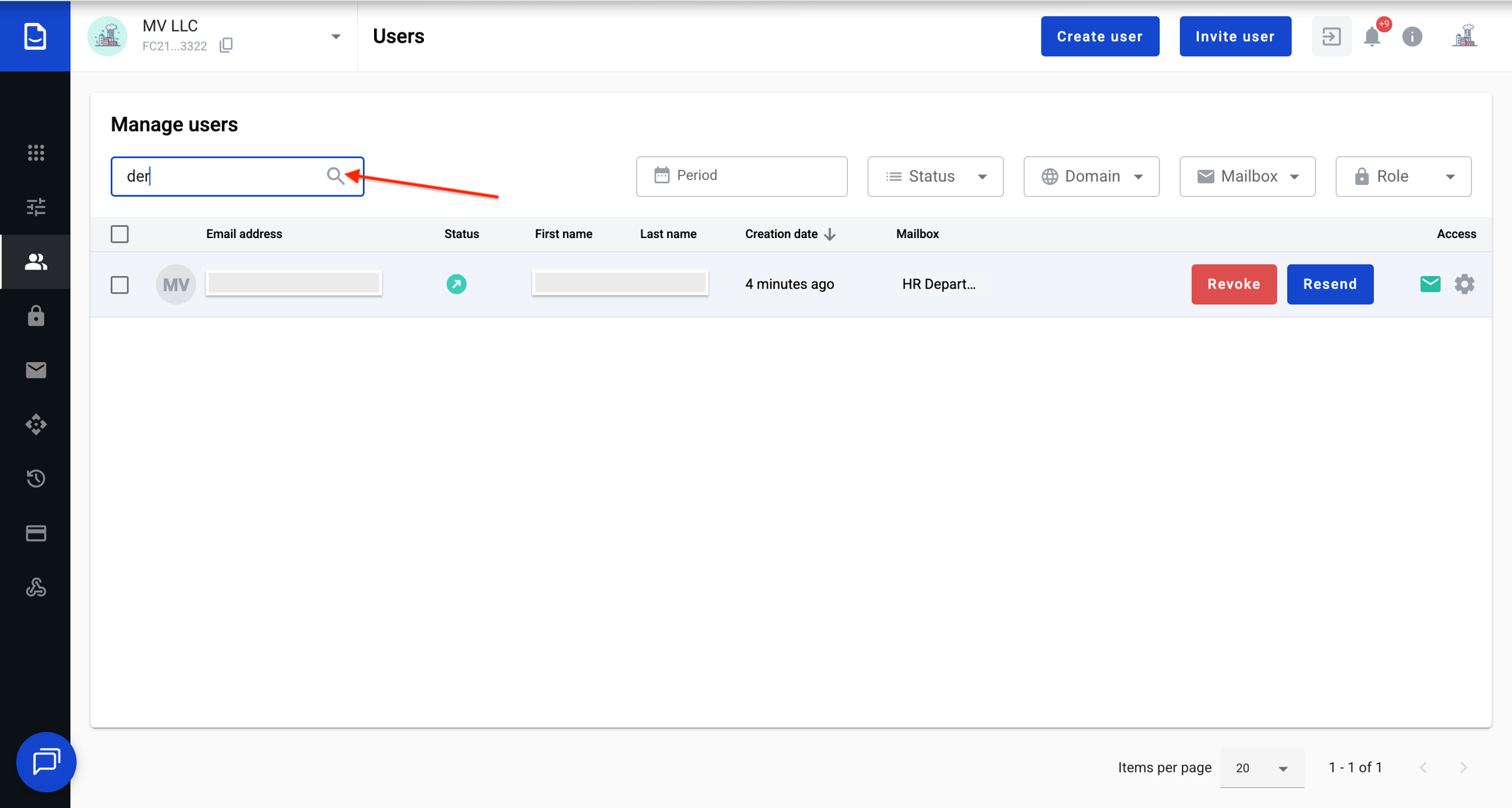
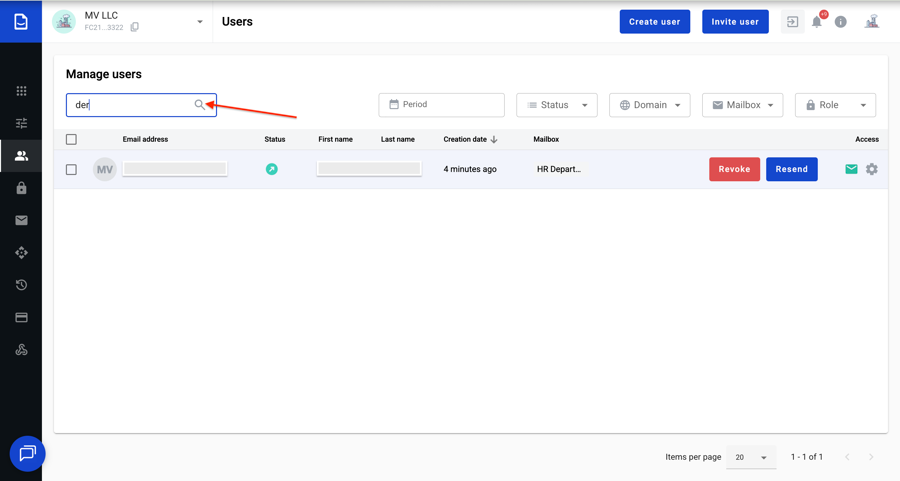
For convenience, you can use the search field by entering the user's email address, first name, or last name:
How to find or filter users in a list
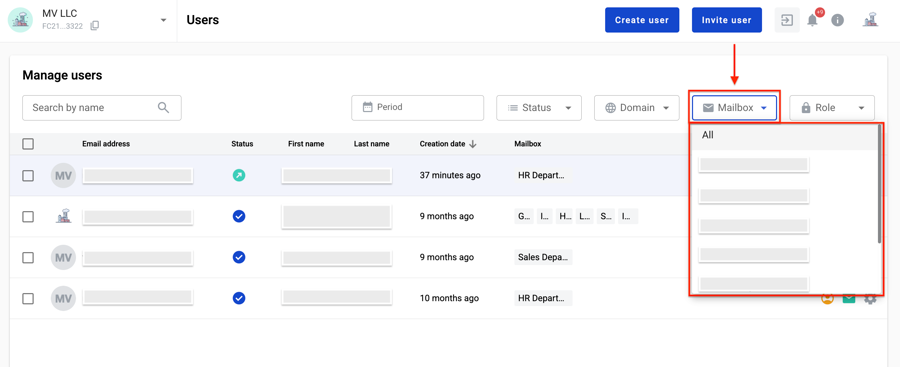
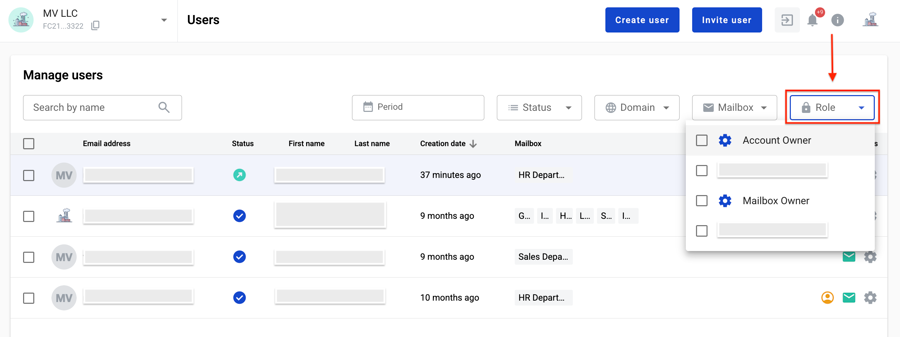
On the 'Users' page, several filters are available for convenient searching and sorting of their list:
Search by name — search for a user by email, first name, or last name
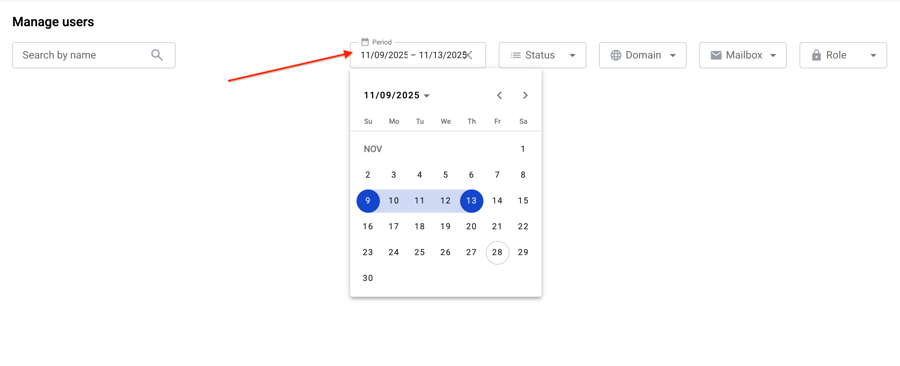
Period — filtering users by creation date
Status:
All — all account users
In progress — users who have not yet accepted the invitation to the account
Active — all active users of the account
Blocked — blocked users (the user is blocked and cannot log in to the platform)
Waiting for password — a corporate user has been created who needs to complete registration and create a password
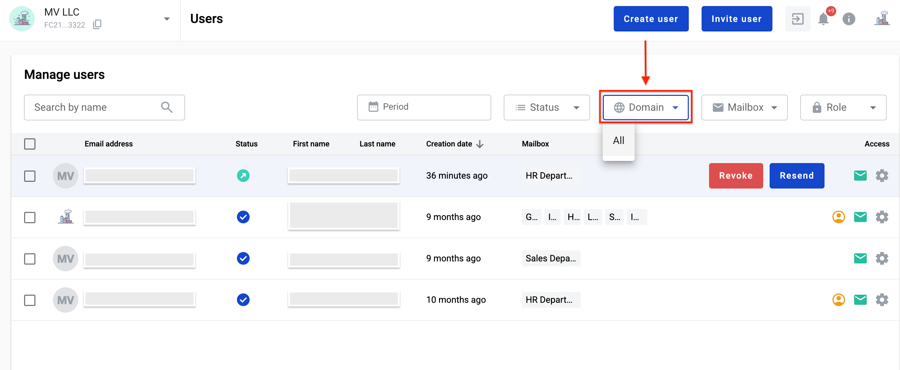
Domain — filtering by company domains
Mailbox — filtering by users who have access to this mailbox
Role — filtering users depending on the access rights granted:
standard — Account owner, Mailbox owner, and roles created independently.