Text field
Use Text field to collect free-form text from participants during envelope processing.
You can place this field in:
structured documents
PDF documents
Add a text field
Open the template in edit mode.
Open the Fields panel.
Find Text field and add it to the document.
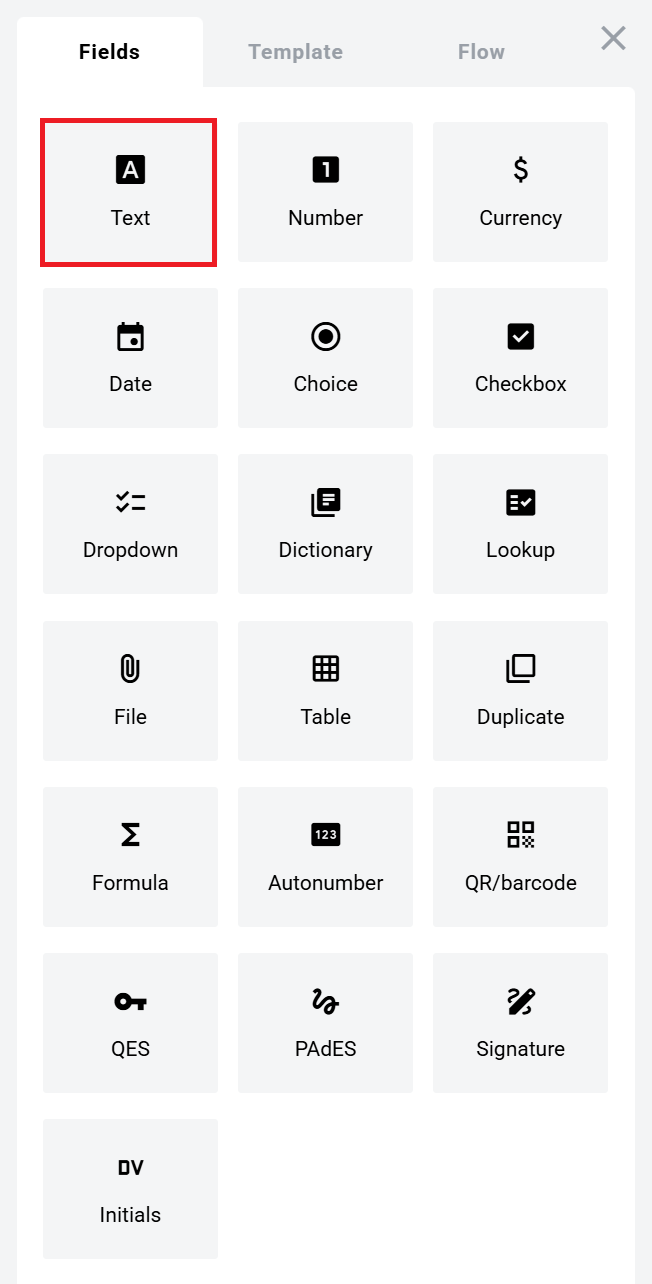
Configure the field and click Save.
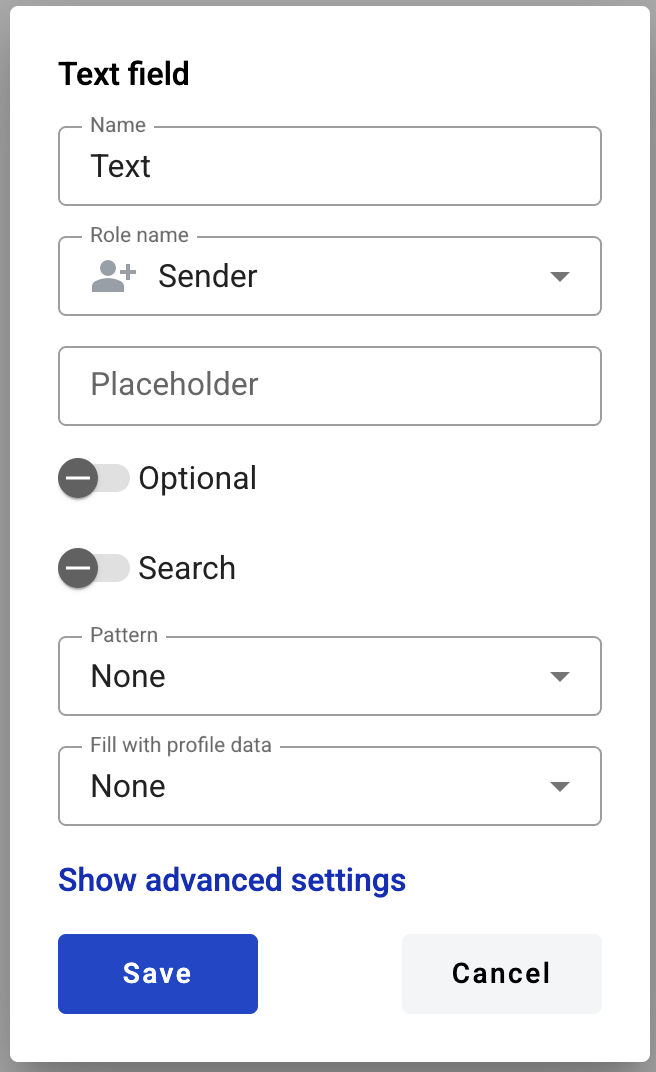
Field settings
You can change these settings later. Click the field in the document to reopen properties.
Basic
Name — internal field name
Role name — who fills the field
Placeholder — helper text shown before input. If empty, the field Name is used
Optional — whether filling the field is required
Search — makes the field available for search/filtering in the mailbox UI (if enabled in your setup)
Multiline — switches between single-line and multi-line input
Pattern — input format constraint (for example,
UUID,EDRPOU,IPN)Fill with profile data — auto-fills the field from the participant profile (for example, first name, last name, email, phone)
Default limits:
single-line: 1000 characters
multiline: 5000 characters
Advanced settings
Min — minimum number of characters. Leave empty to disable the minimum.
Max — maximum number of characters. Leave empty to keep the default limit.
Links inside a text field
If a participant enters a URL, it is rendered as a normal browser link (blue + underline).
You can open the link from the right-click context menu (any role).
You can open the link with a direct click only if the field is inactive.
Last updated