Use Mailbox to view, filter, and manage envelopes.
Create a new envelope
In Mailbox, click (top-right).
Click to view the screenshot...
Control how many envelopes you see
Use Number per Page to change how many envelopes are shown.
Click to view the screenshot...
Customize columns and filters
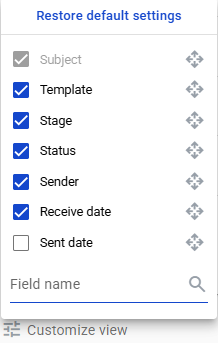
Open Customise View to change what you see in the list.
Start typing a field name.
Select a field to add it as a column.
Click to view the screenshot...
Only fields with Search enabled can be added as columns.
Filter envelopes
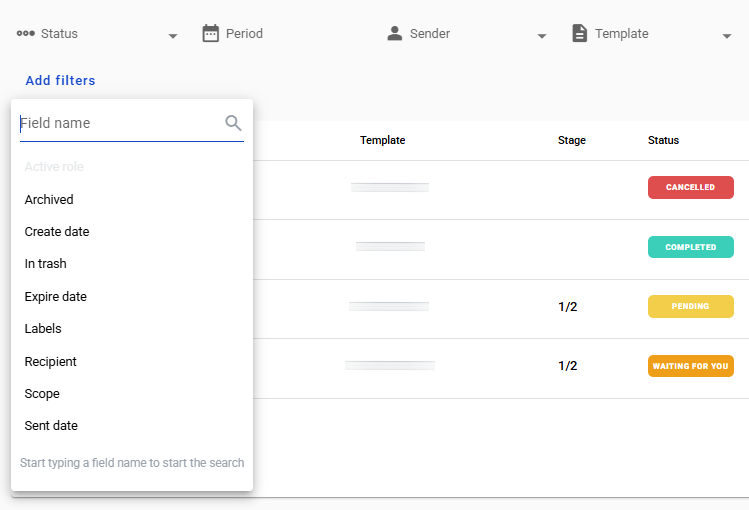
Use the same Customise View menu to apply filters by status or field.
Click to view the screenshot...
To save your current filter setup, click .
Navigate folders
Use the folders list on the left side of the page.
Click to view the screenshot...
Your system administrator can enable hiding empty folders.
Archive envelopes
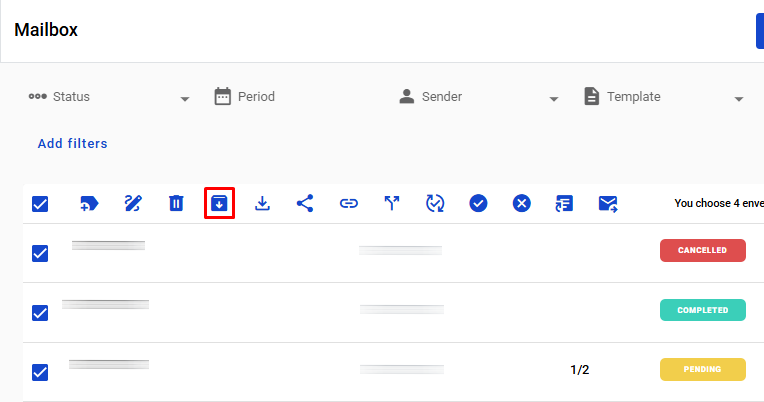
Select one or more envelopes.
Click to view the screenshot...
You can archive only envelopes with these statuses:
Unarchive envelopes
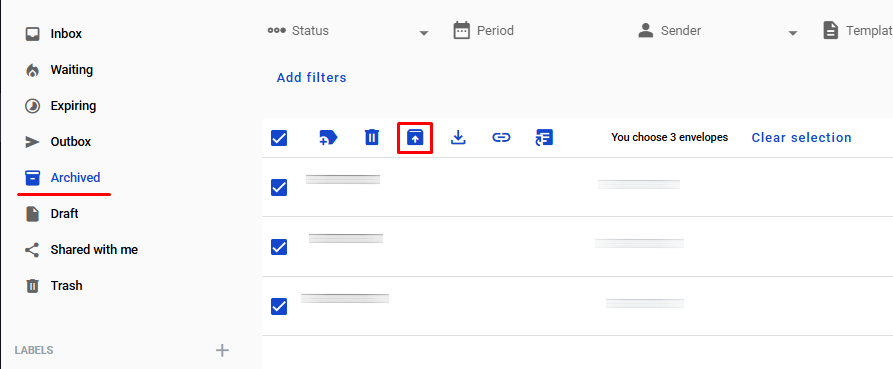
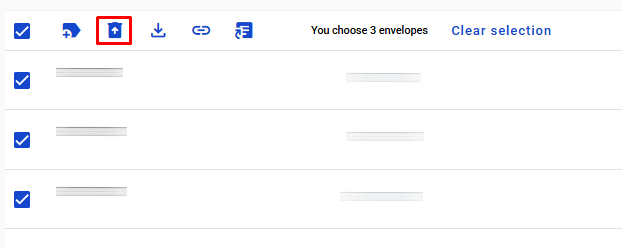
In the Archived folder, select envelopes and click .
Click to view the screenshot...
Delete envelopes (Trash)
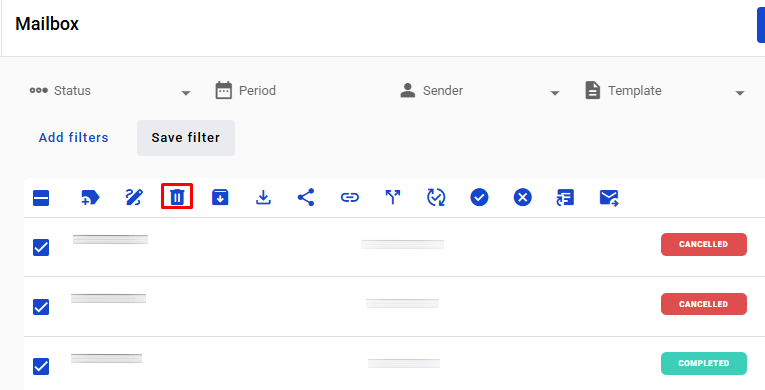
Select one or more envelopes.
Click to view the screenshot...
You can move to trash only envelopes with these statuses:
Envelopes in Trash are permanently deleted after 30 days (default). Your system admin can change this period.
Deletion happens only after all participants move the envelope to trash.
If a participant’s mailbox was deleted before they trashed the envelope, it may remain in trash indefinitely for other participants.
Recover envelopes
In Trash, select envelopes and click icon.
Click to view the screenshot...