Dropdown field

Use Dropdown field to let a participant pick one value from a predefined list.

In the envelope, it’s rendered as a dropdown. After selection, it’s shown as regular text.

You can place this field in:

  • structured documents

  • PDF documents

Add a dropdown field

  1. Open the template in edit mode.

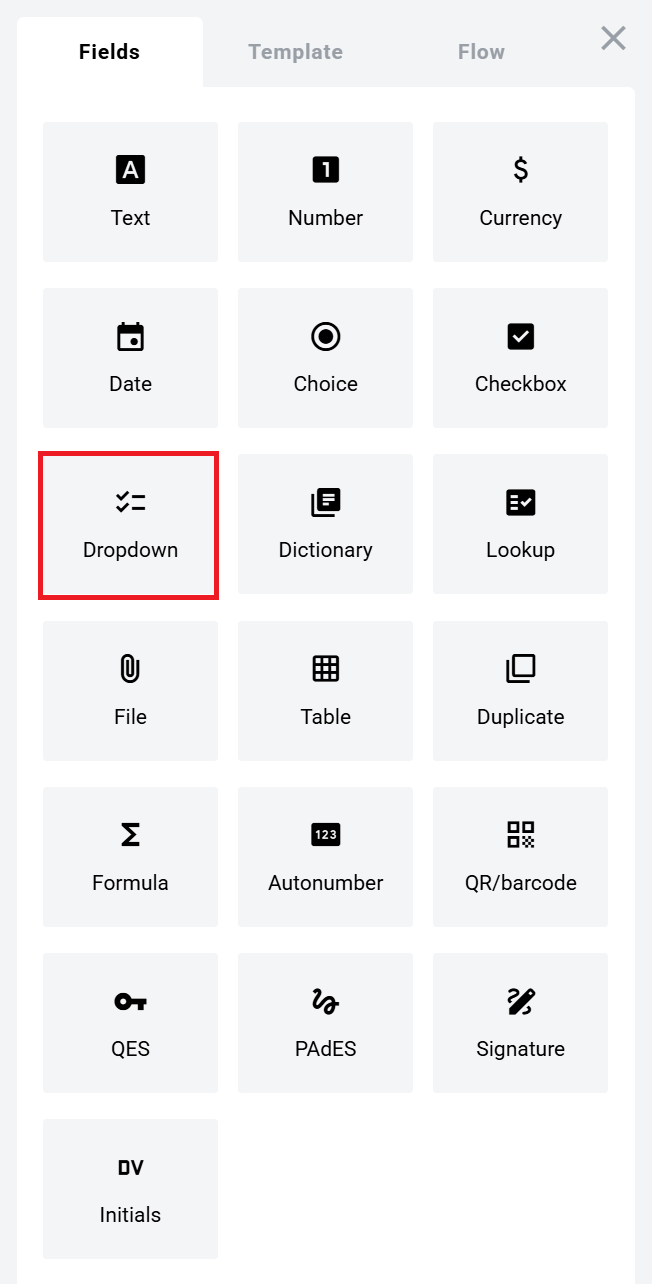
  2. Open the Fields panel.

  3. Find Dropdown field and add it to the document.

chevron-rightClick to view the screenshot...hashtag
Dropdown field in the Fields panel
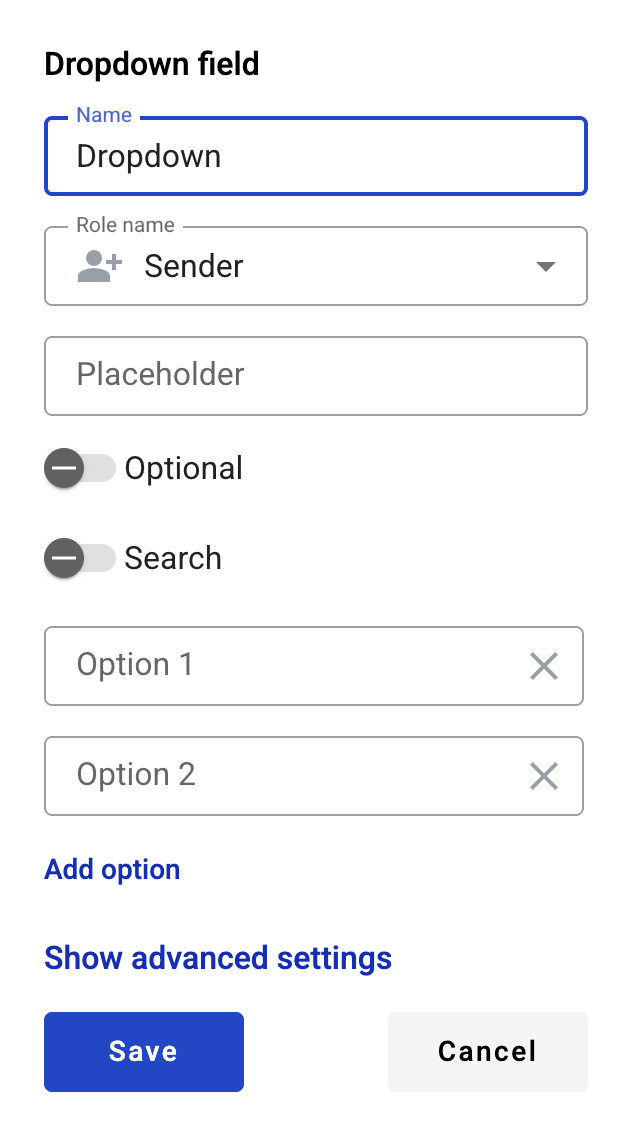
  1. Configure the field and click Save.

chevron-rightClick to view the screenshot...hashtag
Dropdown field creation form

Field settings

Click the field in the document to reopen properties and update them.

Basic settings

  • Name — field name shown in the document

  • Role name — role that fills the field

  • Placeholder — hint text shown before input. If empty, Name is used

  • Option 1, Option 2, etc. — values available for selection

  • Add option — adds more options

circle-info

Limits:

  • minimum: 1 option

  • maximum: 100 options per field

  • each option must be non-empty and 1–50 characters

Advanced settings

  • Optional — whether filling the field is required

  • Multiselect — allows selecting multiple values

  • Allow custom values — allows free text input in addition to predefined options

  • Search — whether the field is available for mailbox search

circle-exclamation

Edit or delete a dropdown field

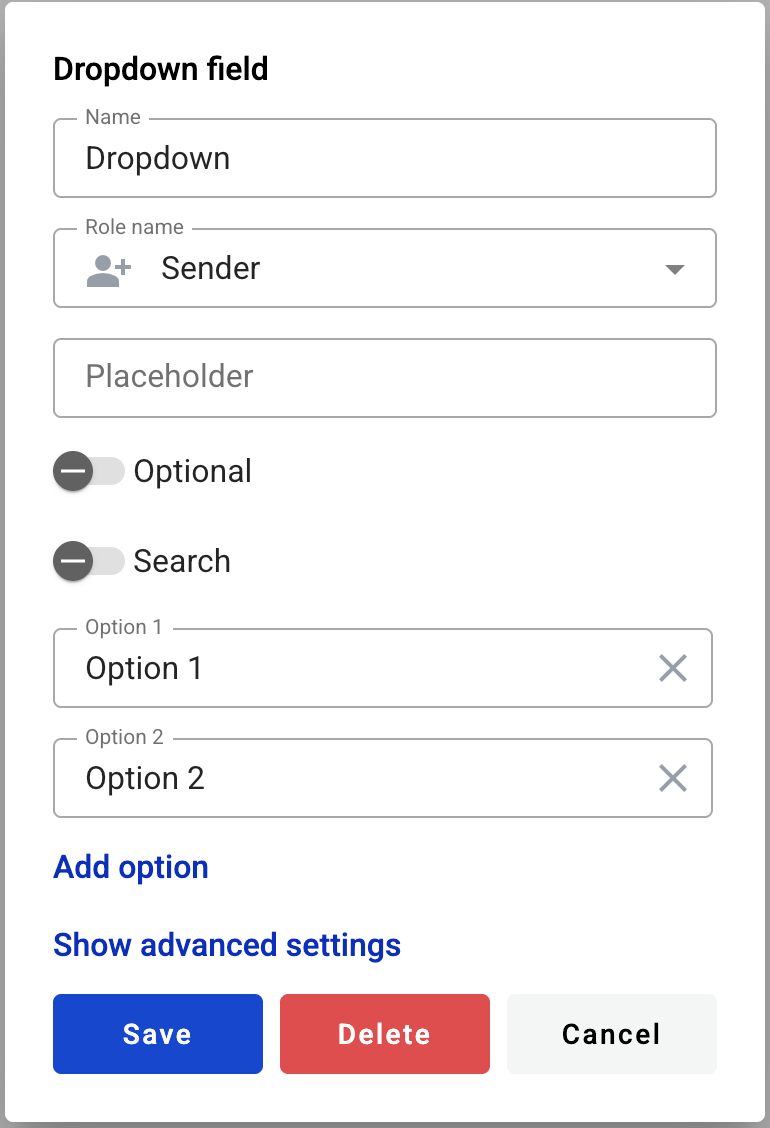
  1. Click the field in the document.

  2. Update settings in the properties panel, or delete the field there.

chevron-rightClick to view the screenshot...hashtag
Editing a dropdown field

If the selected value contains a URL, it is rendered as a normal browser link (blue + underline).

  • You can open the link from the right-click context menu (any role).

  • You can open the link with a direct click only if the field is inactive.

Last updated