Use QES field to add a qualified electronic signature placeholder to a document.
You can place this field in:
structured documents
PDF documents
external documents
Open the template in edit mode.
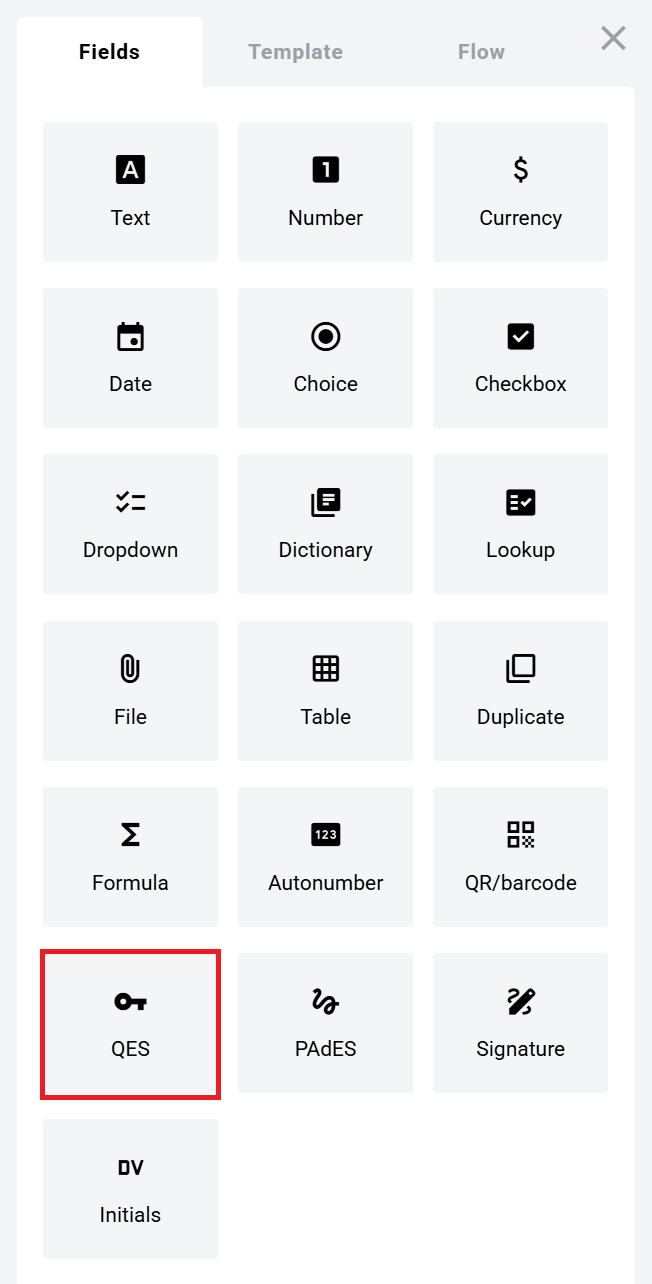
Open the Fields panel.
Find QES field and add it to the document.
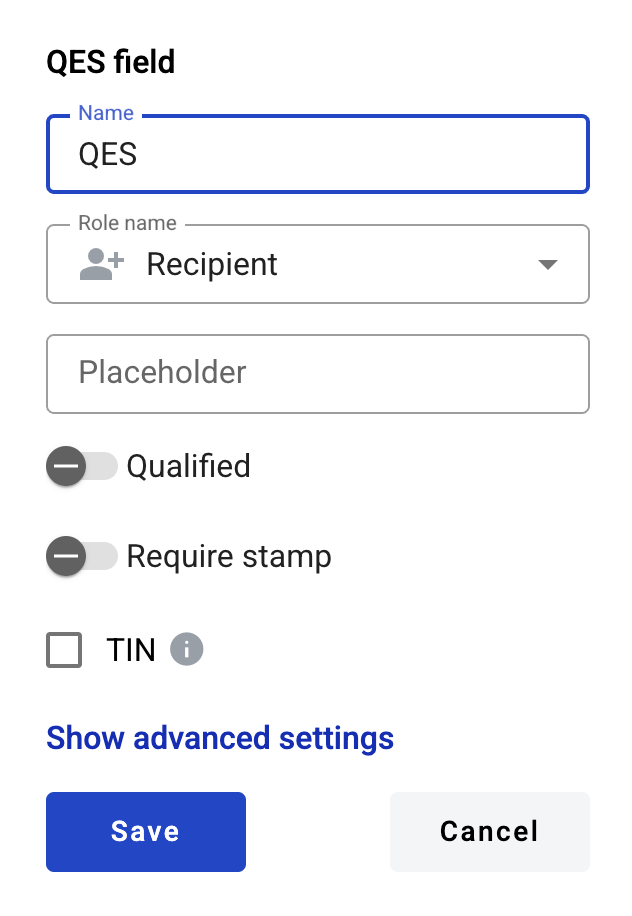
Configure the field and click Save.
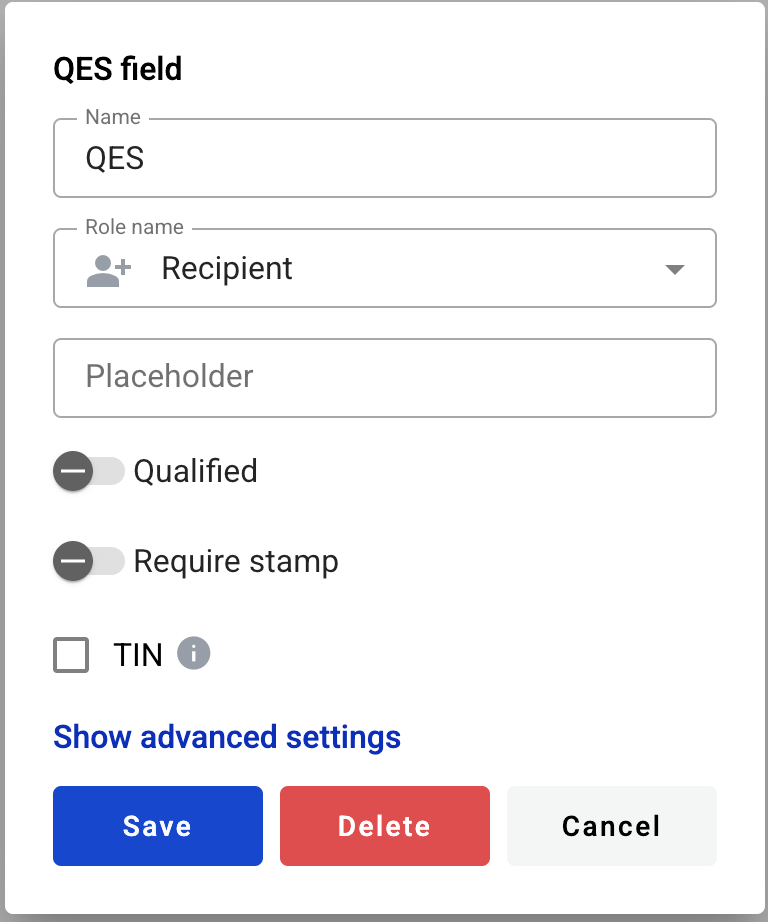
Click the field in the document to reopen properties and update them.
Name — field name shown in the document
Role name — role that signs in this field
Placeholder — hint text shown before signing; if empty, Name is used
Qualified — whether the signature is qualified
Required stamp — whether a stamp is required for signing
Use this option to restrict signing to a person with a specific TIN.
TIN — enables the restriction (available only if the template has other fields)
Document — document where the TIN field is located
TIN field — field used for the TIN check
Click the field in the document.
Update settings in the properties panel, or delete the field there.
Last updated 8 days ago