File field

Use File field to let a participant upload a file during envelope processing.

Participants can upload and download the file from the envelope.

You can place this field in:

  • structured documents

Add a file field

  1. Open the template in edit mode.

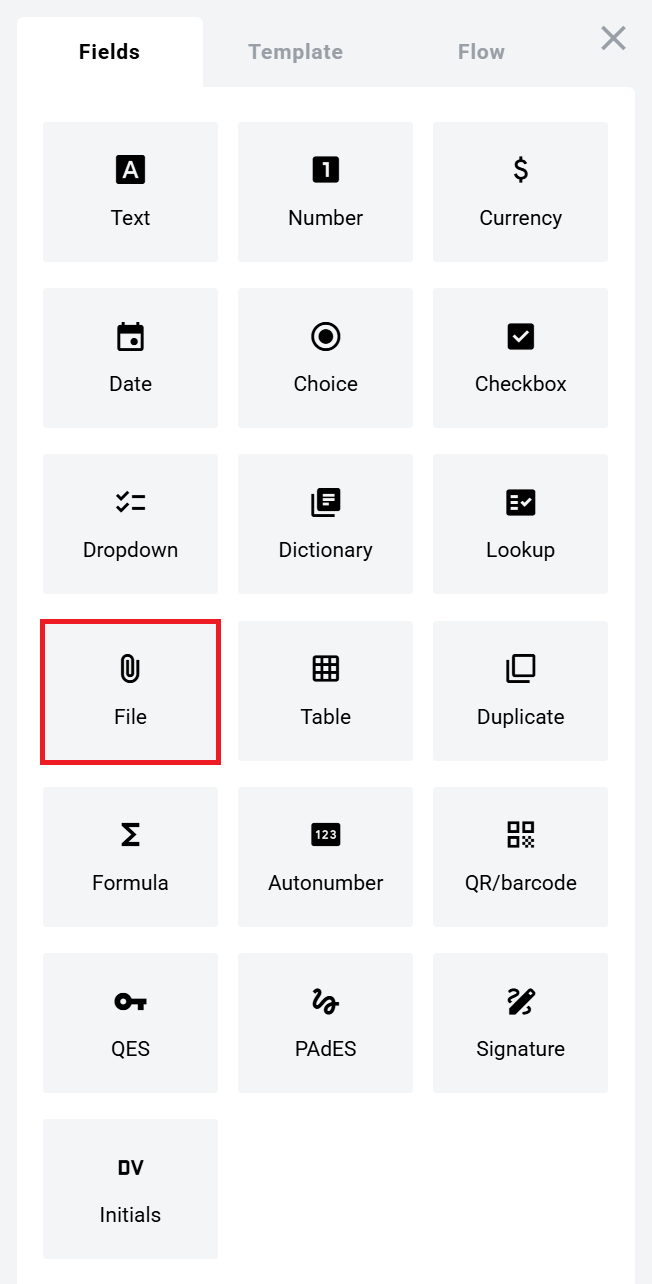
  2. Open the Fields panel.

  3. Find File field and add it to the document.

chevron-rightClick to view the screenshot...hashtag
File field in the Fields panel
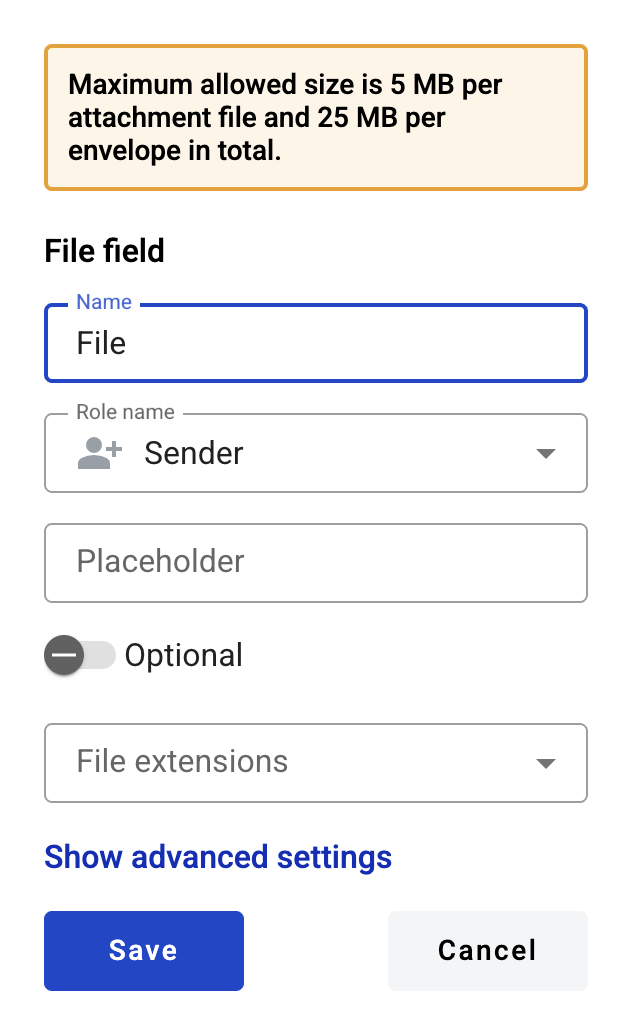
  1. Configure the field and click Save.

chevron-rightClick to view the screenshot...hashtag
File field creation form

Field settings

Click the field in the document to reopen properties and update them.

Basic settings

  • Name — field name shown in the document

  • Role name — role that uploads the file

  • Placeholder — hint text shown before upload; if empty, Name is used

  • Optional — whether uploading the file is required

  • File extension — allowed file type group

File extension values

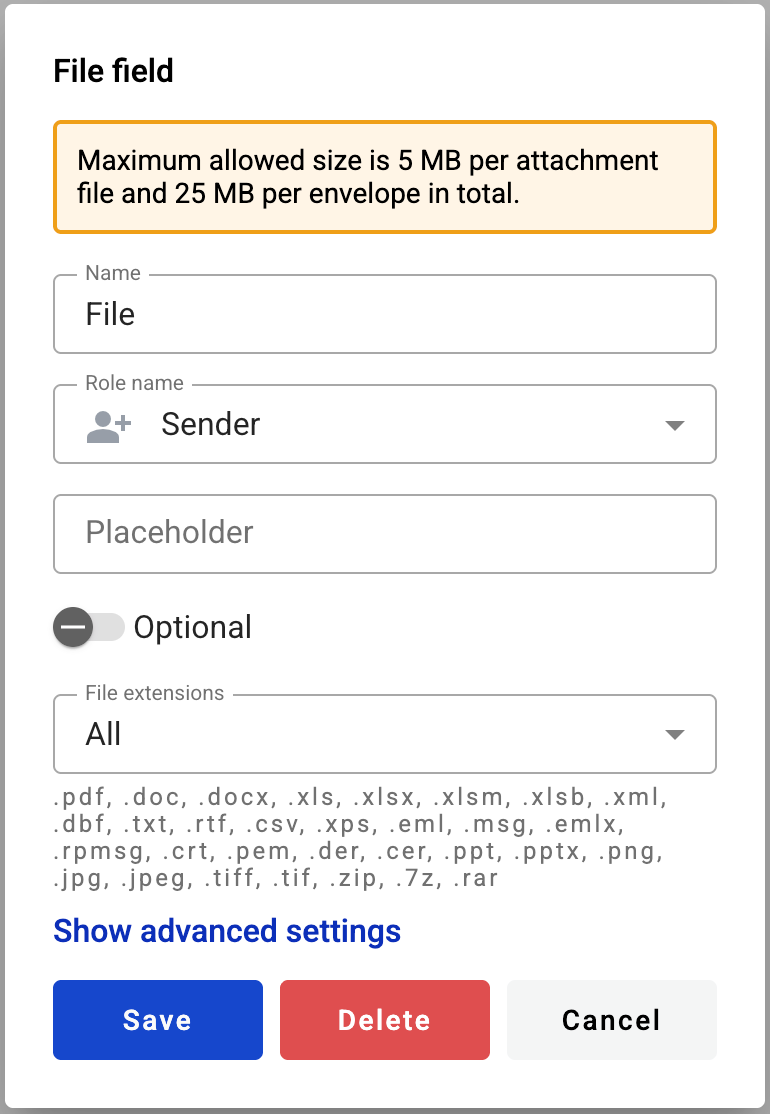
.pdf, .doc, .docx, .xls, .xlsx, .xlsm, .xml, .dbf, .txt, .rtf, .csv, .xps, .eml, .msg, .emlx, .rpmsg, .png, .jpg, .jpeg, .tiff, .tif, .zip, .7z, .rar

Limits

  • one file per field

circle-info

Upload limits are set on your instance.\n\nTypical defaults:\n\n* max file size: 5 MB\n* max total upload size per envelope: 25 MB

Fill a file field in the envelope

  1. Click the field.

  2. Select a file in the file picker.

  3. Upload completes and the file becomes available for download.

Edit or delete a file field

  1. Click the field in the document.

  2. Update settings in the properties panel, or delete the field there.

chevron-rightClick to view the screenshot...hashtag
Editing a file field

Last updated