Use filters in Mailbox to find envelopes faster. You can also sort by columns.
Open the filter panel
Click to view the screenshot...
Default filters
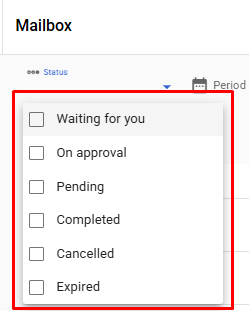
Filter by envelope status:
Click to view the screenshot...
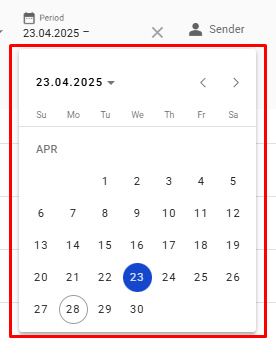
Filter by the date range when the envelope was sent or received.
Click to view the screenshot...
Filter by the sender’s mailbox.
Click to view the screenshot...
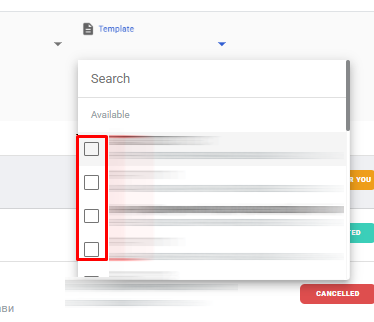
Filter by the template used to create the envelope.
The Template picker shows templates used by envelopes currently visible in your mailbox list.
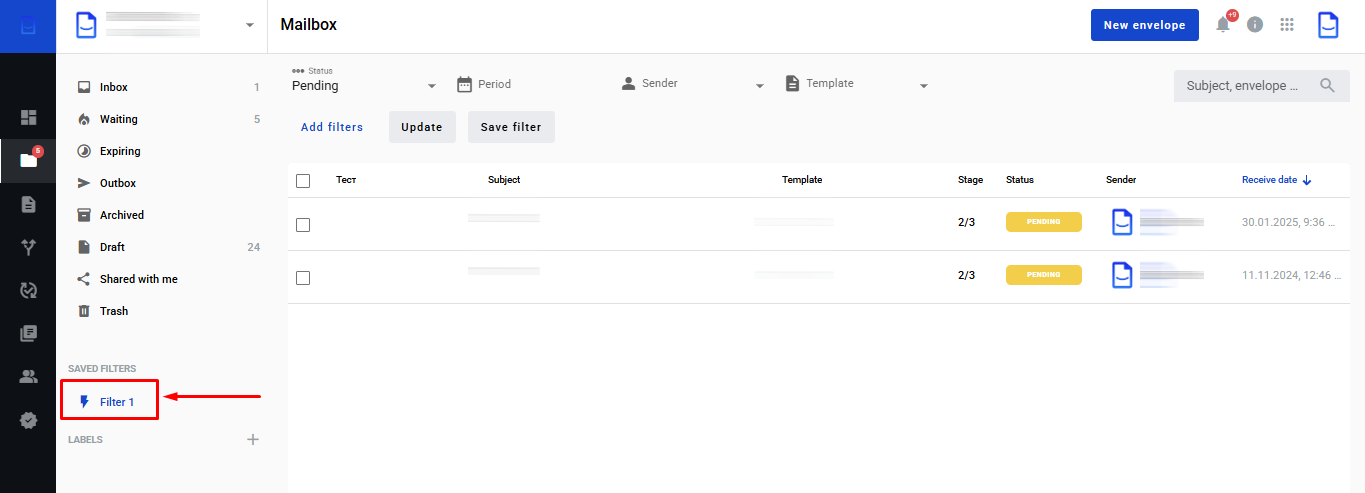
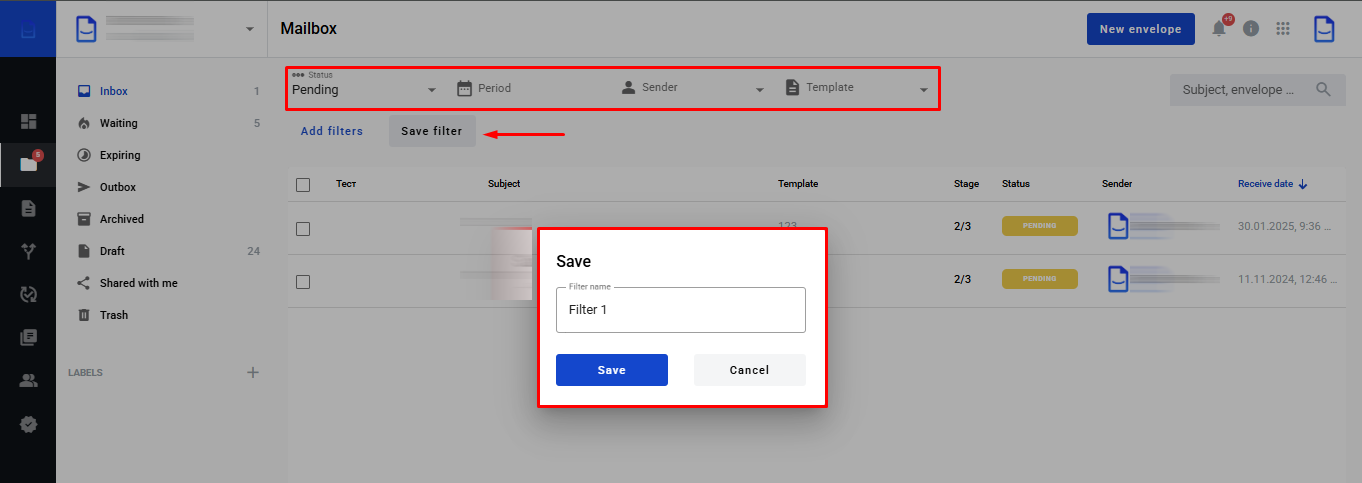
Saved filters are stored at the mailbox level.
Set the filters you need.
Click to view the screenshot...
Click to view the screenshot...
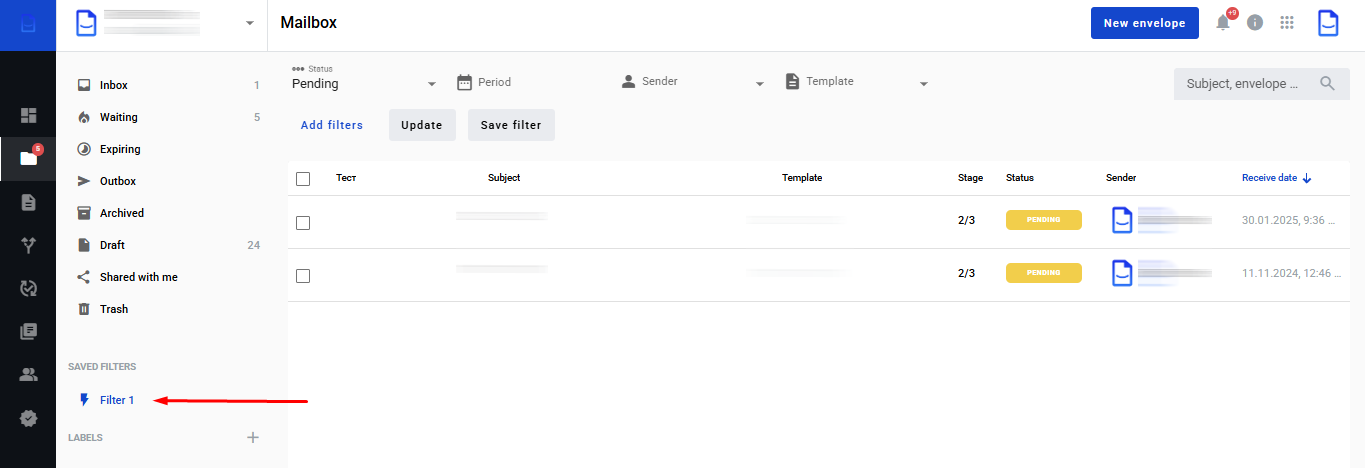
After saving, apply the saved filter in one click.
Click to view the screenshot...
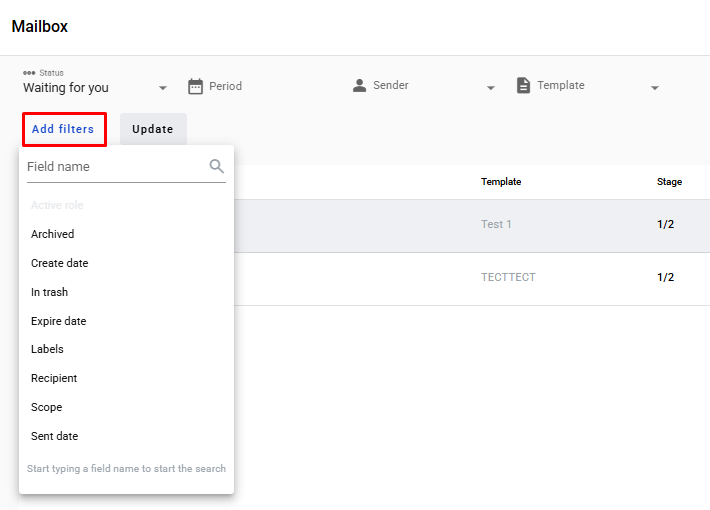
Add more filters
Select a parameter from the list.
Check the box to apply it.
Click to view the screenshot...
Click to view the screenshot...
To remove a filter, click the X (remove) icon next to it.
Filter by template fields
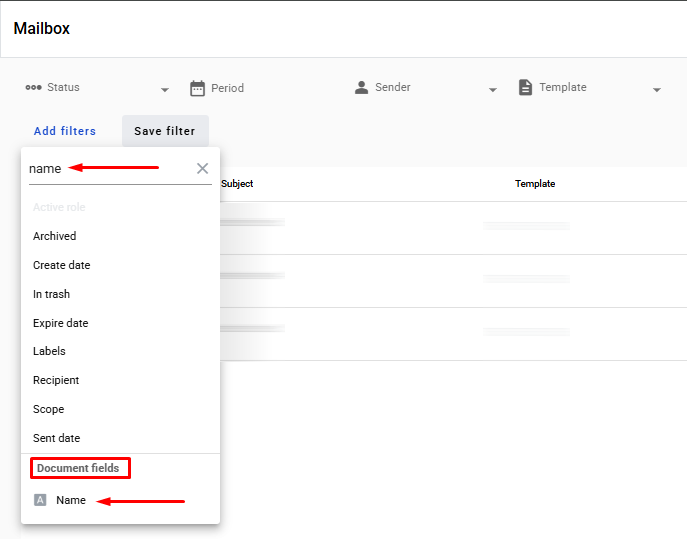
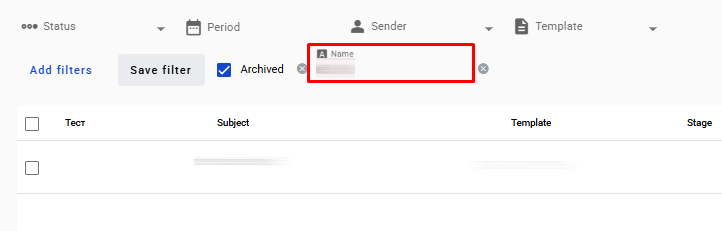
If a template field has Search enabled in its field settings, you can use that field as a filter.
Click to view the screenshot...
Click to view the screenshot...
Search by subject or envelope UUID
Use the search box to find an envelope by subject or by envelope UUID.
Click to view the screenshot...
Customize columns
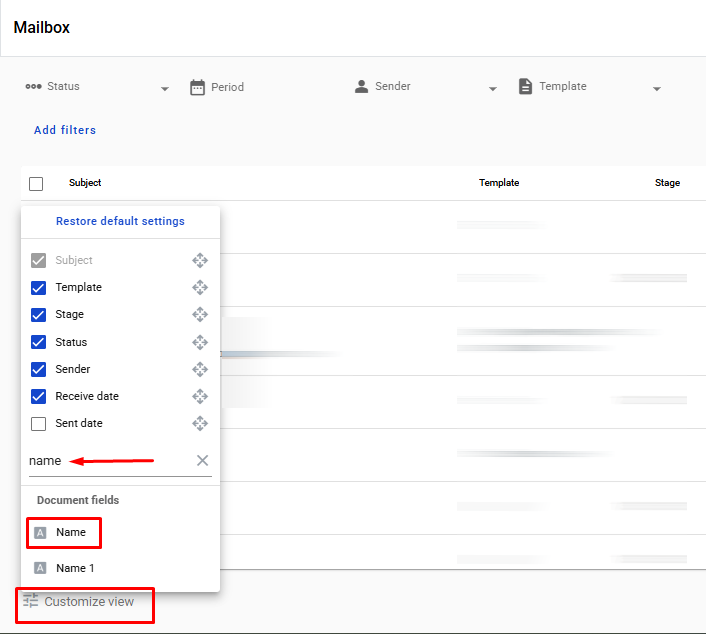
Hide columns or reorder them in the list view.
If a template field has Search enabled, you can also add it as a column by searching for its name.
Click to view the screenshot...