Dictionary creation, management and deletion
This document describes how to create, manage, and delete dictionaries in DocStudio.
This functionality is blocked if the mailbox has no permission. Dictionary editing is available only to the mailbox which is the owner of this dictionary.
Permissions
Dictionary manager allows:
creating new dictionaries
adding columns
changing columns' order
editing columns
dictionary row delete allows the deletion of records
changing the name
description and access level of dictionaries
The dictionary delete allows the deletion of dictionaries
dictionary row management allows the creation of records and the changing of values in records
Create Dictionary

Navigate to Dictionary on the sidebar menu.
Click the button.
A new dictionary will be successfully created.
Dictionary functionality

After you create a dictionary, you can configure its properties, manage rows, and manage columns.
Name: Default is New dictionary. Max 128 characters.
Description: Optional. Max 256 characters.
Allow filtered access: Controls what values are available in an envelope’s dictionary field.
Off: Any value from the selected column can be chosen.
On: Only values from rows matching other field values are returned.
Access level (default: Mailbox): Controls which mailboxes can use the dictionary.
Mailbox: Visible only to the current mailbox. Only that mailbox can select records.
Account: Visible to all mailboxes in the same account.
Public: Visible to all mailboxes.
Click Add column to add a new column. — Enter a column name. Max 64 characters.
Click Add row to add a new row (record). — Select rows using the checkbox. When at least one row is selected, Delete rows appears.
Import: Allows you to upload a dictionary from your computer.
Export: Starts an export, as soon as it's done you will receive download link to your e-mail.

If a column is less than 300 px wide, these options collapse into a single dropdown menu.
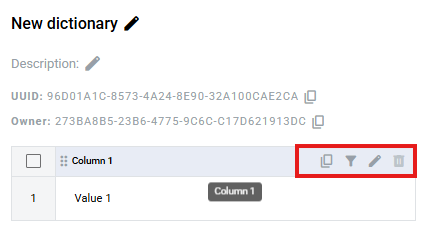
Hover the column header to open column edit options:
Copy column UUID
Filter
Rename
Delete
To delete a dictionary, click the delete icon next to it on the dictionaries list page. Then confirm.
Dictionary field behavior after deleting a dictionary or column
Template
After deleting a dictionary or a dictionary column, the template becomes invalid. Select a new dictionary/column in the dictionary field properties.
Envelope
After deleting a dictionary or a dictionary column, the dictionary field is disabled during processing. The envelope is automatically destroyed after the expiration date.
Exception: If custom values are allowed, the dictionary field behaves like a text field. You can enter a custom value.
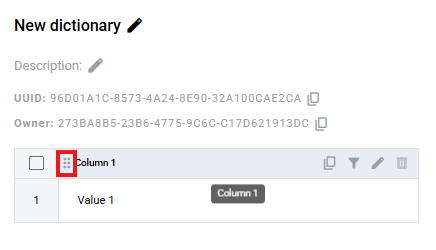
Drag this icon to reorder columns. The same order is used when creating dictionary fields.
Last updated